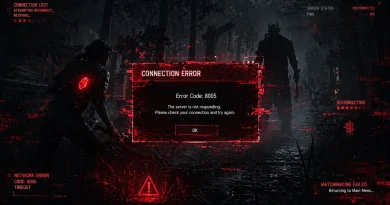
Why Does Disney Speedstorm Keep Crashing? 10 Fixes That Actually Work
You’re tearing through a Disney-themed circuit, neck and neck with the competition. Mickey’s in your rearview mirror. Moana’s right on your tail. You hit a boost pad — and then everything goes black.
Disney Speedstorm just crashed. Again.
If you’ve been asking yourself, “Why does Disney Speedstorm keep crashing?” — you’re not alone. Since its early access launch and free-to-play transition, thousands of players across PC, PlayStation 5, Xbox, and Nintendo Switch have reported the same frustrating experience: mid-race crashes, black screens, stuttering, and unexpected game closures.
The game from Gameloft is visually stunning and wildly fun — but its crash issues have been a persistent thorn in the side of its growing player base.
Here’s the good news: most of these crashes are fixable. In this guide, you’ll find out exactly why Disney Speedstorm keeps crashing and get 10 battle-tested solutions that work across all platforms. Whether you’re a casual Disney fan or a competitive circuit grinder, this guide will get you back on the track — for good. If you’re facing similar multiplayer or connection-related problems, you might also run into the ” failed to connect to Steam error code 211.
Is Disney Speedstorm Still Having Issues in 2026?
Before you tear apart your PC settings, it’s worth knowing the current state of the game.
Disney Speedstorm officially transitioned to a free-to-play model in September 2023, which brought a massive surge of new players — and with that, a wave of new server stress, compatibility issues, and performance bugs. Gameloft has been rolling out patches regularly, but player reports on forums like Reddit, Steam, and the official Disney Speedstorm Discord still mention crashes tied to:
- Seasonal content updates are causing temporary instability
- Online multiplayer modes are triggering connection drops that look like crashes
- Platform-specific bugs on Nintendo Switch and older Xbox models
- PC driver conflicts following Windows 11 updates
The crash problem isn’t universal — many players run the game flawlessly. But if you’re in the affected group, the causes are almost always identifiable. Let’s break them down.
Why Does Disney Speedstorm Keep Crashing? Root Causes Explained

Understanding the “why” is half the battle. Disney Speedstorm crashes typically fall into one of these core categories:
1. Server-Side Issues Online-only racing games like Speedstorm depend heavily on Gameloft’s servers. When servers go down or get overloaded during peak hours or event launches, the game can crash at the main menu, mid-race, or during reward screens.
2. Outdated Game Version Running an unpatched version of Disney Speedstorm is one of the most common crash triggers. Gameloft pushes frequent updates that fix known crash bugs — if your game isn’t updated, you’re running code the developers have already identified as broken.
3. Corrupt Game Files. Whether from an interrupted download, a bad update, or disk errors, corrupted game files cause random crashes that feel impossible to diagnose without knowing to look for them.
4. GPU Driver Conflicts On PC, outdated or recently updated graphics drivers are a frequent culprit. Disney Speedstorm uses Unreal Engine technology, which is sensitive to GPU driver states — especially on NVIDIA and AMD cards.
5. Insufficient Hardware or Overheating Running the game above your hardware’s capability leads to thermal throttling or sudden shutdowns. This is especially common on laptops, older consoles, or PCs that haven’t been cleaned of dust in a while.
6. Software Conflicts (PC) Background apps, overlay software (Discord, GeForce Experience, Steam overlay), antivirus programs, and system optimization tools can all interfere with Disney Speedstorm’s processes and cause crashes.
7. Platform Bugs Console-specific issues — like PS5 rest mode bugs, Xbox Quick Resume conflicts, or Nintendo Switch memory limitations — have all been documented as crash triggers in Speedstorm.
Now let’s fix each one.
Fix 1: Check Disney Speedstorm Server Status
Before spending an hour tweaking settings, spend 60 seconds checking the servers.
If Disney Speedstorm’s servers are down, the game will crash at login, during matchmaking, or mid-race — and no local fix will help. This is a known issue during major seasonal event launches when player volume spikes dramatically.
How to check:
- Visit the official Gameloft support Twitter/X account for real-time announcements
- Check Downdetector and search “Disney Speedstorm.”
- Browse the Disney Speedstorm subreddit (r/DisneySpeedstorm) — community members post server issues almost immediately
- Check the official Discord server for pinned maintenance announcements
If servers are the issue, all you can do is wait. Gameloft typically resolves outages within a few hours. Follow their social channels to get notified when service is restored.
Fix 2: Restart the Game and Your Platform
It sounds basic. It works more often than it should.
A clean restart clears corrupted memory states, resets network socket connections, and forces the game to rebuild its local session data. This resolves a surprisingly high percentage of crash scenarios — especially those caused by the game running in the background too long. Connection-related issues are also common in games like error code 8012 DBD, which is linked to server and login failures.
For PC:
- Fully close Disney Speedstorm (check Task Manager to make sure no background process lingers)
- Restart your PC completely — don’t just close and reopen
- Relaunch the game
For PS5:
- Close the game fully (don’t just put it in rest mode)
- Hold the PS button and select “Close Game.”
- Restart the console if crashes are frequent
For Xbox:
- Press the Xbox button and quit the game
- Navigate to Settings > Devices & Connections > Power Options > Restart Now
- This clears the Quick Resume cache, which is a known crash trigger
For Nintendo Switch:
- Hold the Home button and close the software
- Power off the Switch completely (not sleep mode)
- Relaunch
Fix 3: Update Disney Speedstorm to the Latest Version
This fix alone resolves a massive chunk of crash complaints.
Gameloft releases patches for Disney Speedstorm frequently — sometimes multiple times within a single season. These patches specifically address crash bugs, memory leaks, and performance instability. If your game is even one version behind, you could be experiencing a bug that’s already been patched. Stable performance is essential, especially when playing titles listed in the best games for PC to play with a controller.
PC (Steam):
- Open Steam and go to your Library
- Right-click Disney Speedstorm and click Properties
- Go to Updates and make sure “Always keep this game updated” is selected
- Click Check for Updates manually if needed
PC (Epic Games Store):
- Open Epic Games Launcher
- Go to your Library
- Disney Speedstorm will show an Update button if one is available
- Click it and wait for the process to complete
PS5 / PS4:
- Highlight Disney Speedstorm on your home screen
- Press the Options button
- Select Check for Update
Xbox:
- Press the Xbox button
- Go to My Games & Apps
- Select Updates to see pending patches
Nintendo Switch:
- Highlight the game on the Home menu
- Press +
- Select Software Update > Via the Internet
Always restart the game after updating — don’t just resume from where you left off.
Fix 4: Update Your GPU Drivers (PC Players)
This is the number one PC-specific fix for Disney Speedstorm crashes.
Graphics drivers are the bridge between your GPU hardware and the game engine. Disney Speedstorm uses advanced rendering features that are particularly sensitive to driver states. An outdated driver — or even a recently released buggy driver — can cause the game to crash on launch, during loading screens, or mid-race.
For NVIDIA Users:
- Open GeForce Experience or visit NVIDIA’s official driver download page
- Click Check for Updates under the Drivers tab
- Download and install the latest Game Ready Driver
- Perform a clean installation (check the box for clean install during setup)
- Restart your PC
For AMD Users:
- Open AMD Radeon Software
- Click the Updates icon
- Install the latest recommended driver
- Restart after installation
For Intel Arc/Integrated Graphics:
- Visit Intel’s Driver & Support Assistant page
- Run the detection tool
- Install any pending GPU updates
Gamer’s Tip: If a new driver update broke things, use DDU (Display Driver Uninstaller) in Safe Mode to fully clean the old driver before installing a previous stable version. This is the nuclear option — but it works.
Fix 5: Verify Game File Integrity (PC — Steam and Epic)
Corrupt game files are sneaky. They don’t announce themselves — they just cause random crashes that seem impossible to pin down.
A partial update, a bad download packet, or a disk write error can silently corrupt one or more game files. The good news: both Steam and Epic Games have built-in tools to detect and repair corrupted files automatically.
On Steam:
- Open Steam Library
- Right-click Disney Speedstorm
- Select Properties > Local Files
- Click Verify integrity of game files
- Wait for the scan (may take several minutes)
- Steam will automatically replace any corrupted or missing files
- Relaunch the game
On Epic Games:
- Open Epic Games Launcher
- Click the three dots next to Disney Speedstorm
- Select Manage
- Click Verify under the game files section
- Let it complete and then relaunch
Run this fix before reinstalling — it achieves the same result in a fraction of the time.
Fix 6: Lower In-Game Graphics Settings

Pushing your hardware too hard is a direct path to crashes. Disney Speedstorm is more graphically demanding than it looks — animated Disney environments, particle effects, character abilities, and real-time lighting all add up fast.
If the game crashes specifically during intense racing moments, ability activations, or cutscenes, your GPU or CPU is likely hitting its limit.
Settings to reduce:
- Resolution Scale — Drop from 100% to 80–85%
- Shadow Quality — Set to Medium or Low
- Anti-Aliasing — Switch from TAA to FXAA, or disable
- Texture Quality — Lower by one tier
- Effects Quality — Reduce to Medium
- V-Sync — Enable V-Sync to cap frame rate and reduce GPU strain
Frame rate target:
- If you’re targeting 60 FPS and crashing, try capping at 30 FPS temporarily to diagnose thermal throttling
- For competitive players, 60 FPS with medium settings is more stable than 144 FPS with ultra settings
These changes won’t make the game ugly — Disney Speedstorm still looks gorgeous at medium settings. But stability beats eye candy every time.
Fix 7: Clear Cache and Temporary Files
Over time, Disney Speedstorm builds up cached data — shader compilations, session logs, temporary textures — that can become corrupted and trigger crashes. Clearing this data forces the game to rebuild clean files.
PC — Clear Windows Temp Files:
- Press Windows + R, type %temp%, hit Enter
- Select all files (Ctrl + A) and delete
- Skip any files that can’t be deleted (click “Skip”)
PC — Clear Shader Cache (NVIDIA):
- Open NVIDIA Control Panel
- Go to Manage 3D Settings
- Scroll to Shader Cache Size and click Clear
Steam — Clear Download Cache:
- Open Steam > Settings
- Click Downloads
- Click Clear Download Cache
- Log back in and relaunch
PS5 — Rebuild Database:
- Power off the PS5 completely
- Hold the power button until you hear two beeps (enters Safe Mode)
- Select Rebuild Database
- Note: This takes time, but doesn’t delete your saves
Xbox — Clear Persistent Storage:
- Go to Settings > Devices & Connections > Blu-ray
- Select Persistent Storage > Clear Persistent Storage
Nintendo Switch — Clear Cache:
- Go to System Settings > System > Formatting Options
- Select Clear Cache and choose Disney Speedstorm
Fix 8: Check System Requirements and Monitor for Overheating
Is your hardware actually capable of running Disney Speedstorm without crashing? Let’s find out.
Disney Speedstorm Minimum PC Requirements:
- OS: Windows 10 64-bit
- CPU: Intel Core i5-4460 / AMD Ryzen 3 1200
- RAM: 8 GB
- GPU: NVIDIA GTX 960 / AMD RX 470 (4GB VRAM)
- Storage: 20 GB available
- DirectX: Version 11
Recommended PC Requirements:
- CPU: Intel Core i7-8700K / AMD Ryzen 5 3600X
- RAM: 16 GB
- GPU: NVIDIA RTX 2060 / AMD RX 5700 XT (8GB VRAM)
- DirectX: Version 12
If your system barely meets minimum specs, crashes are expected — especially during graphically intense moments.
Monitoring Overheating: Use MSI Afterburner or HWMonitor to track temperatures while playing:
- CPU should stay below 85°C
- GPU should stay below 83°C
If temperatures spike above these levels before the crash, thermal throttling is your culprit.
Solutions for overheating:
- Clean dust from PC fans and vents
- Reapply thermal paste (advanced)
- Improve airflow in your case
- Use a laptop cooling pad if you’re on a notebook
- Reduce graphics settings (Fix 6)
Fix 9: Reinstall Disney Speedstorm
If you’ve tried everything above and the game still crashes, a clean reinstall is your next move.
A full reinstallation replaces every local game file, eliminates corrupted data that verification might miss, and resets all local configuration files to default.
Before reinstalling:
- Note your in-game progress — it’s tied to your Gameloft/platform account, not local files
- You won’t lose purchased content or season progress
PC (Steam):
- Right-click Disney Speedstorm in the Library
- Select Manage > Uninstall
- Once complete, navigate to C:\Program Files (x86)\Steam\steamapps\common\
- Delete any remaining Disney Speedstorm folder
- Reinstall from Steam
PC (Epic):
- Click the three dots next to the game
- Select Uninstall
- Delete any remaining files in the install directory
- Reinstall fresh
Console Reinstallation: Delete and reinstall directly from your platform’s game library. Your profile data stays safe in the cloud.
Fix 10: Platform-Specific Fixes
Some crashes are baked into platform-specific behaviors. Here are targeted fixes by console:
PS5 Fixes
Disable Rest Mode During Play: Rest mode on PS5 can interrupt active game sessions and cause crashes on resume.
- Go to Settings > System > Power Saving
- Set “Put PS5 in Rest Mode” to Don’t Put in Rest Mode
Rebuild PS5 Database: As mentioned in Fix 7, this fixes a wide range of game crashes on PS5 and should be the first advanced step PS5 players try.
Xbox Series X|S and Xbox One Fixes
Disable Quick Resume: Quick Resume is convenient, but it causes serious issues with online games like Disney Speedstorm.
- Press the Xbox button
- Go to the game in My Games & Apps
- Press the Menu button > Manage game and add-ons
- Select Disable Quick Resume
Power Cycle Your Xbox:
- Hold the Xbox button on the console for 10 seconds
- Unplug the power cable for 60 seconds
- Plug back in and restart
Nintendo Switch Fixes
Play in Docked Mode: Disney Speedstorm is more stable in docked mode due to better thermal management. Handheld mode throttles performance, which can cause crashes.
Free Up Storage Space: Switch crashes often relate to insufficient storage. Ensure you have at least 2–3 GB free beyond the game’s install size for cache and update files.
Check for Joy-Con Drift: Ironically, severe Joy-Con drift in racing games causes input overloads that can freeze or crash the game on Switch.
Disney Speedstorm Crashing by Platform — Quick Reference Table
| Platform | Most Common Crash Cause | Top Fix |
| PC (Steam) | Corrupt files / GPU drivers | Verify files + Update drivers |
| PC (Epic) | Outdated drivers/temp cache | Update GPU + Clear cache |
| PS5 | Rest mode interruption | Disable rest mode + Rebuild DB |
| Xbox Series X | Quick Resume conflict | Disable Quick Resume |
| Xbox One | Underpowered hardware | Lower settings + Power cycle |
| Nintendo Switch | Thermal throttling/storage | Docked mode + Free storage |
When Nothing Works — Contact Gameloft Support
If you’ve gone through every fix above and Disney Speedstorm still crashes consistently, it’s time to escalate.
Gameloft Support:
- Visit the official Gameloft Help Center
- Submit a ticket with your platform, device specs, and a description of when the crash occurs
- Include any error codes if shown
Community Resources:
- r/DisneySpeedstorm on Reddit — an active community where crash threads often contain platform-specific solutions before they appear in official guides
- Official Disney Speedstorm Discord — dev team members occasionally respond to crash reports in dedicated channels
Providing detailed crash reports actually helps Gameloft fix issues faster in patches — so it’s worth doing even if your problem gets resolved another way.
Final Thoughts
Disney Speedstorm is one of the most visually exciting free-to-play racers available right now — but crashes can turn a great gaming session into a frustrating ordeal. The question “Why does Disney Speedstorm keep crashing?” has no single answer, because the cause depends on your platform, hardware, and game version.
The smartest approach is systematic: start with the easiest fixes (restart, update, check servers) and work your way toward the deeper solutions (driver updates, file verification, reinstallation). Most players find their fix within the first three or four methods.
Keep your drivers updated, your game version current, and your hardware cool — and Disney Speedstorm will reward you with the smooth, fast, magical racing experience it was designed to deliver.
Now get back on that track. Mickey’s not going to beat himself.