

DBD Error Code 8012: Complete Fix Guide in 2026
You load up Dead by Daylight, pick your survivor or killer, queue up for a match — and then the screen goes dark. A cold, unhelpful error message appears: Error Code 8012.
No explanation. No clear fix. Just you, the error, and a growing sense of frustration.
If you are a Dead by Daylight player who has encountered DBD error code 8012, you are far from alone. This particular error has been one of the most consistently reported connection issues in the DBD community for years, appearing across PC, PlayStation, Xbox, and Nintendo Switch. It interrupts gameplay, breaks mid-match sessions, and at its worst, can lock you out of the game entirely. If you’re facing similar issues, you may also encounter DBD error code 8028 on Epic Games, which requires a slightly different fix.
The good news: in the vast majority of cases, error code 8012 is fixable — and fixable fast.
This guide covers every known cause and every working fix for DBD error code 8012, organized from the simplest to the most advanced. Whether you are on PC via Steam, playing on PS5, grinding on Xbox, or running DBD on Switch, this guide has a solution for you.
If you’re facing similar multiplayer issues, you may also encounter the failed to connect to Steam error 211 code, which often appears during login or server connection problems.
By the end, you will understand exactly what this error means, how to resolve it step by step, and how to prevent it from disrupting your matches in the future.
What Is DBD Error Code 8012?
Dead by Daylight error code 8012 is a network connectivity error. Specifically, it indicates that your game client has failed to establish or maintain a stable connection with Behaviour Interactive’s dedicated game servers.
In plain terms: your game tried to talk to the servers, something went wrong in that communication, and the session failed.
This error can appear at several points:
- During the main menu, while the game attempts to log you into its online services
- In the pre-game lobby while matchmaking
- During an active match, when the connection drops mid-game
- After a game update, when the authentication processes change
It is classified as a server-side communication error, which means it can be caused by problems on the server end, on your network end, or — often — somewhere in between.
Understanding this dual nature is important because it determines how you troubleshoot it. Some instances of error 8012 require you to simply wait. Others require hands-on fixes to your network or game installation.
What Causes Error Code 8012 in Dead by Daylight?
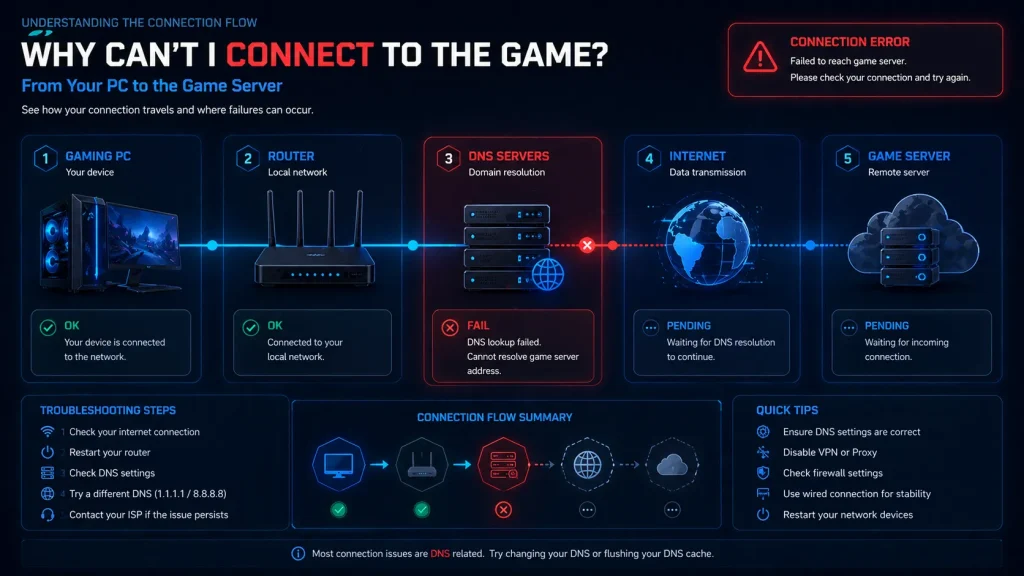
There is not a single cause behind this error. It is a broad connectivity failure that can be triggered by multiple underlying problems:
Server-Side Issues Behaviour Interactive’s servers occasionally experience outages, high traffic, or maintenance windows. When the servers themselves are down or degraded, error 8012 appears for all affected users regardless of their personal network quality.
Unstable Internet Connection: Packet loss, high latency, or intermittent drops in your connection can prevent the game from maintaining its handshake with the servers. Even brief interruptions are enough to trigger the error.
NAT Type Restrictions: The NAT (Network Address Translation) type determines how your router handles incoming and outgoing connections. A strict or moderate NAT type can prevent Dead by Daylight from establishing peer-to-peer connections within its dedicated server architecture, causing error 8012.
DNS Resolution Failures: Your DNS server translates domain names into IP addresses. If your DNS is slow, overloaded, or misconfigured, it can fail to resolve Behaviour Interactive’s server addresses fast enough, causing connection timeouts that trigger the error.
Firewall or Antivirus Blocking Security software on PC can intercept Dead by Daylight’s outgoing connection attempts and block them, particularly after game updates that change the ports or protocols the game uses.
Corrupted Game Files Damaged or incomplete game files — often caused by interrupted updates or storage errors — can cause the game to fail authentication or network initialization, producing error 8012.
VPN or Proxy Interference: Active VPN connections can route your game traffic through servers that are geographically distant from Behaviour Interactive’s infrastructure or that are flagged for unusual traffic, causing connection failures.
Platform Network Service Outages. On consoles, PlayStation Network, Xbox Live, or Nintendo Online outages affect all online games, including Dead by Daylight. If the underlying platform network is degraded, error 8012 follows.
First Steps: Before You Do Anything Else
Before working through the full troubleshooting list, spend two minutes on these quick checks. They resolve error 8012 in a surprising number of cases:
- Close Dead by Daylight completely
- Restart your console or PC
- Check that your internet connection is active and stable
- Make sure your platform account (PSN, Xbox Live, Nintendo Online) is not in maintenance
These basic steps clear temporary errors, refresh network connections, and rule out the most superficial causes. If the error persists after this, move to the targeted fixes below.
Fix 1: Check Dead by Daylight Server Status

This is always the correct starting point for any online game error.
If Behaviour Interactive’s servers are down or experiencing degraded performance, no amount of personal troubleshooting will fix your connection. You need to know whether the problem is theirs before investing time in fixes that will not work.
How to check:
Visit the official Dead by Daylight server status page maintained by Behaviour Interactive. You can find real-time server status updates at:
https://deadbydaylight.com/en/news — Behaviour Interactive posts maintenance and outage announcements here.
https://twitter.com/DeadByBHVR — The official Dead by Daylight Twitter/X account posts real-time updates on server issues, maintenance windows, and known errors as they occur.Other Dead by Daylight issues, like DBD error code 8005, can also occur due to server instability or Epic Games connection problems.
For third-party tracking, Downdetector (downdetector.com/status/dead-by-daylight) aggregates user-reported outage data in real time and shows historical outage patterns.
If the servers are confirmed down or degraded, wait for Behaviour Interactive to restore service. This is not within your control to fix.
If server status shows all systems operational, the issue is on your end, and the fixes below will resolve it.
Fix 2: Restart the Game and Platform Completely
A full restart — not just closing and reopening the game — forces all network connections, authentication tokens, and game processes to reinitialize from scratch.
On PC (Steam):
- Quit Dead by Daylight completely
- Close Steam entirely (right-click the Steam icon in the system tray and select Exit)
- Restart your computer
- Reopen Steam and launch Dead by Daylight
On PS4/PS5:
- Press and hold the PS button
- Close the Dead by Daylight application
- Go to Settings and restart the console (not rest mode — a full power cycle)
- Relaunch the game
On Xbox:
- Press the Xbox button and navigate to Dead by Daylight
- Press the Menu button and select Quit
- Hold the Xbox power button for 10 seconds to perform a hard shutdown
- Unplug the power cable for 30 seconds, then restart
- Relaunch Dead by Daylight
On Nintendo Switch:
- Return to the Home menu and close the Dead by Daylight software
- Power off the Switch completely using the power button
- Restart and relaunch the game
A full hardware restart resolves many instances of error 8012 that are caused by stale network states or corrupted session data.
Fix 3: Check and Reset Your Internet Connection
Dead by Daylight requires a stable, low-latency connection to function. Test your connection quality and reset your networking hardware.
Step 1: Run a Speed and Stability Test. Visit fast.com or speedtest.net to check your current download speed, upload speed, and ping. For Dead by Daylight:
- Minimum recommended: 3 Mbps download, 1 Mbps upload
- Recommended for stable play: 10+ Mbps download, 5+ Mbps upload, under 80ms ping
Step 2: Power Cycle Your Router and Modem
- Unplug both your router and modem from power
- Wait a full 60 seconds — this clears the device’s memory and forces a fresh connection negotiation with your ISP
- Plug the modem back in first and wait for it to fully connect (all indicator lights stable)
- Then plug in the router and wait for it to initialize
- Reconnect your device and relaunch Dead by Daylight
Step 3: Switch to a wired connection if possible. Wi-Fi connections introduce variable latency and occasional drops that are sufficient to trigger error 8012. A wired Ethernet connection provides significantly more stable performance for online gaming. If you are on Wi-Fi and experiencing frequent errors, try a wired connection, even temporarily, to test whether that is the source.
Fix 4: Change Your DNS Settings
Your default DNS server — usually provided by your ISP — is not always the fastest or most reliable. Switching to a public DNS server can improve connection reliability to game servers.
The two most recommended public DNS options for gaming are:
Google Public DNS:
- Primary: 8.8.8.8
- Secondary: 8.8.4.4
Cloudflare DNS (often fastest for gaming):
- Primary: 1.1.1.1
- Secondary: 1.0.0.1
How to change DNS on Windows:
- Go to Control Panel → Network and Internet → Network Connections
- Right-click your active connection and select Properties
- Select Internet Protocol Version 4 (TCP/IPv4) and click Properties
- Select “Use the following DNS server addresses.”
- Enter your preferred DNS values and click OK
How to change DNS on PS4/PS5:
- Go to Settings → Network → Set Up Internet Connection
- Choose your connection type and select Custom
- When prompted for DNS settings, select Manual
- Enter your preferred DNS addresses
- Complete setup and test the connection
How to change DNS on Xbox:
- Go to Settings → General → Network Settings → Advanced Settings → DNS Settings
- Select Manual and enter your preferred DNS values
After changing the DNS, restart the game and test whether error 8012 persists.
Fix 5: Fix NAT Type Issues
NAT type is one of the most overlooked causes of persistent connection errors in online games. Dead by Daylight performs best with NAT Type 1 (Open) or NAT Type 2 (Moderate). NAT Type 3 (Strict) frequently causes error 8012.
Check Your NAT Type:
- PS4/PS5: Settings → Network → View Connection Status
- Xbox: Settings → General → Network Settings (shows NAT type on the main screen)
- PC: This is less directly visible but corresponds to your router’s UPnP settings
How to Open Your NAT Type:
The most reliable method is enabling UPnP (Universal Plug and Play) on your router:
- Log in to your router’s admin panel (usually accessed at 192.168.1.1 or 192.168.0.1 in your browser)
- Find the UPnP settings (usually under Advanced or Network settings)
- Enable UPnP and save settings
- Restart your router
Alternatively, you can set up port forwarding for Dead by Daylight. The ports used by DBD vary by platform but generally include UDP port 7777 and TCP/UDP ports used by Steam (27015–27030, 27036–27037) or console network services.
For detailed port forwarding instructions specific to your router model, the community resource at portforward.com provides step-by-step guides for virtually every router manufacturer.
Fix 6: Flush DNS and Reset Network Stack (PC Only)
For PC players, accumulated DNS cache and corrupted network configurations can cause persistent connection errors that a simple restart does not resolve.
How to Flush DNS on Windows:
- Press Windows Key + X and select Command Prompt (Admin) or Windows PowerShell (Admin)
- Type the following commands one at a time, pressing Enter after each:
netsh winsock reset
netsh int ip reset
ipconfig /release
ipconfig /flushdns
ipconfig /renew
- Restart your computer after running all commands
- Relaunch Steam and Dead by Daylight
This process clears your DNS cache, resets your network socket, and forces Windows to re-establish all network configurations from scratch. It is one of the most effective fixes for persistent network errors in PC games, including DBD error code 8012.
Fix 7: Disable VPN or Proxy
If you are using a VPN or proxy service, disable it completely before launching Dead by Daylight.
VPNs route your traffic through intermediary servers, which can significantly increase latency, route your connection through IP addresses flagged by Behaviour Interactive’s systems, or introduce connection instability that triggers error 8012.
This applies even to paid, premium VPN services. The additional network hop introduced by any VPN creates potential failure points that do not exist in a direct connection.
Turn off your VPN, restart Dead by Daylight, and test whether the error resolves. If you were using a VPN specifically for privacy while gaming, consider whether the gameplay disruption is worth the trade-off.
Fix 8: Check Firewall and Antivirus Settings (PC)
Windows Defender Firewall and third-party antivirus software can block Dead by Daylight’s network communications, particularly after updates that change the game’s executable or network behavior.
Add Dead by Daylight as a Firewall Exception:
- Open Windows Security → Firewall and Network Protection
- Click “Allow an app through firewall”
- Click Change Settings and then Allow Another App
- Browse to your Dead by Daylight installation folder and add the game executable
- Ensure both Private and Public boxes are checked
- Click OK and restart the game
Check Antivirus Software:
- Open your antivirus application
- Navigate to the exclusions or exceptions list
- Add the Dead by Daylight installation folder and executable to the exclusion list
- This prevents the antivirus from scanning game files during active gameplay, which can cause network disruptions
If you are unsure whether your firewall is the cause, temporarily disable it, launch Dead by Daylight, and test. If the error disappears, the firewall was blocking the game. Re-enable the firewall and add the proper exception rather than leaving it disabled.
Fix 9: Verify Game Files on Steam (PC)
Corrupted or missing game files are a common cause of error 8012 on PC. Steam’s file verification tool checks every game file against the correct version and replaces anything damaged or missing.
How to Verify Dead by Daylight Files on Steam:
- Open Steam and go to your Library
- Right-click Dead by Daylight and select Properties
- Click the Local Files tab
- Click Verify Integrity of Game Files
- Wait for the process to complete — this can take several minutes
- Steam will automatically download and replace any corrupted files
- Restart the game after verification completes
This fix is particularly effective if error 8012 started appearing after a game update, as updates can sometimes introduce file inconsistencies on systems with storage issues or that had their download interrupted.
Fix 10: Platform-Specific Fixes
PlayStation 4 and PlayStation 5
Rebuild PS4/PS5 Database: A corrupted database on PlayStation can cause connection and authentication errors in online games.
- Power off the console completely
- Hold the power button until you hear two beeps to enter Safe Mode
- Select option 5: Rebuild Database
- Wait for the process to complete and restart normally
Check PSN Status: Visit the official PlayStation Network service status page at status.playstation.com to confirm PSN is operational before troubleshooting further.
Check Dead by Daylight Application Data: Go to Settings → Storage → System Storage → Saved Data → Dead by Daylight and ensure application data is not corrupted. Deleting and redownloading application data (not saved data) can resolve authentication errors.
Xbox One and Xbox Series X/S
Clear Xbox Cache:
- Press and hold the Xbox button for 10 seconds to power off completely
- Unplug the power brick for 30 seconds
- Hold the power button on the console (not the controller) while plugging the power back in
- This clears the cache and forces a fresh connection on restart
Check Xbox Live Status: Microsoft maintains a real-time Xbox Live service status page at support.xbox.com/en-US/xbox-live-status. Confirm Xbox Live services are operational before further troubleshooting.
Check Network Statistics: Xbox provides detailed network statistics, including packet loss and latency, directly in Settings → General → Network Settings → Detailed Network Statistics. Packet loss above 1% or latency above 150ms will cause persistent connection errors in Dead by Daylight.
Nintendo Switch
Check Nintendo Online Service Status: Visit status.nintendo.com to confirm Nintendo’s online services are operational.
Update System Software: Outdated Switch system software can cause compatibility issues with online games. Go to System Settings → System → System Update and install any available updates.
Check Wireless Signal Strength: The Switch relies entirely on Wi-Fi. If your signal strength is weak, you will experience intermittent connection issues, including error 8012. Move closer to your router or consider a Wi-Fi extender for your gaming area.
Fix 11: Reinstall Dead by Daylight
If every other fix has failed, a clean reinstall eliminates any underlying installation corruption that no other fix can address.
On PC (Steam):
- Go to Steam Library, right-click Dead by Daylight, and select Manage → Uninstall
- Navigate to the Steam/steamapps/common folder and manually delete any remaining Dead by Daylight folders
- Restart Steam and reinstall the game
On Console:
- Delete the game application from your console storage
- On PlayStation: also delete the application’s saved data if prompted (keep your cloud save)
- Redownload and install Dead by Daylight fresh from the PlayStation Store, Microsoft Store, or Nintendo eShop
A clean reinstall is the nuclear option — it takes time but resolves issues that no other fix can reach.
When to Contact Behaviour Interactive Support
If you have worked through every fix above and error 8012 continues appearing, it is time to escalate to official support.
Contact Behaviour Interactive directly through their official support portal at support.deadbydaylight.com. When submitting a ticket, include:
- Your platform (PC, PS5, Xbox, Switch)
- Your region and ISP
- The exact error message text
- A description of when the error appears (login, matchmaking, mid-match)
- A list of fixes you have already tried
- Any relevant screenshots or video
Behaviour Interactive’s support team has visibility into account-level issues, server-side logs, and platform-specific bugs that cannot be diagnosed or resolved through personal troubleshooting. Server-related problems can also affect gameplay performance, especially in titles listed under the best games for PC with controller support.
Their official support knowledge base also maintains up-to-date articles on known errors, including error code 8012 with platform-specific guidance as new fixes are discovered.
How to Prevent DBD Error Code 8012 From Returning
Once you have resolved the error, a few habits will significantly reduce the chances of it coming back:
Keep the Game Updated. Always install Dead by Daylight updates promptly. Outdated game versions can develop authentication issues with updated servers.
Keep Your Platform Updated. Outdated console firmware or PC network drivers can cause compatibility issues. Regularly update your system software, router firmware, and network adapter drivers on your PC.
Use a Wired Connection for Serious Sessions. For competitive or extended play sessions, a wired Ethernet connection eliminates the variable that Wi-Fi introduces into your connection stability.
Periodically Clear Your DNS Cache On PC, flushing your DNS cache once a month prevents accumulated stale records from causing connection issues.
Monitor Server Status Before Long Sessions. Before settling in for a long gaming session, quickly check the DBD server status and your platform’s network status. Identifying a server issue before you invest time saves significant frustration.
Authoritative Outbound References
For further reading and official support, the following authoritative sources are directly relevant to resolving DBD error code 8012:
1. Behaviour Interactive Official Support Portal support.deadbydaylight.com — The official Dead by Daylight help center maintained by the game’s developer. Contains up-to-date error code documentation, platform-specific troubleshooting guides, and the ability to submit support tickets directly to the development team. This is the most authoritative source for any Dead by Daylight technical issue.
2. Dead by Daylight Official Status Page and Community Hub deadbydaylight.com/en/news — Behaviour Interactive’s official communication channel for server maintenance announcements, known issues, and patch notes. Cross-reference with their verified Twitter account at twitter.com/DeadByBHVR for real-time incident updates during active outages.
3. Downdetector — Dead by Daylight Outage Tracker downdetector.com/status/dead-by-daylight — A widely trusted third-party platform that aggregates real-time user-reported outage data for thousands of online services, including Dead by Daylight. Particularly useful for identifying emerging server problems before official acknowledgment and for reviewing historical outage patterns to understand whether an error is recurring.
Final Thoughts
DBD error code 8012 is one of those errors that feels worse than it is. The message is vague, it appears at the worst possible moments, and it gives you nothing concrete to act on.
But now you have a complete playbook.
Start with the server status check — it takes 30 seconds and immediately tells you whether the problem is yours to fix or Behaviour Interactive’s to handle. If the servers are fine, work through the network fixes systematically: restart your hardware, check your NAT type, change your DNS, and clear your network cache. For PC players, verify your game files. For console players, check the platform service status and run the platform-specific fixes.
In the vast majority of cases, error 8012 is resolved within one or two of these steps.
Dead by Daylight is a game that thrives on tension — but that tension should come from a killer around every corner, not from a connection error on your loading screen. Use this guide, get back in the fog, and make it count.


