How to Fix Failed to Enumerate Objects in the Container (2026)
You right-click a folder. You go to Properties, then Security, then try to change permissions. Windows throws back: “Failed to enumerate objects in the container. Access is denied.”
And then it does absolutely nothing.
This is one of the more frustrating Windows errors because it sounds technical, the fix isn’t obvious, and Microsoft’s own documentation on it is thin. The error shows up on Windows 10 and Windows 11, on local drives, external drives, and network locations. It hits system folders, user folders, and sometimes just random directories that got their permissions scrambled.
Permission-related Windows errors are often connected to corrupted ownership settings or restricted administrator access. If you are troubleshooting broader system permission problems, check our guide on fixing critical Windows hardware and system-level errors, especially when file access failures appear alongside disk or security issues.
The core problem: you don’t have the access required to even read the permissions list on that folder, let alone change them. Windows can’t enumerate (list out) the objects inside the container (folder) because your account doesn’t have permission to look.
This guide covers every real cause and every working fix, in order of how often they actually apply.
Why does this happen at all
Windows uses an access control system called NTFS permissions. Every folder has an owner and an ACL, which is an access control list, basically a rulebook that says who can read, write, or modify that folder’s contents.
When you try to open the Security tab on a folder and hit this error, it means 1 of 3 things:
- Your account isn’t the owner of the folder
- Your account doesn’t have “List folder contents” or “Read permissions” rights on it
- The folder’s permission inheritance got broken, and now it has conflicting or missing ACL entries
The error shows up most often in these situations: after migrating files from an old Windows install, after copying files from another user’s profile, after running Windows Update on a system folder, after restoring from a backup, or on folders that Windows itself owns (like those under C:\Windows or C:\ProgramData).

Fix 1: Take ownership through the GUI
This is the right first move for most people. It works in maybe 60% of cases.
Open File Explorer. Find the folder that’s throwing the error. Right-click it and choose Properties. Go to the Security tab. Click Advanced.
At the top of the Advanced Security Settings window, you’ll see “Owner:” followed by a name. If it says TrustedInstaller, SYSTEM, or another account that isn’t yours, that’s your problem.
Click “Change” next to the owner’s name. Type your username in the box. Click “Check Names” to confirm Windows finds it. Click OK.
Back in the Advanced Security Settings window, check the box that says “Replace owner on subcontainers and objects.” This is the part most guides skip. Without it, you change ownership on the top folder but not on the thousands of files inside it. The error will keep appearing in subfolders.
Click Apply. Windows will churn through the files. On a large folder, this can take a few minutes.
After it finishes, close and reopen Properties in the same folder. Go back to Security, click Advanced, and now click “Change permissions.” Add your account with Full Control. Check “Replace all child object permission entries with inheritable permission entries from this object.”
Click Apply again.
If this works, you’re done. If Windows throws the error again during this process, go to Fix 2.
Fix 2: Take ownership with the command line (the reliable method)
The GUI approach sometimes fails on deeply nested folders or system-protected paths. The command line doesn’t negotiate.
Open Command Prompt as Administrator. Search for “cmd” in the Start menu, right-click, and choose “Run as administrator.”
Run this command first, replacing the path with your actual folder:
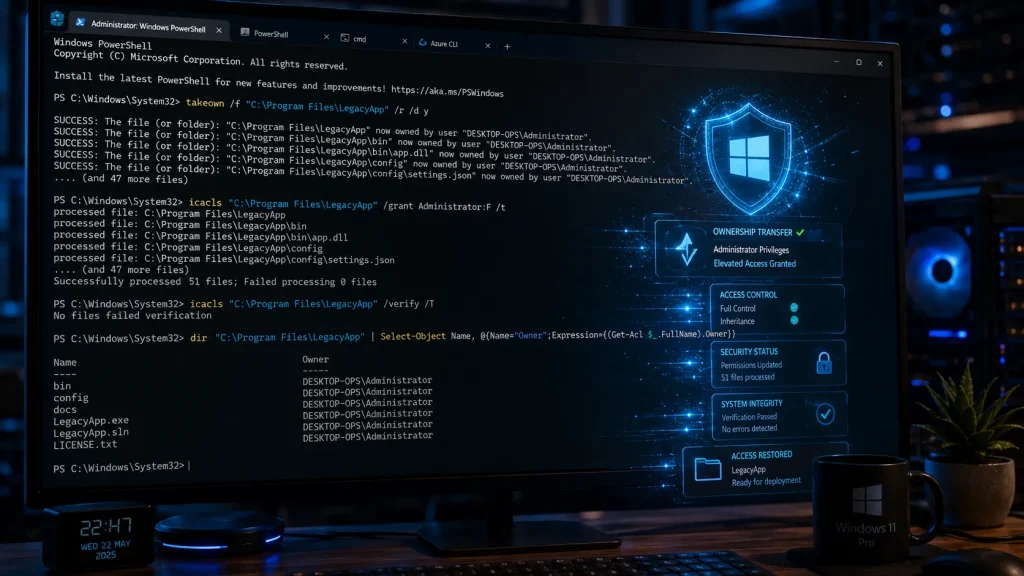
takeown /f “C:\Path\To\Your\Folder” /r /d y
The /r makes it recursive (hits all subfolders). The /d y auto-answers “yes” to all prompts. This command reassigns ownership of the entire folder tree to your current user account.
Then run this:
icacls “C:\Path\To\Your\Folder” /grant Administrators: F /t
The /grant Administrators: F gives the Administrators group Full Control. The /t applies it recursively to everything inside.
If you want to grant your specific user account instead of the whole Administrators group:
icacls “C:\Path\To\Your\Folder” /grant YourUsername: F /t
Replace “YourUsername” with your actual Windows username.
After both commands finish, close Command Prompt and try changing the folder’s permissions through the GUI again. The enumerate error should be gone.
In some situations, failed container enumeration errors happen because Windows cannot properly apply permissions across nested directories or protected files. Developers and advanced users facing similar environment-level issues can also explore advanced build and execution error troubleshooting methods, particularly when system permissions interfere with project files or application folders.
Fix 3: When the folder is owned by TrustedInstaller
TrustedInstaller is a Windows service account that owns most of the core operating system files. Microsoft set it up this way intentionally, so that even Administrator accounts can’t accidentally delete or modify system files.
If the folder throwing the error is under C:\Windows, C:\Program Files, or C:\ProgramData, TrustedInstaller ownership is probably why.
Taking ownership from TrustedInstaller works the same way as Fix 2, but know what you’re doing before you run these commands on system folders. Changing permissions on the wrong folder can break Windows features or apps.
For a specific system folder, run:
takeown /f “C:\Windows\System32\YourFolder” /r /d y
Then:
icacls “C:\Windows\System32\YourFolder” /grant Administrators: F /t
After you’re done with whatever you needed (modifying, reading, or deleting the files), consider restoring TrustedInstaller ownership. To do that:
icacls “C:\Windows\System32\YourFolder” /setowner “NT SERVICE\TrustedInstaller” /t
Leaving system folders with Administrators: F permanently is fine for most users, but restoring original ownership is the cleaner option if you know you won’t need access again.
Fix 4: The “access denied” variant on external drives
This specific version of the error is common when you plug in an external hard drive that was formatted on a different Windows install, or one that belonged to a different user account.
The drive’s folders have ACL entries tied to a SID (security identifier) from the old machine. Your current Windows account has a different SID. So even if you’re an Administrator, the drive doesn’t recognize you.
The takeown and icacls commands work here, too. The path is just a drive letter:
takeown /f “D:\” /r /d y
icacls “D:\” /grant Administrators: F /t
On a large external drive with hundreds of thousands of files, this can run for 20 to 30 minutes. Let it finish.
If you get errors on specific locked files during the process (usually files that are actively open or system files on the drive), add the /c flag to icacls to continue on errors:
icacls “D:\” /grant Administrators: F /t /c
Fix 5: The registry version of this error
A lot of people search for “failed to enumerate objects in the container” because they hit the error inside the Windows Registry, not the file system.
When you open regedit, navigate to a key, right-click, and try to modify permissions, you sometimes get the same error message. The cause is the same: your account doesn’t own or have sufficient rights on that registry key.
The fix is similar but uses regedit’s own permission system.
In regedit, right-click the registry key that’s throwing the error. Choose Permissions. Click Advanced. Click the “Change” link next to the owner’s name. Type your username, click Check Names, and click OK.
Check “Replace owner on subcontainers and objects.” Click Apply.
Now back in the Permissions dialog, add your account with Full Control. Check “Replace all existing inheritable permissions on all descendants with inheritable permissions from this object.”
Click Apply.
If the GUI approach fails on a registry key, you can use a command-line tool called subinacl (a free download from Microsoft’s older toolkit) or the PowerShell approach:
$key = [Microsoft.Win32.Registry]:: LocalMachine.OpenSubKey(“SOFTWARE\YourKey”, [Microsoft.Win32.RegistryKeyPermissionCheck]:: ReadWriteSubTree, [System.Security.AccessControl.RegistryRights]:: ChangePermissions)
$acl = $key.GetAccessControl()
$rule = New-Object System.Security.AccessControl.RegistryAccessRule(“Administrators”, “FullControl”, “ContainerInherit, ObjectInherit”, “None”, “Allow”)
$acl.SetAccessRule($rule)
$key.SetAccessControl($acl)
Replace “SOFTWARE\YourKey” with the actual path to your registry key. Run PowerShell as Administrator.
Fix 6: Safe Mode for heavily protected folders
Some folders are locked by running Windows services. Even with Administrator rights and ownership, you can’t modify them while Windows is actively using them.
Boot into Safe Mode. Windows loads with minimal services, so most protected folders are no longer actively locked.
To get to Safe Mode on Windows 10 or 11: Settings, System, Recovery, Advanced Startup, Restart Now. From the blue menu: Troubleshoot, Advanced Options, Startup Settings, Restart. Press 4 or F4 for Safe Mode, or 5/F5 for Safe Mode with Networking.
Once in Safe Mode, run your takeown and icacls commands from an elevated Command Prompt. You’ll find they succeed on folders that refused you in normal mode.
If you are using Command Prompt, PowerShell, or terminal-based fixes to regain folder ownership, it may also help to understand how directory navigation and command-line paths work in development environments, especially when working with protected Windows directories or nested project containers.
Fix 7: Corrupted ACL entries
Sometimes the permissions on a folder aren’t just restrictive, they’re broken. Corrupted ACL entries can produce the enumerate error even when your account should theoretically have access.
Windows has a built-in tool for finding and fixing corrupted system files and some ACL issues: SFC (System File Checker).
Run this in an elevated Command Prompt:
sfc /scannow
Let it finish. It takes 10 to 20 minutes. It’ll report whether it found and fixed anything.
For deeper ACL corruption, especially on system folders, run DISM first:
DISM /Online /Cleanup-Image /RestoreHealth
This pulls replacement files from Windows Update servers, so you need an internet connection. Let it finish, then run sfc /scannow again.
These commands won’t fix permission issues on your own user folders or external drives. They’re specifically for folders under the Windows installation.
Fix 8: The “replace all child object permission entries” checkbox
This deserves its own section because it’s the specific fix for a very common version of this problem.
You manage to get into the folder’s permissions. You add your account. You click Apply. Windows processes the top folder fine, then throws the enumerate error when it tries to apply permissions to a subfolder.
The fix: before clicking Apply, find the checkbox labeled “Replace all child object permission entries with inheritable permission entries from this object.” It’s in the Advanced Security Settings window.
Check that box. Then click Apply.
What this does: it wipes out any custom permissions on subfolders that conflict with what you’re setting on the parent. If a subfolder had an ACL entry that blocked inheritance, this overrides it.
Be careful using this on folders with intentionally complex permission structures. On a family PC or a personal folder? Go ahead. On a server with carefully set permissions per subfolder? Think before you click.
Fix 9: Third-party tools when the built-in options won’t work
Some scenarios are stubborn enough that the standard approaches don’t get through. A few free tools handle the heavy lifting:
Ownership Changer (formerly “Take Ownership”): Adds a right-click “Take Ownership” option to File Explorer’s context menu. One click, done. Works on most folders that the GUI approach fails on.
Permissions Time Machine: Takes a snapshot of a folder’s permissions before you change them, and can restore them later. Useful if you’re changing permissions on something important and want a rollback option.
Attribute Changer: Handles file attributes and permissions with a cleaner interface than the Windows dialog. Good for batch operations.
Unlocker: If the folder is throwing the enumerate error because a process has it locked, Unlocker identifies which process is holding it and lets you terminate that handle. Sometimes that’s all it takes.
None of these requires payment. Download from their official sites, not random download aggregators.
Fix 10: When it’s a network folder or shared drive
The enumerate error on network paths is a different animal.
If the path starts with \ (like \Server\SharedFolder), the permissions problem is probably on the server side, and takeown/icacls on your local machine won’t help.
You need to either:
- Log in to the server or NAS that hosts the share and fix permissions there
- Ask the administrator of that share to grant your account access
- Map the drive with credentials that have sufficient rights (right-click “Map Network Drive,” check “Connect using different credentials”)
If you’re running Windows Home and trying to access a folder shared by a Windows Pro machine, the sharing setup on the Pro machine may have missed your account. The fix is on the sharing machine, not yours.
What not to do
A few things that look like fixes but aren’t.
Don’t disable UAC. User Account Control isn’t causing this error. Turning it off removes a security layer and doesn’t fix the ACL problem underneath.
Don’t grant Everyone: Full Control on system folders. This works in the sense that you can access the folder, but it’s a security hole. Use your specific user account or the Administrators group.
Don’t use third-party “permission fixers” from random sites. Several malware packages specifically target people searching for Windows permission errors. Stick to the command-line tools built into Windows or the specific third-party tools named above.
Don’t delete the folder to get rid of the error. If you can’t enumerate it, you probably can’t delete it cleanly either. You might orphan files or break an app that depends on that folder.
How to confirm the fix worked
After running your ownership and permission commands, here’s the test.
Right-click the folder. Properties. Security tab. You should be able to see the permissions list without any errors.
Click Advanced. You should see your account (or Administrators) listed with Full Control.
Try to modify a file inside the folder. If you can read, write, and delete without getting an “access denied” prompt, the fix worked.
If the enumerate error still appears, run the icacls command again and check the output for specific files or subfolders that are still failing. The command outputs a line per item, and failures show up with error codes.
Why does this error appear after Windows Update?
Windows Update sometimes resets permissions on system folders to their default state. If you previously modified permissions on something like C:\ProgramData or a folder under C:\Windows, an update might restore TrustedInstaller ownership and remove your access entries.
This is intentional on Microsoft’s part (protecting system integrity), but annoying if you had a good reason to modify those permissions in the first place.
The fix is the same as described above. The prevention is: whenever possible, avoid modifying permissions on folders under C:\Windows or C:\Program Files. Keep your own files in C:\Users\YourName or a separate drive. Those paths don’t get touched by Windows Update.
The permission inheritance model, briefly
Understanding this saves you from fighting the same battle repeatedly.
Windows permissions work through inheritance. A folder inherits permissions from its parent by default. If you set Full Control on C:\Users\YourName, everything inside that folder inherits Full Control for your account.
Inheritance breaks when:
- Someone explicitly sets custom permissions on a subfolder (“This folder only”)
- A folder was created under a different user account and brought over without a permission reset
- An application set restrictive permissions for its own security reasons
When inheritance is broken, each folder in the tree has its own independent ACL. The “Replace all child object permission entries” checkbox nukes those independent ACLs and resets everything to inherit from the parent. That’s the most thorough fix when you have a whole tree of folders with the enumerate error.