Failed to Connect to Server Incompatible Client Minecraft 12 Fixes
You’ve got the server IP. Your friend is already in. You click join.
And Minecraft hits you with this:
“Failed to connect to the server. Incompatible client! Please use [version number].”
Brutal. Simple. Completely unhelpful in terms of actually telling you what to do.
The “failed to connect to server incompatible client” error in Minecraft is one of the most common multiplayer errors in the entire game — and it’s been frustrating players across Java Edition, Bedrock Edition, and modded servers for years. It appears on vanilla servers, Hypixia, small friend groups, modded Forge and Fabric servers, and Realms setups alike.
This issue usually appears when your game version doesn’t match the server’s — a common problem in Minecraft multiplayer environments. Similar connection failures can also show up in other cases, like
Minecraft Forge error code 1, where mods or version conflicts break compatibility entirely.
Here’s what nobody tells you clearly: this error almost always has an exact fix, and it’s usually solvable in under five minutes once you know what you’re doing.
The error means your Minecraft client version doesn’t match what the server expects. That’s it. The gap between “knowing that” and “actually fixing it” is what this guide bridges — with every scenario covered, every fix explained, and every platform addressed.
Whether you’re on vanilla Java Edition, running Forge mods, using Fabric, hosting your own server, or trying to join a friend’s world — this guide has your fix.
What Does “Failed to Connect to Server Incompatible Client” Mean in Minecraft?
Let’s start with clarity because this is where most guides fail their readers.
The message “Failed to connect to the server. Incompatible client! Please use [version]” means one specific thing:
Your Minecraft client is running a different version than the server you’re trying to join.
That’s the entire problem. Nothing more, nothing less.
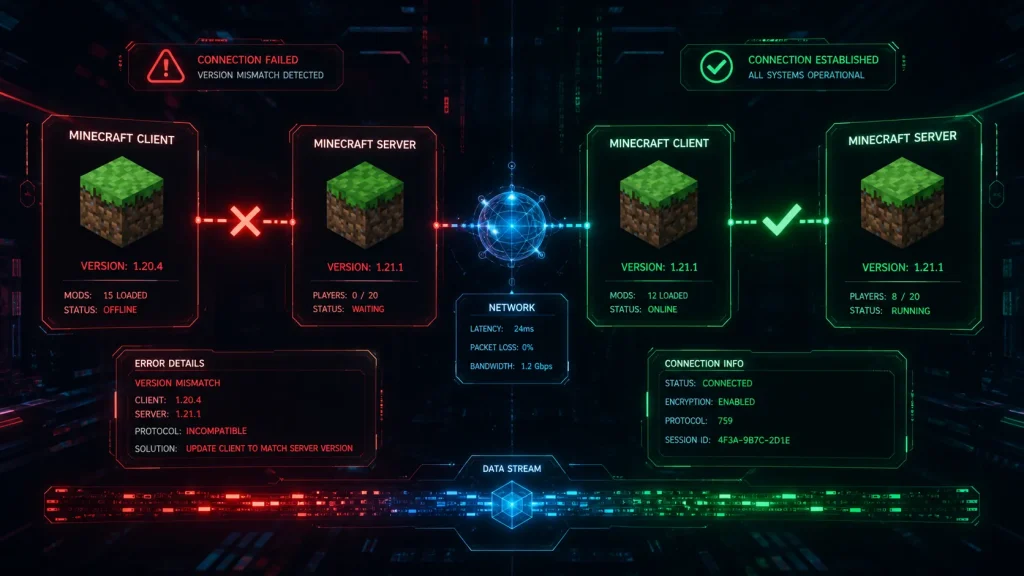
Minecraft’s multiplayer system is version-locked. Unlike some games that maintain backward compatibility between versions, Minecraft requires the client and server to run the same protocol version to communicate. A client on 1.21.1 cannot connect to a server running 1.20.4. A client on 1.19.2 cannot connect to a server running 1.19.3. The protocol difference — even in point releases — breaks communication.
The error message itself usually tells you exactly what version the server needs. Look at it carefully:
“Failed to connect to the server. Incompatible client! Please use 1.20.4.”
That “Please use 1.20.4” is your direct answer. The server is running 1.20.4. You need to be on 1.20.4.
The reason this confuses so many players is that the Minecraft Launcher defaults to launching the latest release — so if Mojang released 1.21 yesterday and the server is still on 1.20.4, you’ll hit this error every time you update without realizing the server hasn’t updated yet.
Now that you know exactly what the problem is, let’s fix it.
Why Version Matching Matters in Minecraft Multiplayer
Understanding why Minecraft enforces this strict version matching helps you avoid the error in the future.
Minecraft uses a network protocol to communicate between the client and the server. Each Minecraft version has its own protocol number. New blocks, items, entities, game mechanics, and data formats introduced in each update require corresponding changes to this protocol.
When a 1.21 client tries to connect to a 1.20.4 server:
- The client sends a handshake using protocol version 767 (1.21’s protocol number)
- The server expects protocol version 765 (1.20.4’s protocol number)
- The server sees the mismatch and rejects the connection immediately
- Your client displays the “incompatible client” error
There is no middle ground here. It’s not like resolution settings, where you can find a compromise. Either the protocols match, and you connect, or they don’t, and you don’t.
Version mismatch is the #1 cause — but it’s not the only one. Network instability or blocked connections can also trigger errors like
failed to connect to Steam error code 211 where the client simply can’t establish a stable session with servers.
This is by design — it prevents data corruption, chunk errors, and gameplay desynchronization that would occur if mismatched clients tried to interact with a world running on different game mechanics.
The silver lining: because it’s a strict yes/no mismatch, the fix is always the same type of action — match the versions. The variation is only in how you do that matching, depending on your specific situation.
How to Find Out What Version a Minecraft Server Is Running
Before switching your version, you need to know exactly what version to switch to.
Method 1: Read the Error Message
The incompatible client error message directly states the required version: “Please use [version].”
Look at that version number. Write it down. That’s your target.
Method 2: Check the Server List Display
In Minecraft’s multiplayer server list, before connecting, each server displays its version information below the server name. Look at the version indicator — it shows the server’s current version and whether your client is compatible (green checkmark = compatible, red X or orange indicator = version mismatch).
Method 3: Ask the Server Owner or Admin
If you’re joining a friend’s server or a private server:
- Message the server owner directly
- Check the server’s Discord, website, or social media for version information
- Check the server’s rules or info channels — most well-run servers post their current version prominently
Method 4: Check Server Status Sites
For public servers, many have websites or server status tracking pages that display their current version. For large servers like Hypixel, CubeCraft, or Mineplex, check their official website or community Discord.
Method 5: Check Your Server’s server.properties File
If you own or have admin access to the server, open the server.properties file in your server directory. While this file doesn’t list the version directly, the version is shown in the server’s version.json file in the server directory.
Fix 1: Switch to the Correct Minecraft Version in the Minecraft Launcher
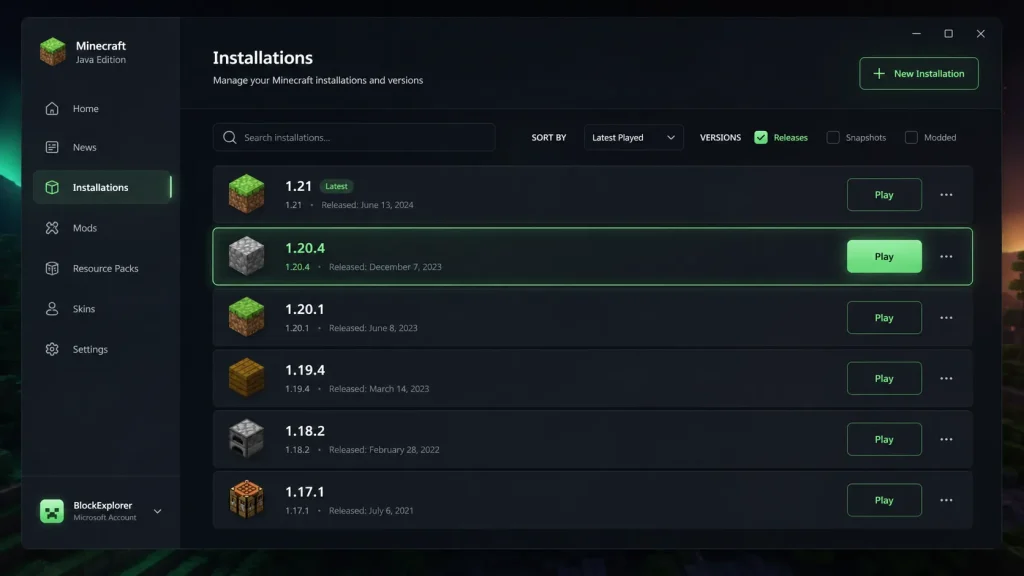
This is the primary fix for the vast majority of players hitting the failed to connect incompatible client error in Minecraft. The Minecraft Launcher supports every version of the game ever released and lets you switch between them in under two minutes.
Step-by-step for Java Edition:
- Open the Minecraft Launcher
- On the left sidebar, click “Installations.”
- Look for an existing installation that matches the server’s version:
- If you see one, click the three-dot menu next to it and select “Play” or set it as the default
- If you don’t see one, proceed to creating a new profile (Fix 2)
- If you have the correct version profile, go back to the “Play” tab
- Click the dropdown arrow next to the green “Play” button
- Select the version profile that matches your server’s version
- Click “Play”
- Once the game loads to the main menu, attempt to join your server
Important note: The Minecraft Launcher defaults to the latest release. Every time Mojang releases a new version, your launcher may automatically update to it, which is why this error appears suddenly for players who were previously connecting fine.
Fix 2: Create a New Version Profile in the Minecraft Launcher
If you don’t have a profile for the server’s required version, you need to create one. This doesn’t delete your existing setup — you can have as many version profiles as you need.
Step-by-step:
- Open the Minecraft Launcher
- Click “Installations” in the top navigation
- Click “New Installation” (or “+ New” depending on your launcher version)
- In the “Name” field, give it a recognizable name — example: “Server – 1.20.4”
- Click the “Version” dropdown
- Scroll through the version list to find the exact version your server requires
- Releases are listed as “release 1.20.4”, “release 1.21.1”, etc.
- Snapshots are listed separately — only use these if the server specifically requires a snapshot version
- Set your Game Directory — this can be the default .minecraft folder or a separate folder if you want to keep this version’s worlds and data isolated
- Click “Create”
- Go back to the Play tab
- Click the dropdown arrow next to the Play button and select your new profile
- Click Play and join your server
Pro tip: Name your version profiles clearly — include the server name or purpose. Example: “FriendServer-1.20.4” or “Hypixel-Latest”. This prevents confusion when you’re managing multiple version profiles.
Fix 3: Fix Incompatible Client Error on a Modded Forge Server
Modded Minecraft servers using Forge have a two-layer version requirement that trips players up constantly — you need both the correct Minecraft version AND the correct Forge version.
The “failed to connect to server incompatible client” error on a Forge server can mean:
- Your Minecraft version doesn’t match the server’s Minecraft version
- Your Forge version doesn’t match the server’s Forge version
- You’re using vanilla Minecraft (no Forge) to connect to a Forge server
- Your mod list doesn’t match the server’s required mods
Step-by-step fix for Forge servers:
- Find out the exact Forge version the server uses
- Ask the server admin
- Check the server’s Discord or website
- Look at the server’s modpack page if it uses a public modpack
- Download the correct Forge version
- Go to the official Forge website (files.minecraftforge.net)
- Find the exact version matching your server’s requirements
- Download the installer
- Run the Forge installer
- Double-click the downloaded Forge installer .jar file
- Select “Install Client”
- Click OK and let it complete
- Open the Minecraft Launcher
- The Forge installation automatically creates a new profile
- You’ll see a profile named something like “forge-1.20.4-XX.X.X.”
- Select the Forge profile and launch Minecraft
- Install required mods
- Place any required mods in the .minecraft/mods folder
- If the server uses a specific modpack, install the entire modpack
- Connect to the server
The most common Forge mistake: Players install the correct Forge version but forget to install the server’s required mods. If the server requires specific mods on the client side (most Forge servers do), you’ll get a different error about missing mods — but installing Forge alone without mods will still prevent connection.
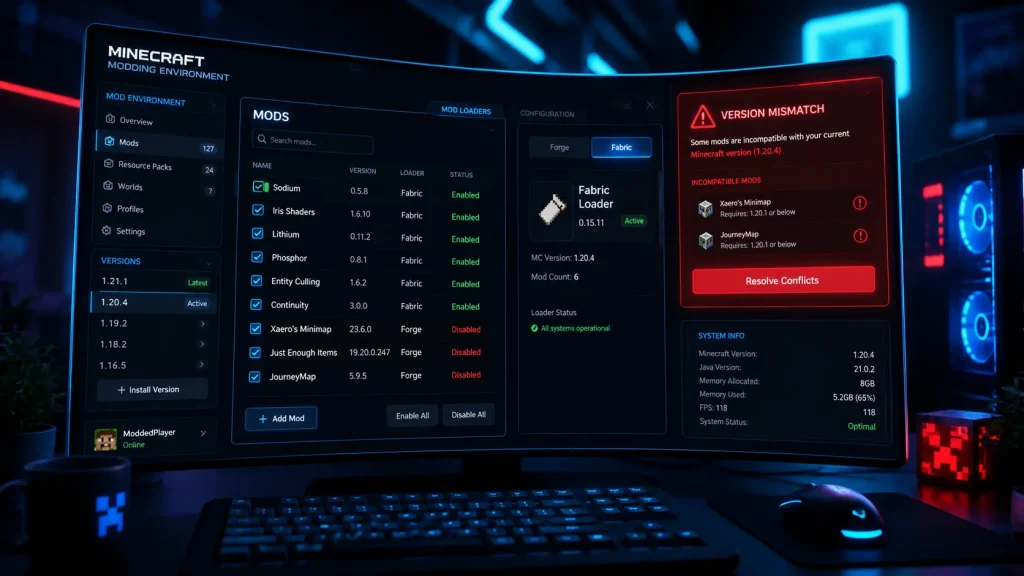
Fix 4: Fix Incompatible Client Error on a Fabric Server
Fabric is a more lightweight modding platform than Forge, but it has the same version-matching requirements. Connecting to a Fabric server requires the Fabric Loader installed on your client at a compatible version.
If everything looks correct but the error persists, it may not be your setup at all — larger outages or backend failures (like
Discord 500 internal server error) can cause similar connection disruptions across platforms.
Step-by-step fix for Fabric servers:
- Confirm the server is using Fabric
- Check with the server admin
- If the server runs fabric mods (Sodium, Iris, Create Fabric, etc.), it’s a Fabric server
- Find the Minecraft version the Fabric server uses
- Ask the admin or check the server’s information
- Download Fabric Installer
- Go to fabricmc.net and download the Fabric Installer
- Run the Fabric Installer
- Open the installer
- Select your Minecraft version from the dropdown (must match the server)
- Select the Fabric Loader version (the latest stable is usually correct)
- Make sure “Create Profile” is checked
- Click “Install”
- Open the Minecraft Launcher
- A new profile named something like “fabric-loader-[version]” will appear
- Select this profile
- Install required client-side mods
- Download any mods required by the server
- Place them in the .minecraft/mods folder (or the custom game directory you set)
- Launch and connect
Fabric API note: Most Fabric servers and mods require Fabric API as a dependency. If you’re installing Fabric mods, download Fabric API separately from Modrinth or CurseForge and place it in your mods folder alongside other required mods.
Fix 5: Fix the Error as a Server Owner — Updating or Configuring Your Server
If you own or administrate the server causing the “incompatible client” errors, you have additional options — and additional responsibilities.
Understanding your position as a server owner:
When players can’t connect because of a version mismatch, you have three choices:
- Update the server to match the clients
- Ask clients to downgrade to match the server
- Use a proxy or version translator (ViaVersion — covered below)
Option A: Update Your Minecraft Server
If you’re running a vanilla server and want to move to the latest version:
- Back up your world — copy the entire world folder before updating
- Download the latest server.jar from Mojang’s official site
- Replace your existing server.jar with the new one (keep the same filename or update your start script)
- Start the server
- Check the console for any errors or warnings
- Test connections from updated clients
Option B: Keep Your Server Version and Inform Players
If you intentionally run an older version (for mod stability, specific gameplay reasons, etc.):
- Clearly communicate your server version in your server listing, Discord, and any community spaces
- Provide version-switching instructions to players
- Consider adding ViaVersion/ViaBackwards (see below)
Option C: Install ViaVersion for Multi-Version Support
ViaVersion is a Bukkit/Spigot/Paper plugin that allows players on newer Minecraft versions to connect to older servers. This is the best solution when you want to support multiple client versions simultaneously.
For Paper/Spigot/Bukkit servers:
- Download ViaVersion from the official ViaVersion GitHub or SpigotMC page
- Place the .jar in your server’s plugins folder
- Restart the server
- Players on newer versions can now connect to your older server
For allowing older clients to connect to newer servers, install ViaBackwards alongside ViaVersion.
Fix 6: Update Your Minecraft Server to the Latest Version
If your server is outdated and you want to update it to allow players running the latest Minecraft to connect, here’s the proper process for different server types.
Updating a Vanilla Minecraft Server:
- Download the latest server.jar from minecraft.net/en-us/download/server
- Stop your current server
- Back up your world folder and any important files
- Replace the old server.jar with the new one
- Run the new server.jar
- Review the startup logs for any world conversion notices or errors
- Test the connection from updated clients
Updating a Paper/Spigot Server:
- Go to papermc.io/downloads (for Paper) or spigotmc.org (for Spigot)
- Download the build for your target Minecraft version
- Stop your server
- Back up everything
- Replace the server jar file
- Check plugin compatibility — plugins may also need updates for the new version
- Start the server and review logs
Updating a Forge Server:
- Check that the updated Forge exists for the new Minecraft version
- Download the new Forge server installer from the Forge website
- Stop your current server
- Back up your world
- Run the new Forge installer in your server directory
- Update all mods to versions compatible with the new Minecraft/Forge version
- Start the server
Critical warning: Never update a heavily modded server without first verifying that all your mods have been updated to support the new version. Updating the server without updating compatible mods will produce errors and potentially corrupt your world.
Fix 7: Downgrade Your Server to Match Your Players’ Version
Sometimes the right move is downgrading — particularly when:
- Your modpack hasn’t updated to the latest Minecraft version
- Your player base is predominantly on an older version
- A critical module your server depends on hasn’t been updated yet
How to run a specific older server version:
For vanilla servers, simply download the specific version’s server.jar from Mojang’s version manifest. The direct download links for every version are available through the Mojang launcher’s version manifest JSON.
For Paper servers, download the specific build for your target version from the PaperMC downloads archive.
Important consideration: If you’re downgrading a server that has been running on a newer version, your world may not be backward compatible. Minecraft worlds updated by a newer version cannot always be opened cleanly by an older version. Always test on a copy of your world before downgrading a live server.
Fix 8: Fix Incompatible Client Error on Minecraft Bedrock Edition
Bedrock Edition handles version mismatches differently from Java Edition, but the “failed to connect to server incompatible client” error still occurs in specific scenarios.
Bedrock Edition version mismatch scenarios:
Bedrock Edition on featured servers (Mineplex, CubeCraft, etc.) typically handles version compatibility automatically. However, you can encounter incompatibility when:
- Connecting to a friend’s Bedrock world on an older console or mobile device
- Connecting to a custom Bedrock dedicated server running an older version
- Playing on a device that hasn’t received the latest Bedrock update yet
Fix for Bedrock Edition:
- Update Minecraft Bedrock on your platform:
- PC (Windows): Microsoft Store → Library → Minecraft → Update
- Mobile (iOS): App Store → Search Minecraft → Update
- Mobile (Android): Google Play → My Apps → Minecraft → Update
- Nintendo Switch: Nintendo eShop → Redownload/Update
- PlayStation: PlayStation Store → Library → Minecraft → Update
- Xbox: My Games and Apps → Minecraft → Menu → Manage → Updates
- Ensure the server is also updated
- For Bedrock Dedicated Servers, download the latest BDS from Minecraft’s official site
- Replace the bedrock_server executable with the updated version
- Cross-platform Bedrock note: Bedrock Edition uses marketplace packs and behavior packs that also have version requirements. If a Bedrock world uses behavior packs, ensure all packs are compatible with the current version.
Bedrock vs Java version comparison:
A common misunderstanding: Java Edition and Bedrock Edition cannot connect, regardless of version. They are separate games with separate network protocols. The “incompatible client” error when trying to cross-connect is unfixable — you need the same edition to play together.
Fix 9: Fix Incompatible Client on a Minecraft LAN World
LAN worlds operate slightly differently from dedicated servers, but still require version matching between the host and all joining players.
Why LAN worlds produce incompatible client errors:
When you open a world to LAN in Minecraft, the game broadcasts the session on your local network. Other players’ Minecraft clients detect the broadcast and can attempt to join — but only if they’re running the same version.
If player A has updated to 1.21 but player B is still on 1.20.4, B will see the LAN world but can’t join, and hits the incompatible client error.
Step-by-step fix for LAN worlds:
- Identify the host’s Minecraft version
- Ask the person hosting the LAN World what version they’re running
- Or look at the version number shown when you hover over the LAN world in the multiplayer screen
- Switch your client to match the host’s version
- Follow Fix 1 and Fix 2 above to switch to the host’s version
- Or have the host switch to your version
- If you can’t downgrade (perhaps because your world was created on a newer version), ask the host to create the LAN world on the version you’re both using
- Coordinate versions before starting
- Best practice for LAN play: agree on a version before anyone launches Minecraft
- Communicate via Discord or text, which version you’ll all use
LAN and mods: If the host is running Forge or Fabric mods in their LAN world, all joining players need the same Forge/Fabric setup and the same mods. This is the most complex LAN scenario — treat it like joining a modded server (Fixes 3 and 4 above).
Fix 10: Fix Incompatible Client on Minecraft Realms
Minecraft Realms is Mojang’s own hosted server service — and it manages version compatibility differently from self-hosted servers, which creates its own specific incompatibility scenarios.
How Realms handles versions:
Java Edition Realms automatically runs the latest Minecraft release. When Mojang releases a new version, Realms servers update automatically (though not instantaneously). This means:
- If you’re on the latest version and Realms hasn’t updated yet, you may temporarily hit a compatibility error
- If you’re on an older version because you set a specific profile, you’ll get the incompatible client error
Bedrock Edition Realms: Bedrock Realms operate similarly, updating to the latest Bedrock release. Bedrock players need to be on the current version to access their Realms.
Fix for Realms incompatible client:
- Ensure you’re running the latest Minecraft version
- In the Minecraft Launcher, select the “Latest Release” profile
- Launch and attempt to connect to Realms
- If the error persists immediately after a Mojang update:
- Wait 24–48 hours — Realms servers update on a rolling schedule
- Check the Minecraft and Realms status pages for any known update issues
- Check Realms server status:
- Go to Mojang’s official status page
- Check if Realms specifically is listed as operational
- If a Realm is on a specific older version:
- Some Realm operators download world backups and use specific version settings
- Contact the Realm owner for the required version
Java Edition Realms and Snapshots: Realms does NOT support snapshot versions — only official releases. If you’ve switched to a snapshot profile to test new features, you cannot access Realms on that profile. Switch back to the latest release.
Fix 11: Clear Minecraft Launcher Cache and Reinstall Game Files
In rare cases, the Minecraft Launcher’s cached data interferes with version switching — causing the game to launch on the wrong version despite the profile being set correctly. Clearing the launcher cache forces it to rebuild from scratch.
Clear Minecraft Launcher Cache:
- Close the Minecraft Launcher completely
- Navigate to your Minecraft folder:
- Windows: Press Win + R, type %appdata%.minecraft, press Enter
- Mac: ~/Library/Application Support/minecraft
- Linux: ~/.minecraft
- In the .minecraft folder, locate and delete these folders:
- launcher_profiles.json — only if profiles are corrupted (this will delete your profiles, which you’ll need to recreate)
- logs folder contents
- crash-reports folder contents
- Navigate up one level to %appdata% (Windows) and find the Minecraft Launcher folder (separate from .minecraft)
- Delete the cache folder within the Minecraft Launcher directory
- Restart the Minecraft Launcher
- Create fresh version profiles and attempt a connection
Repair Minecraft through the Launcher:
The Minecraft Launcher has a built-in repair function. In the Installations section, find the version profile you’re trying to use, click the three-dot menu, and look for a repair or force-update option. This redownloads the game files for that specific version, eliminating any corrupted files that might be causing unexpected version mismatches.
Fix 12: Reinstall the Minecraft Launcher
If the launcher itself is behaving incorrectly — showing wrong versions, failing to create profiles properly, or launching on wrong versions despite correct profile settings — a clean launcher reinstall resolves the underlying issue.
Clean Minecraft Launcher reinstall:
- Uninstall Minecraft Launcher:
- Windows: Control Panel → Programs → Uninstall → Minecraft Launcher
- Mac: Drag Minecraft from Applications to Trash
- Navigate to the .minecraft folder and back up:
- Your saves folder (your worlds)
- Your screenshots folder
- Your resourcepacks folder
- Your options.txt file
- Delete the .minecraft folder (your worlds are backed up)
- Download the latest Minecraft Launcher from minecraft.net
- Install and launch
- Log in with your Microsoft account
- The Launcher will create a fresh. minecraft folder
- Copy your backed-up saves, screenshots, and resource packs back
- Create version profiles as needed and connect to your server
Incompatible Client vs Other Common Minecraft Multiplayer Errors
Understanding how “failed to connect to server incompatible client” differs from similar errors prevents you from applying the wrong fix.
“Incompatible client! Please use [version]” Version mismatch — your client ≠ server version. Fix: switch your version to match.
“Outdated client! Please use [version]. Your client is older than the server. Same root cause as incompatible client — switch your version.
“Outdated server! Please use [older version]. Your client is newer than the server. Switch your client to the version the server uses.
“Connection refused.” The server actively refused your connection. Could be a whitelist, a ban, or the server not running.
“Connection timed out.” Network issue — the server exists but isn’t responding in time. Usually a network or firewall problem.
“Failed to verify username.” Authentication with Mojang’s servers failed. Check your internet connection and Mojang service status.
“Internal Exception: io.netty.handler.codec.DecoderException” Protocol handling error — can indicate a forge/mod mismatch on top of the version being correct.
“You are not white-listed on this server.” The server has a whitelist, and your username isn’t on it. Contact the server admin.
The ViaVersion Solution — Supporting Multiple Minecraft Versions on One Server
For server owners who want to eliminate version mismatch errors permanently for their players, ViaVersion is the most comprehensive solution.
ViaVersion is a widely used plugin for Paper, Spigot, and Bukkit servers that allows players on newer Minecraft versions to connect to a server running an older version. Combined with companion plugins, it creates a multi-version compatibility layer.
The ViaVersion plugin ecosystem:
ViaVersion — Allows newer clients to connect to your server’s older version
ViaBackwards — Allows older clients to connect to your server’s newer version (requires ViaVersion)
ViaRewind — Extends compatibility back to legacy versions like 1.7 and 1.8 (requires ViaVersion and ViaBackwards)
How to install:
- Download ViaVersion (and optionally ViaBackwards) from SpigotMC or their GitHub
- Place the .jar files in your server’s plugins folder
- Restart your server
- Players on different Minecraft versions can now connect
Important limitations:
- ViaVersion works best on vanilla-like servers — modded Forge/Fabric servers cannot use ViaVersion
- Some features, blocks, or items added in newer versions may not render correctly for players on older clients
- Server-side gameplay remains at the version the server is running
For vanilla or lightly-modded servers with a diverse player base on different versions, ViaVersion is the single best quality-of-life improvement you can make.
How to Prevent the Incompatible Client Error From Happening Again
Now that you’ve fixed it — here’s how to keep it fixed.
Set your default launcher profile correctly
If you’re exclusively playing on one server, set that server’s version as your default Minecraft profile in the launcher. This prevents automatic updates from silently changing your version when Mojang releases new content.
Watch for Minecraft update announcements
Subscribe to Minecraft’s official channels or follow gaming news. When a new update is released, check with your server’s admin before updating your client. The server will need time to update its own version — updating your client before the server updates is the most common cause of sudden incompatible client errors.
Use a dedicated modpack launcher for modded servers
CurseForge, Modrinth, and ATLauncher manage version profiles, mod installations, and updates automatically for modded servers. Using these launchers eliminates the manual version management that causes most modded server connection errors.
Communicate version changes in advance
For server owners: announce version updates 24–48 hours in advance through your Discord, website, or server message of the day. Give players time to update their clients before the server upgrades.
Create separate launcher profiles for each server
Maintain a separate, clearly named launcher profile for each server you play on regularly. Label them with both the server name and version — this makes switching between servers effortless and prevents accidental version mismatches.
Enable “Keep this game version.”
In your Minecraft Launcher installation settings, you can pin a specific version to not auto-update. For profiles tied to specific servers, this prevents the launcher from automatically switching to a new version.
Final Word
The “failed to connect to server incompatible client” error in Minecraft is one of the most solvable problems in gaming — and now you have everything you need to solve it.
For most players, the fix is creating a new version profile in the Minecraft Launcher that matches the server’s version. Two minutes. Done.
For Forge players, install the right Forge version and your required mods. For Fabric players, install the right Fabric Loader. For server owners, consider ViaVersion for maximum player accessibility.
The key insight is this: the error message itself tells you what you need. “Please use 1.20.4” is not just an error — it’s an instruction. Read it, match your version to it, and you’re in.
You may also run into similar platform-specific issues like
EX144 error code fix, which is also tied to server communication failures.
Now go build something.