HoyoPlay Keeps Crashing When I Boot Up Honkaii – 10 Fixes
You open HoyoPlay. The launcher loads. You click on Honkai Star Rail — or Honkai Impact 3rd — and hit that satisfying Launch button.
And then it crashes. The game window flashes. Or nothing happens at all. Or worse — HoyoPlay itself closes without warning, taking your gaming plans down with it.
If HoyoPlay keeps crashing when you boot up Honkai, you’re dealing with one of the most frustrating problems in the HoYoverse gaming ecosystem. It’s a surprisingly widespread issue that affects thousands of players across Honkai Star Rail and Honkai Impact 3rd — and it tends to spike after launcher updates, Windows patches, and new game version releases.
The maddening part is how unpredictable it feels. The game worked fine yesterday. You didn’t change anything. And now it just… won’t launch.
Here’s what this guide delivers: a clear breakdown of why HoyoPlay crashes when launching Honkai games, and 10 battle-tested fixes that resolve the issue across every common cause. Whether you’ve been dealing with this for an hour or a week, you’ll find your solution here.
Let’s get your journey back on track.
Understanding HoyoPlay and Why It Crashes With Honkai
HoyoPlay is HoYoverse’s unified game launcher — the platform that replaced the individual game launchers previously used for Genshin Impact, Honkai Star Rail, Honkai Impact 3rd, and Zenless Zone Zero. Launched in 2023, it was designed to streamline game management, updates, and login across the entire HoYoverse portfolio. Launcher-related instability is not limited to HoYoPlay only. A similar issue occurs with platform authentication errors, such as Epic Games error code 8028 fix, where launcher verification or login services fail and prevent games from launching properly.
The shift to HoyoPlay introduced new dependencies, new system requirements, and new potential failure points. Unlike the old per-game launchers, HoyoPlay operates as a background service and launcher combined — meaning a crash can happen at the launcher level, the game initialization level, or anywhere in between.
When HoyoPlay crashes, specifically when booting Honkai — rather than crashing on its own startup — the failure almost always occurs during one of these phases:
- Game process initialization — HoyoPlay hands off to Honkai’s executable and the handoff fails
- Anti-cheat initialization — Honkai Star Rail uses HoYoverse’s anti-cheat system, which loads before the game engine starts
- DirectX or Vulkan renderer startup — The graphics subsystem fails to initialize
- Game file verification — HoyoPlay checks game integrity before launch and finds an error it can’t resolve automatically
- System component conflict — A background application, driver, or system service conflicts with HoyoPlay’s launch sequence
Understanding which phase the crash occurs in helps you identify the right fix faster. Let’s figure out which scenario applies to you.

Is This HoyoPlay or Honkai Itself Crashing?
Before diving into fixes, it’s worth establishing exactly where the crash is happening. This distinction dramatically narrows your troubleshooting path.
HoyoPlay launcher is crashing (before game launches):
- HoyoPlay closes unexpectedly when you click the Launch button
- You see HoyoPlay disappear from the taskbar with no game window opening
- HoyoPlay shows an error message about failing to start the game
- The launcher crashes on its own before you even reach the game selection screen
Honkai game is crashing (after HoyoPlay hands off):
- A game window briefly appears (black screen, logo, or loading screen), then closes
- You see a crash report or error code from the game itself
- HoyoPlay shows a “Game has crashed” or similar notification
- The crash happens consistently at the same point in the loading sequence
Both are crashing together:
- The entire HoyoPlay process terminates alongside the game attempt
- Task Manager shows both processes disappearing simultaneously
For this guide, we cover fixes for both scenarios — because in most cases, the root cause is the same system-level conflict that affects both HoyoPlay and Honkai’s launch sequence simultaneously.
Root Causes of HoyoPlay Crashing When Booting Honkai
Here’s every documented cause of this specific crash pattern:
Driver and Graphics Issues:
- Outdated, corrupt, or recently changed GPU drivers failing at DirectX/Vulkan initialization
- GPU overclocking is causing instability during game startup
- Incompatible display adapter settings
Permission and Security Conflicts:
- HoyoPlay or Honkai is lacking administrator privileges to access the required system resources
- Windows UAC (User Account Control) blocks game process elevation
- Antivirus or Windows Defender quarantining HoyoPlay or game files after an update
Corrupt or Incomplete Game Files:
- Partial game updates leave mismatched or missing files
- Disk errors corrupting game data between sessions
- The HoyoPlay installation missing critical launcher components
System Component Deficiencies:
- Missing or outdated Microsoft Visual C++ Redistributable packages
- Outdated DirectX components required by Honkai’s rendering engine
- Insufficient virtual memory is causing a crash during high-memory game initialization
Software Conflicts:
- Overlay software (Discord, GeForce Experience, MSI Afterburner) is conflicting with HoyoPlay
- Background applications are consuming resources needed for game startup
- Anti-cheat conflicts with third-party system tools
Anti-Cheat System Failures:
- HoYoverse’s anti-cheat driver is failing to load correctly
- Conflicting security software is blocking anti-cheat initialization
- Windows kernel-level conflicts with anti-cheat components
Now let’s solve each one.
Fix 1: Run HoyoPlay as Administrator
This is the fastest fix to try and resolve a significant percentage of HoyoPlay crash cases when booting Honkai games.
HoyoPlay needs elevated system privileges to perform several critical launch operations — initializing the anti-cheat kernel driver, writing to protected directories, and elevating the game process. Without administrator rights, these operations fail silently, causing HoyoPlay to crash or the game to terminate immediately after launch.
Set HoyoPlay to always run as administrator:
- Close HoyoPlay completely — check Task Manager (Ctrl + Shift + Esc) and end any HoyoPlay.exe processes
- Navigate to your HoyoPlay installation folder. Default path: C:\Program Files\HoyoPlay\
- Right-click HoyoPlay.exe
- Select Properties
- Click the Compatibility tab
- Check “Run this program as an administrator.”
- Click Apply > OK
- Launch HoyoPlay and test
Also, set the Honkai executable to run as administrator:
- In HoyoPlay, click the gear icon on your Honkai game
- Select “Open Game Folder” or “Show in Explorer”
- Locate the main game executable (e.g., StarRail.exe for Honkai Star Rail)
- Right-click > Properties > Compatibility
- Check “Run this program as an administrator.”
- Apply and test
This single fix resolves the vast majority of permission-based HoyoPlay crash cases — especially on systems where Windows UAC settings have been modified or where the launcher was installed in a protected directory.
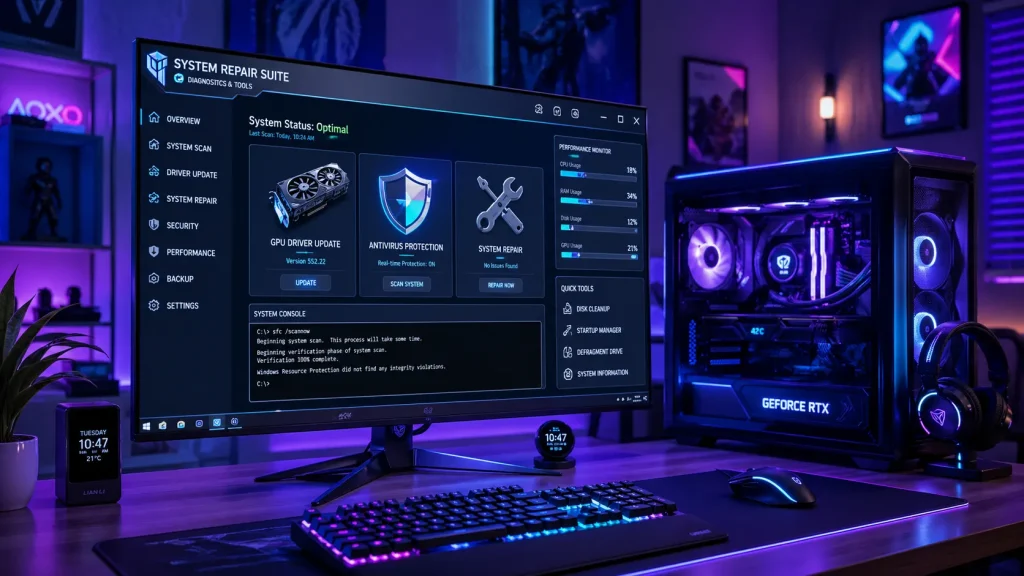
Fix 2: Update or Reinstall Your GPU Drivers
Outdated or corrupted GPU drivers are the number one hardware-related cause of HoyoPlay crashing when booting Honkai games.
Both Honkai Star Rail and Honkai Impact 3rd use advanced rendering pipelines — Honkai Star Rail uses Unreal Engine with DirectX 12 support, while Honkai Impact 3rd uses a custom HoYoverse engine with Vulkan and DirectX 11 options. When the GPU driver cannot fulfill the graphics API initialization request, the entire launch sequence crashes immediately. If you are experiencing similar launcher or login-related issues in other HoYoverse games, you may also find this guide helpful on the Failed to Connect to Steam Error Code 211 fix, which explains how network and authentication problems can also cause game launch failures and crashes.
This becomes especially problematic after Windows Updates, which sometimes silently replace your current GPU driver with a different version that may be less stable for specific games.
Update NVIDIA GPU drivers:
- Open GeForce Experience or visit NVIDIA’s official driver download page
- Click Drivers > Check for Updates
- Download the latest Game Ready Driver
- During installation, select Custom Install
- Check “Perform a clean installation.”
- Restart your PC after installation
Update AMD GPU, drivers:
- Open AMD Radeon Software or visit AMD’s driver support page
- Click Check for Updates under the Software tab
- Install the latest recommended driver
- Choose the clean install option if available
- Restart after installation
Update Intel integrated/Arc graphics:
- Open Device Manager (Windows + X)
- Expand Display adapters
- Right-click your Intel GPU > Update driver
- Select Search automatically
- Restart your PC
Roll back a problematic driver: If HoyoPlay started crashing after a driver update:
- Device Manager > Display adapters
- Right-click GPU > Properties > Driver tab
- Click Roll Back Driver if available
- Confirm and restart
Nuclear option — DDU clean removal: For stubborn driver corruption, use Display Driver Uninstaller (DDU) in Safe Mode:
- Boot into Safe Mode
- Run DDU and select “Clean and restart.”
- Install the latest stable driver fresh after a restart
- This eliminates any corrupted driver remnants, causing persistent crashes
Fix 3: Repair Honkai Game Files Through HoyoPlay
HoyoPlay includes a built-in game repair function that scans and automatically fixes corrupt, missing, or mismatched Honkai game files. This is one of the most targeted and effective fixes for crashes that occur specifically during game boot — when HoyoPlay attempts to verify files before handing off to the game engine.
Corrupt files commonly occur after:
- A game update that was interrupted by a connection drop
- A disk write error during the update process
- Antivirus quarantining a freshly downloaded game file
- A Windows crash mid-update
How to repair Honkai game files in HoyoPlay:
For Honkai Star Rail:
- Open HoyoPlay
- Click on Honkai Star Rail in your game library
- Click the gear/settings icon next to the Launch button
- Select “Repair Game Files” or “Check and Repair”
- HoyoPlay will scan all game files against the server manifest
- Any corrupt or missing files are automatically re-downloaded
- Wait for the process to complete (can take 15–45 minutes depending on how many files need repair)
- Relaunch the game
For Honkai Impact 3rd:
- Open HoyoPlay
- Select Honkai Impact 3rd
- Click the settings icon beside the launch button
- Choose “File Repair”
- Allow the scan to complete fully
- Test launch after repair finishes
Pro tip: Run game repair even if you think your files are fine. Partial corruption that doesn’t trigger obvious errors during download can still cause boot crashes that are invisible until the game tries to load the affected files.
Fix 4: Update HoyoPlay Launcher to the Latest Version
Running an outdated version of HoyoPlay is a direct cause of crashes when booting Honkai games. HoYoverse regularly updates HoyoPlay to maintain compatibility with their game servers, anti-cheat systems, and game client versions. An outdated launcher can fail to correctly initialize modern game builds, resulting in crashes at the handoff point.
HoyoPlay normally updates itself automatically — but this auto-update can fail when:
- The launcher was closed during an update
- Network issues interrupted the update download
- Antivirus quarantined the update files
- The update process was blocked by insufficient permissions
Check your HoyoPlay version:
- Open HoyoPlay
- Click your profile icon or the menu button (usually top-right)
- Look for “About” or “Version Info”
- Note your current version number
Force HoyoPlay to update:
- Close HoyoPlay completely
- Navigate to C:\Program Files\HoyoPlay\
- Run HoyoPlay.exe as administrator
- If an update is available, a prompt appears automatically
- If no prompt appears, check the HoYoverse official website for the latest HoyoPlay installer
- Download and run the latest installer over your existing installation — it updates without removing your games
Reinstall HoyoPlay launcher only (without losing games): If the launcher itself is corrupt:
- Download the latest HoyoPlay installer from HoYoverse’s official site
- Run the installer — it detects your existing game installations
- Your Honkai game data is preserved during launcher reinstallation
Fix 5: Disable Antivirus and Add HoyoPlay Exceptions
Windows Defender and third-party antivirus programs are among the most common — and most invisible — causes of HoyoPlay crashing when booting Honkai.
After every game update, HoyoPlay downloads new executable files and DLLs. Antivirus software scans these files in real time and frequently flags them as suspicious due to their anti-cheat components, network communication behavior, or simply because they’re new unsigned files the antivirus hasn’t seen before. When the antivirus quarantines or blocks these files, HoyoPlay crashes immediately when trying to launch Honkai.
Quick test — temporarily disable antivirus:
- Right-click your antivirus icon in the system tray
- Select “Disable” or “Pause Protection” for 10–15 minutes
- Try launching Honkai through HoyoPlay
- If the crash disappears, your antivirus was the cause
Add HoyoPlay and Honkai to Windows Defender exclusions:
- Open Windows Security
- Go to Virus & Threat Protection
- Scroll to Virus & Threat Protection Settings and click Manage Settings
- Scroll to Exclusions and click Add or remove exclusions
- Click Add an exclusion > Folder
- Add your HoyoPlay folder: C:\Program Files\HoyoPlay\
- Add your Honkai Star Rail folder (e.g., D:\Games\Star Rail\)
- Add your Honkai Impact 3rd folder similarly
Add exclusions in third-party antivirus: The process varies by software — look for Exclusions, Whitelist, or Trusted Applications in your antivirus dashboard. Add both the HoyoPlay installation folder and the relevant Honkai game folder.
Check Windows Defender quarantine:
- Open Windows Security > Virus & Threat Protection
- Click Protection History
- Look for any recently quarantined HoyoPlay or Honkai files
- If found, click the item and select Allow or Restore
Fix 6: Clean Boot Windows to Remove Software Conflicts
If HoyoPlay crashes when booting Honkai but you can’t identify a specific conflicting application, a clean boot is the most systematic diagnostic and fix tool available.
A clean boot starts Windows with only essential Microsoft services running — eliminating third-party applications, overlay software, startup tools, and background processes that might conflict with HoyoPlay’s launch sequence.
Common conflict sources include:
- Discord overlay interfering with HoyoPlay’s window initialization
- MSI Afterburner / RivaTuner is conflicting with graphics initialization
- RGB lighting software (iCUE, Armory Crate) is consuming GPU resources at startup
- System optimizer tools are blocking HoyoPlay’s file access
- Other game launchers (Steam, Epic, Xbox) are running simultaneously
How to perform a clean boot:
- Press Windows + R, type msconfig, and press Enter
- Click the Services tab
- Check “Hide all Microsoft services.”
- Click “Disable all” to disable all third-party services
- Click the Startup tab
- Click “Open Task Manager”
- In Task Manager’s Startup tab, right-click and Disable every non-Microsoft startup item
- Close Task Manager and click OK in System Configuration
- Restart your PC
- Launch HoyoPlay and test
If the crash disappears in a clean boot, Re-enable services and startup items in groups of 5–10, restarting and testing after each group. When the crash returns, you’ve identified which group contains the conflict. Narrow down within that group to find the specific culprit.
If the crash persists in a clean boot, the issue is not a third-party software conflict — focus on Fixes 1, 2, 3, 7, and 9 instead.
Fix 7: Update Microsoft Visual C++ Redistributables and DirectX
This fix surprises many players but resolves a significant number of HoyoPlay boot crashes — particularly the type where Honkai’s window opens for a fraction of a second before immediately closing.
Honkai Star Rail and Honkai Impact 3rd both depend on specific versions of Microsoft Visual C++ Redistributable packages to run their game engine components. If these packages are missing, outdated, or corrupt, the game cannot initialize its core systems and crashes instantly at boot.
Similarly, DirectX components that ship with Windows can become outdated or corrupt — especially after Windows version upgrades or when DirectX End-User Runtime files are missing.
Update Visual C++ Redistributables:
- Go to Settings > Apps > Installed Apps
- Search for “Microsoft Visual C++”
- Note which versions are installed
- Visit Microsoft’s official Visual C++ download page (search “Visual C++ Redistributable downloads”)
- Download and install:
- Visual C++ 2015-2022 Redistributable (x64)
- Visual C++ 2015-2022 Redistributable (x86)
- Visual C++ 2013 Redistributable (required by some HoYoverse components)
- Restart your PC after installation
Update DirectX:
- Press Windows + R, type dxdiag, and press Enter
- Check your DirectX version on the System tab
- Run Windows Update to get the latest DirectX components
- For additional DirectX runtime files, download and run the DirectX End-User Runtime Web Installer from Microsoft’s official site
- Restart and test
Why this matters for Honkai specifically: Honkai Star Rail uses DirectX 12 as its primary rendering API on modern hardware, with DirectX 11 fallback. If the DX12 runtime is damaged or missing components, the game crashes before the first frame renders — exactly the “instant crash on boot” symptom many players describe.
Fix 8: Adjust Compatibility Settings and Virtual Memory
Two system-level settings that are rarely considered — compatibility mode configuration and virtual memory allocation — can both cause HoyoPlay to crash when booting Honkai, particularly on systems with less RAM or on PCs that have been upgraded from older Windows versions.
Compatibility Mode Settings
If HoyoPlay or Honkai is set to run in a compatibility mode (for an older Windows version), it can prevent the game from accessing the modern system APIs it requires.
Check and fix compatibility settings:
- Right-click HoyoPlay.exe > Properties > Compatibility tab
- Ensure “Run this program in compatibility mode for” is unchecked
- Do the same for the Honkai Star Rail and Honkai Impact 3rd executables
- Apply and test
Compatibility mode is sometimes set accidentally or by third-party “optimizer” software and causes modern games to crash immediately.
Virtual Memory Adjustment
Honkai Star Rail and Honkai Impact 3rd are memory-intensive games. On systems with 8 GB of RAM — particularly when multiple applications run simultaneously — the game can run out of available memory during initialization and crash. Increasing virtual memory (the page file) gives Windows extra breathing room.
Increase virtual memory:
- Press Windows + R, type sysdm.cpl, press Enter
- Click the Advanced tab
- Under Performance, click Settings
- Click the Advanced tab in Performance Options
- Under Virtual memory, click Change
- Uncheck “Automatically manage paging file size.”
- Select your system drive (usually C:)
- Select Custom size
- Set Initial size to 1.5x your RAM in MB (e.g., 12288 for 8 GB RAM)
- Set the maximum size to 3x your RAM in MB (e.g., 24576 for 8 GB RAM)
- Click Set > OK
- Restart your PC and test
Fix 9: Reinstall HoyoPlay and Honkai Cleanly
When every other fix fails, a clean reinstallation is the definitive reset. This eliminates every possible source of corruption — launcher files, game data, cached configurations, and leftover components from previous versions.
Important: Back up your game screenshots and any local data before proceeding. Your game progress is tied to your HoYoverse account — it’s server-side and won’t be lost.
Step 1 — Uninstall HoyoPlay:
- Go to Settings > Apps > Installed Apps
- Search for HoyoPlay and uninstall it
- Also, uninstall the specific Honkai game if listed separately
Step 2 — Remove remaining files:
- Navigate to C:\Program Files\HoyoPlay\ — delete if it still exists
- Navigate to %appdata% and delete any HoyoPlay or HoYoverse folders
- Navigate to %localappdata% and do the same
- Delete the Honkai game folder from wherever it was installed
Step 3 — Clean registry entries (advanced):
- Press Windows + R, type regedit, and press Enter
- Navigate to HKEY_LOCAL_MACHINE\SOFTWARE\
- Delete any HoyoPlay or miHoYo entries
- Do the same in HKEY_CURRENT_USER\SOFTWARE\
Step 4 — Reinstall HoyoPlay:
- Download the latest HoyoPlay installer from the official HoYoverse website
- Install to a drive with at least 10 GB free space — not a full drive
- Run as administrator during installation
- Launch HoyoPlay and log in
Step 5 — Reinstall Honkai:
- In HoyoPlay, select Honkai Star Rail or Honkai Impact 3rd
- Install to a drive with adequate free space
- Let the download and installation complete fully before launching
Fix 10: Fix Anti-Cheat and System Component Conflicts
Both Honkai Star Rail and Honkai Impact 3rd use HoYoverse’s proprietary anti-cheat system that loads as a kernel-level driver before the game engine starts. This is one of the most common — and least discussed — causes of HoyoPlay crashing when you boot Honkai.
When the anti-cheat driver fails to load, the entire game launch sequence terminates immediately. This can happen because:
- The anti-cheat driver file is corrupt or missing
- Another security program (antivirus, anti-cheat from another game) conflicts with it
- Windows kernel protections block the driver from loading
- The anti-cheat service failed to register correctly during game installation
Repair anti-cheat components:
- Navigate to your Honkai Star Rail game folder
- Look for a subfolder named ACE or AntiCheat
- Find the anti-cheat executable or installer within that folder
- Run it as administrator — this re-registers the anti-cheat service
Check anti-cheat service status:
- Press Windows + R, type services.msc, press Enter
- Search for any service named with “ACE,” “HoYo,” or “AntiCheat.”
- If found and showing “Stopped,” right-click and select Start
- Set startup type to Automatic
Resolve conflicts with other anti-cheat systems: Some anti-cheat systems from other games — particularly Vanguard (Valorant) and EasyAntiCheat — are known to conflict with HoYoverse’s anti-cheat at the kernel driver level. Try:
- Fully closing all other games and their launchers
- Checking if Vanguard is running (it starts with Windows) — disable it temporarily via the system tray
- Restarting your PC with only HoyoPlay-related processes running
- Testing the Honkai launch
Reinstall .NET Framework: HoYoverse’s launcher components also depend on .NET Framework. Visit Microsoft’s official page and install the latest .NET Framework 4.8 and .NET 6.0 Runtime versions, restart your PC, and test.
HoyoPlay Crashing by Honkai Game — What’s Different
While most fixes above apply to both Honkai titles, each game has specific crash characteristics worth knowing:
Honkai Star Rail Specific Issues
Honkai Star Rail is a newer, more graphically demanding game built on a modern engine with DirectX 12 as the default. Crashes on boot are more commonly tied to:
- DirectX 12 initialization failures — try switching to DX11 in game settings if you can reach them, or add -dx11 to launch parameters
- High VRAM consumption during the initial loading sequence on GPUs with 4 GB or less VRAM
- Shader compilation crashes on first boot or after major updates — these are normal and typically resolve after the initial compilation completes
Honkai Impact 3rd Specific Issues
Honkai Impact 3rd has been around longer and has more flexible graphics options, but crashes on boot often relate to:
- Graphics API selection — the game supports both DirectX 11 and Vulkan; switching between them in settings resolves many crash cases
- Driver compatibility — older driver versions sometimes work better with HI3rd than the absolute latest
- 32-bit vs 64-bit client selection in HoyoPlay — ensure you’re using the 64-bit client on a 64-bit system
Quick Reference Fix Table
| Fix | Primary Cause | Difficulty | Time Needed |
| Run as administrator | Permission failure | Easy | 3 minutes |
| Update/reinstall GPU drivers | Graphics API crash | Easy-Medium | 15 minutes |
| Repair game files | Corrupt game data | Easy | 20–45 minutes |
| Update HoyoPlay launcher | Outdated launcher | Easy | 10 minutes |
| Disable antivirus/add exceptions | Security software block | Easy | 10 minutes |
| Clean boot Windows | Software conflict | Medium | 20 minutes |
| Update Visual C++ and DirectX | Missing system components | Easy | 15 minutes |
| Fix compatibility and virtual memory | System config issue | Medium | 10 minutes |
| Clean reinstall | Deep corruption | Medium | 60+ minutes |
| Fix anti-cheat conflicts | Kernel driver failure | Medium | 20 minutes |
Final Thoughts
When HoyoPlay keeps crashing when you boot up Honkai, the problem feels mysterious — but it almost always comes down to one of a handful of fixable causes. Administrator permissions, GPU drivers, antivirus interference, and corrupt game files account for the vast majority of cases.
Work through the fixes systematically. Start with the fastest wins — run as administrator, check your GPU drivers, run the built-in file repair. Most players find their fix within the first three or four methods. For persistent crashes, the clean boot diagnostic tells you exactly whether a software conflict is responsible, and a clean reinstall handles everything else.
Your Trailblaze journey isn’t over. The Astral Express is still waiting.
Get those fixes in — and get back to the stars.