
Failed to Connect to Steam Error Code 211 — 10 Fixes for Marvel Rivals
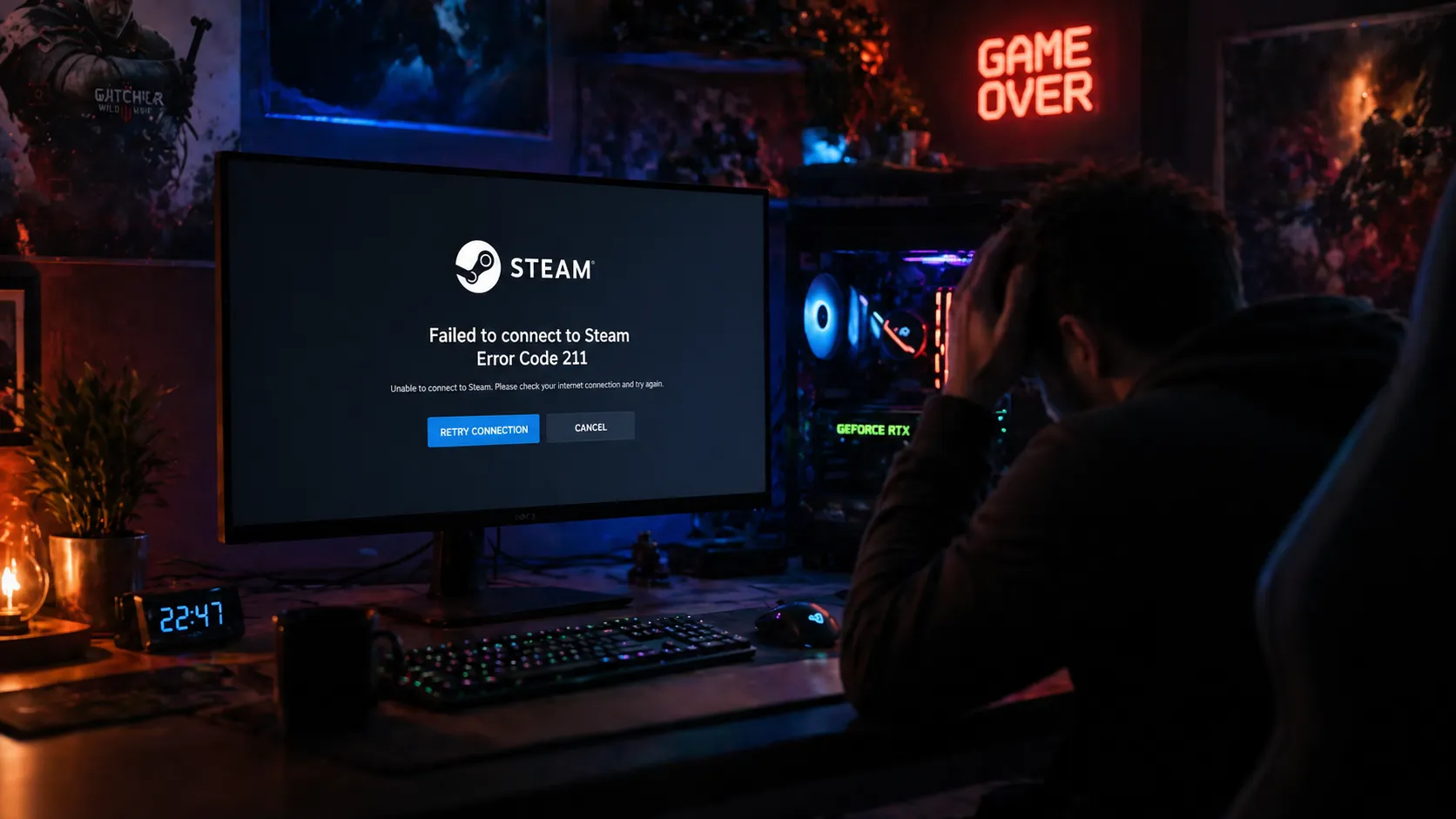
You boot up Marvel Rivals. The splash screen loads. You’re ready to assemble your squad and dominate — and then it hits you like a Thor hammer to the face:
“Failed to connect to Steam. Error Code 211.”
Game over before it even started.
If you’ve been searching for answers on the failed to connect to Steam error code 211, you’ve landed in the right place. This error is one of the most disruptive Steam-related issues hitting PC gamers right now — and Marvel Rivals players are reporting it in unusually high numbers following recent updates and seasonal patches.
The frustrating part? The error message itself tells you almost nothing useful. No explanation. No instructions. Just a wall between you and your game. If you’re facing similar connection issues in other games, you may also encounter DBD error code 8012, which is related to server and login problems.
In this guide, you’ll get a complete breakdown of what Steam error code 211 actually means, what triggers it, and 10 proven fixes that work — ranked from the quickest to the most thorough. Whether you’re dealing with this in Marvel Rivals specifically or across multiple Steam games, this guide covers every scenario.
Let’s get you back in the fight.
What Is Steam Error Code 211?
Steam error code 211 is a Steam authentication and connection failure error. It occurs when the game client — whether Marvel Rivals, another title, or Steam itself — attempts to verify your session with Valve’s Steam authentication servers and the handshake fails.
In plain terms: your game tried to confirm you’re a legitimate, logged-in Steam user, and something blocked or broke that confirmation process.
The full error message typically reads:
“Failed to connect to Steam. Error Code: 211”
Or in Marvel Rivals specifically:
“Marvel Rivals failed to connect to Steam. Error Code 211”
This error can appear:
- At game launch, before the main menu loads
- After clicking “Play” in the Steam library
- Mid-session, after a network interruption
- Following a Steam client or game update
It is not a hardware error. It’s entirely a software and network-level failure, which means it’s fixable with the right steps.
What Causes the Failed to Connect to Steam Error Code 211?
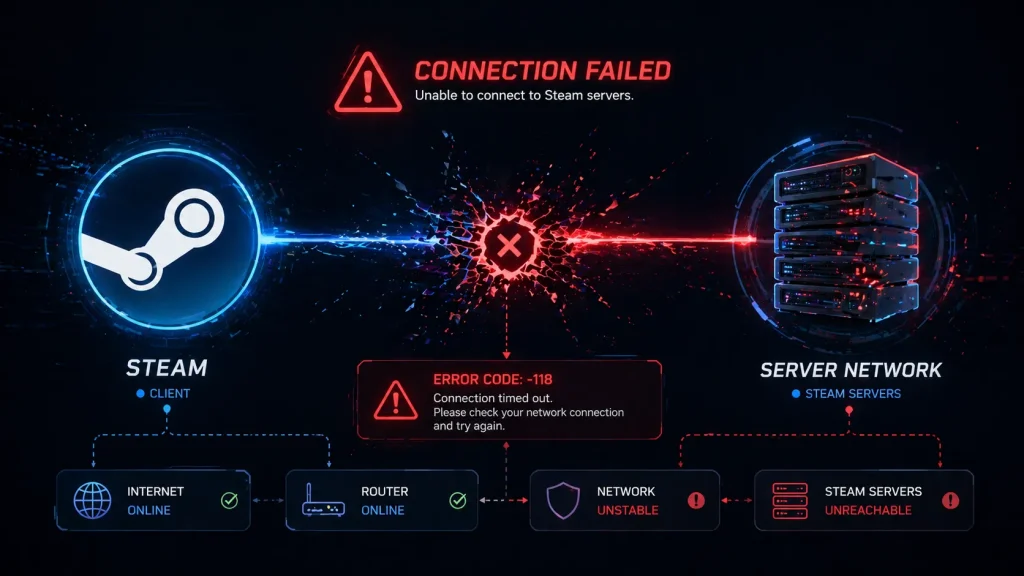
Error code 211 is a symptom. The underlying causes are varied, and identifying which one applies to you determines which fix will work fastest.
Here are the most documented root causes:
Steam Server Outages Valve’s Steam authentication servers go down occasionally — during updates, high-traffic periods, or maintenance windows. When the server-side authentication is unavailable, every game that requires a Steam connection throws this error.
Steam Client Session Corruption When the Steam client’s local session data becomes corrupt or stale — often after a crash or improper shutdown — it can no longer authenticate properly with Steam servers.
Firewall or Antivirus Blocking Steam Windows Defender, third-party antivirus software, and firewall rules frequently misidentify Steam authentication processes as suspicious activity and block them. This is one of the top causes of error 211, specifically.
VPN or Proxy Interference: Active VPN connections route your traffic through foreign servers, which can confuse Steam’s regional authentication. Steam’s own anti-abuse systems sometimes flag VPN traffic and drop the connection.
DNS Resolution Failures If your DNS server can’t resolve Valve’s authentication server addresses, the connection never even reaches Steam, resulting in a timeout that triggers error code 211.
Corrupted Game Files Specifically in Marvel Rivals, corrupted or missing files tied to the Steam API integration (like steam_api64.dll) directly cause this error even when Steam itself is working perfectly.
Outdated Steam Client Running an outdated version of the Steam client means using outdated authentication protocols. Steam regularly updates its connection and security architecture, and older clients can fail to handshake correctly.
Network Configuration Issues: ISP-level throttling, incorrect TCP/IP stack settings, or a misconfigured router can interrupt the persistent connection Steam requires for authentication.
Now let’s fix each one.
Is This a Marvel Rivals-Specific Issue?
Yes and no. Error code 211 is a general Steam authentication error that can affect any Steam-connected game — but Marvel Rivals players are encountering it at a disproportionately high rate for specific reasons.
Marvel Rivals is developed by NetEase Games and published through Steam. It uses Steamworks SDK for user authentication, matchmaking, and anti-cheat verification. Because the game is online-only and requires a constant Steam authentication loop — not just at launch but throughout gameplay — any instability in the Steam connection pipeline causes an immediate error 211.
Several factors amplify this for Marvel Rivals specifically:
- High concurrent player counts during new season launches stress Steam authentication queues
- NetEase’s own servers interact with Steam authentication simultaneously, creating a double-dependency
- Frequent game updates occasionally ship with mismatched Steam API files
- Anti-cheat software (Vanguard integration) can conflict with Steam’s authentication calls on some system configurations
So while error 211 is a Steam-level issue at its core, Marvel Rivals players face it more often due to how deeply the game integrates with Steam’s infrastructure. The fixes below address both the Steam-level and Marvel Rivals-level causes.
Fix 1: Check Steam Server Status Before Anything Else
This is the most important first step and the most commonly skipped one.
If Valve’s Steam authentication servers are experiencing an outage, no local fix will resolve error code 211. You could spend an hour reinstalling Steam when the real answer is to wait 20 minutes.
How to check Steam server status:
- Visit steamstat.us — this third-party tool provides real-time status of all Steam services, including Login, Store, Community, and Game Coordinator
- Check downdetector.com and search “Steam”
- Follow @Steam and @SteamDB on Twitter/X for outage announcements
- Visit store.steampowered.com — if you can’t even load the storefront, the issue is server-side
What to look for:
- Steam Login servers: Must be operational for error 211 fixes to work
- Steam Community: Outages here can also trigger authentication failures
- Regional server issues: Steam authentication is partially regionalized — your region’s server may be down even if global status shows “normal”
If the servers are down, your only move is to wait and try again in 30–60 minutes. Save yourself the troubleshooting time. Another common issue players report is DBD error code 8028 on Epic Games, which also involves account and network-related problems.
Fix 2: Restart Steam Completely — The Right Way
Not minimized to the tray. Not closed with the X button. Fully terminated.
When Steam crashes, experiences a bad update, or loses its connection unexpectedly, it sometimes leaves orphaned background processes running. These zombie processes prevent a fresh authentication from initializing and lock you into error code 211 until they’re killed.
Steps to fully restart Steam:
- Press Ctrl + Shift + Esc to open Task Manager
- In the Processes tab, look for any process named:
- Steam.exe
- steamwebhelper.exe
- steamservice.exe
- Right-click each one and select End Task
- Wait 15–20 seconds after all Steam processes are gone
- Relaunch Steam as normal
- Let it fully load and check for updates before launching your game
This resolves stale session data that persists even after clicking “Exit” in the Steam menu. It’s a quick fix that works for a significant percentage of error 211 cases.
Fix 3: Run Steam as Administrator
Steam requires elevated permissions to write to certain system directories, establish specific network connections, and interface with protected Windows processes — including anti-cheat systems used by games like Marvel Rivals.
Without admin privileges, Steam’s authentication calls can fail silently, triggering error code 211 without a clear explanation.
Steps:
- Close Steam completely (use Task Manager as described in Fix 2)
- Navigate to your Steam installation folder: Default: C:\Program Files (x86)\Steam\
- Right-click Steam.exe
- Select Properties
- Go to the Compatibility tab
- Check “Run this program as an administrator.”
- Click Apply > OK
- Launch Steam and test
For Marvel Rivals specifically: Do the same for the Marvel Rivals executable:
- In your Steam Library, right-click Marvel Rivals
- Select Properties > Local Files > Browse
- Find the game’s .exe file
- Right-click > Properties > Compatibility > Run as administrator
Running both with elevated privileges eliminates permission-based authentication failures.
Fix 4: Verify Marvel Rivals Game Files
If the issue appears specifically in Marvel Rivals and not other Steam games, corrupted or missing game files are the most likely culprit — particularly files related to the Steam API integration.
Files like steam_api64.dll are critical for the game’s Steam authentication. If they’re missing, corrupted from a bad update, or blocked by antivirus, error code 211 appears immediately on launch.
Steps:
- Open Steam and go to your Library
- Right-click Marvel Rivals
- Select Properties
- Click Local Files
- Click “Verify integrity of game files…”
- Wait for Steam to scan all files (this can take 5–15 minutes)
- Steam will automatically download and replace any damaged or missing files
- Once complete, relaunch Marvel Rivals
This is one of the highest success fixes for the Marvel Rivals failed to connect to Steam error code 211 specifically. Run it before attempting more complex solutions.
Fix 5: Flush DNS Cache and Reset Network Stack
DNS (Domain Name System) issues are one of the sneakiest causes of Steam error 211. Your PC uses DNS to translate Steam’s server addresses (like “auth.steampowered.com”) into IP addresses it can connect to. If your DNS cache contains outdated or corrupted entries, those connections fail — and Steam reports error 211.
A full DNS flush and network stack reset clears those bad entries and forces your PC to fetch fresh, accurate routing information.
Steps:
- Press Windows + S, search for Command Prompt
- Right-click and select Run as administrator
- Type each command below, pressing Enter after each:
ipconfig /flushdns
ipconfig /registerdns
ipconfig /release
ipconfig /renew
netsh winsock reset
netsh int ip reset
- Restart your PC after running all commands
- Relaunch Steam and test
The netsh winsock reset command is particularly important — it resets the Windows networking architecture to default, which resolves a range of connection failures that standard troubleshooting misses.
Bonus — Switch to Google or Cloudflare DNS: If the error persists, try changing your DNS server:
- Go to Settings > Network & Internet > Advanced Network Settings
- Click your connection > Edit
- Set DNS to 8.8.8.8 / 8.8.4.4 (Google) or 1.1.1.1 / 1.0.0.1 (Cloudflare)
These public DNS servers are faster and more reliable than most ISP-provided defaults.
Fix 6: Disable VPN and Proxy Settings
Using a VPN while playing Steam games is a common habit — but it’s also a common cause of error code 211.
Steam’s authentication servers check connecting IP addresses against known VPN ranges and proxy services. When a match is detected, Steam can drop the authentication connection as a security measure, resulting in error 211. Beyond intentional VPNs, Windows sometimes enables proxy settings automatically through network configurations you didn’t manually set.
Disable VPN:
- Disconnect your VPN completely — don’t just pause it
- Close the VPN application fully
- Restart Steam and test
Disable Windows Proxy Settings:
- Go to Settings > Network & Internet > Proxy
- Under Manual proxy setup, toggle it Off
- Under Automatic proxy setup, toggle “Automatically detect settings” to Off
- Restart Steam
Check for Proxy in Internet Options:
- Press Windows + R, type inetcpl.cpl, press Enter
- Click the Connections tab
- Click LAN Settings
- Uncheck “Use a proxy server for your LAN.”
- Click OK and restart Steam
Even if you don’t think you have a proxy enabled, it’s worth checking — network software, corporate IT tools, and certain antivirus programs set proxies silently in the background.
Fix 7: Whitelist Steam and Marvel Rivals in Firewall and Antivirus
This is one of the most effective fixes for persistent Steam error code 211 — and one that players most often overlook because they assume their firewall “knows” to allow games.
Windows Defender Firewall and most third-party security suites routinely block Steam’s authentication calls, especially after a game update introduces new executable files or network behavior patterns that the firewall hasn’t seen before.
Add Steam to Windows Firewall Exceptions:
- Open Windows Security > Firewall & Network Protection
- Click “Allow an app through firewall.”
- Click Change Settings (requires admin)
- Scroll through the list for Steam
- If found, ensure both Private and Public checkboxes are ticked
- If not found, click “Allow another app.”
- Browse to C:\Program Files (x86)\Steam\Steam.exe and add it
- Repeat for Marvel Rivals executable in its game folder
Add Exceptions in Third-Party Antivirus: The process varies by software, but the general steps are:
- Open your antivirus dashboard
- Find Exclusions, Exceptions, or Trusted Applications
- Add the Steam installation folder: C:\Program Files (x86)\Steam\
- Add the Marvel Rivals game folder as well
- Save and restart your antivirus
Quick Test: Temporarily disable your antivirus and firewall completely, then test Steam. If error 211 disappears, your security software was the blocker. Re-enable and add proper exceptions rather than leaving protection disabled.
Fix 8: Clear Steam Download Cache and App Cache
Steam stores cached data for downloads, web content, and application states. When this cache becomes corrupted — which happens more frequently than Valve would like to admit — it can prevent proper authentication and trigger error code 211 on subsequent launches.
Clear Download Cache (Built-in Steam Tool):
- Open Steam
- Click Steam in the top menu bar
- Select Settings
- Click Downloads in the left sidebar
- Click “Clear Download Cache”
- Steam will log you out and restart
- Log back in and test
Manually Clear Steam App Cache:
- Close Steam completely (Task Manager)
- Navigate to your Steam folder: C:\Program Files (x86)\Steam\
- Open the appcache folder
- Delete everything inside appcache (not the folder itself)
- Relaunch Steam — it will rebuild the cache automatically
Clear the HTML cache folder:
- Navigate to: C:\Users\[YourUsername]\AppData\Local\Steam\htmlcache
- Select all files and delete
- Restart Steam
Clearing the cache forces Steam to authenticate with a completely fresh session — eliminating any corrupted credential data that might be blocking error-free connections.
Fix 9: Reinstall the Steam Client
If error code 211 persists across multiple games — not just Marvel Rivals — the Steam client installation itself is likely corrupt. A clean reinstall replaces all Steam system files while preserving your game library and account data.
Important before reinstalling: Your games are stored in the Steamapps folder. Moving or backing it up means you won’t have to re-download everything.
Steps:
- Back up your games:
- Navigate to C:\Program Files (x86)\Steam\steamapps\
- Copy the steamapps folder to another location (external drive or different folder)
- Uninstall Steam:
- Go to Settings > Apps > Installed Apps
- Search for Steam, click it, and select Uninstall
- Delete remaining Steam files:
- Navigate to C:\Program Files (x86)\ and delete the Steam folder if it still exists
- Download the latest Steam installer from steampowered.com
- Install Steam to the same directory as before
- Move your backed-up SteamApps folder back into the new Steam directory
- Launch Steam, log in, and let it verify your existing games
- Test for error 211
A clean Steam reinstall resolves deep client-level corruption that cache clearing and file verification cannot touch.
Fix 10: Marvel Rivals-Specific Fixes for Error Code 211
Beyond the general Steam fixes above, Marvel Rivals has some game-specific behaviors that can trigger error 211. Here are targeted solutions for the Marvel Rivals failed to connect to Steam error code 211 scenario:
Reinstall Microsoft Visual C++ Redistributables
Marvel Rivals relies on specific versions of Visual C++ runtimes to interface with the Steamworks SDK. Missing or corrupt versions cause authentication failures.
- Go to Settings > Apps > Installed Apps
- Search for Microsoft Visual C++
- Uninstall all Visual C++ Redistributable packages
- Download and install the latest versions from Microsoft’s official download page (search “Visual C++ Redistributable downloads”)
- Restart your PC and test
Update DirectX
- Press Windows + R, type dxdiag, and press Enter
- Check your DirectX version in the System tab
- Run Windows Update to get the latest DirectX components
- Alternatively, run the DirectX End-User Runtime Web Installer from Microsoft
Check for Marvel Rivals-Specific Updates
NetEase occasionally releases hotfix patches outside of Steam’s standard update system. Check:
- The official Marvel Rivals website for patch notes
- The Marvel Rivals Discord for emergency fix announcements
- The game’s Steam Community Hub for pinned posts about known error 211 issues
Verify NetEase Account Linkage
Marvel Rivals requires both a Steam account and a NetEase account to be properly linked. If this linkage breaks after a patch, it can manifest as error code 211.
- Launch Steam and go to the Marvel Rivals store page
- Check if there’s a prompt to re-link your NetEase account
- Log out of both Steam and any NetEase portal, then log back in
- Relaunch the game
Quick Reference Fix Table
| Fix | Best For | Time Required |
| Check server status | Server outage scenarios | 2 minutes |
| Full Steam restart | Stale session/process issues | 3 minutes |
| Run as administrator | Permission-based failures | 5 minutes |
| Verify game files | Marvel Rivals-specific corruption | 10–15 minutes |
| Flush DNS + reset network | Network/DNS failures | 5 minutes |
| Disable VPN/proxy | VPN interference | 2 minutes |
| Firewall/antivirus whitelist | Security software blocking | 10 minutes |
| Clear the Steam cache | Corrupted cache data | 5 minutes |
| Reinstall the Steam client | Deep client corruption | 20–30 minutes |
| Marvel Rivals-specific fixes | NetEase/Steamworks conflicts | 15–20 minutes |

Final Thoughts
The failed to connect to Steam error code 211 is one of those maddening errors that gives you almost nothing to work with — just a number and a broken gaming session. But now you know exactly what it means, what causes it, and how to fix it.
For most players, the resolution comes quickly: check the servers, fully restart Steam, or verify your game files. Marvel Rivals players dealing with this error specifically should also check their NetEase account linkage and Visual C++ installations — those two steps resolve a significant chunk of game-specific error 211 cases.
Work through the fixes methodically. Start fast and simple, then escalate only if needed. The vast majority of players find their fix within the first four or five methods.
The Avengers are waiting. Iron Man doesn’t assemble himself.


