
Error 2007 Discord Stream? Fix Reconnecting Issues
To fix Error 2007 on Discord, the most effective first step is to switch the Voice Region in your channel settings to a specific location instead of leaving it on “Automatic.” But in 2026, there is a second critical requirement that most guides completely miss — and if you skip it, nothing else will work.
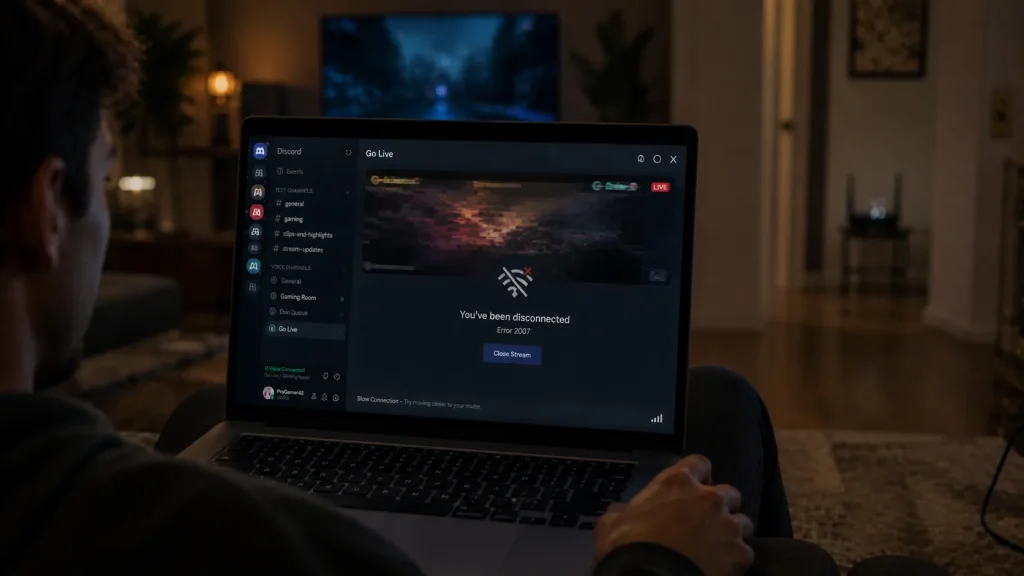
You set everything up perfectly. Your game is running, your voice channel is active, and you hit Go Live — ready to stream to your Discord server. Then it happens. The stream sputters, dies, or never starts at all, and a message hits you: error 2007 Discord stream. Sometimes it kicks you out of the call entirely with a “You’ve been disconnected” notification. Sometimes your stream starts but carries no audio. Either way, the experience is completely broken.
If you have searched for answers and landed here, you already know how frustrating this error can be. The Reddit threads are full of users asking the same question — how to fix error 2007 Discord stream — and most answers are incomplete, outdated, or miss the single most important change Discord made in early 2026.
Here is what changed: as of March 2, 2026, Discord implemented mandatory End-to-End Encryption for all go-live streams through their DAVE protocol. If your client is not on the minimum required version, Discord’s servers will actively reject your stream’s media packets, and you will get error 2007 every single time — regardless of your internet speed, your settings, or how many other fixes you try.
This guide covers that critical update in full, along with every other proven cause and fix for error 2007 discord stream across all platforms — Windows, Mac, Android, and iOS. By the time you finish reading, you will have everything you need to get your stream running again and keep it that way.
If your issue also involves microphone or audio input problems, you should check Discord Error 3002 fixes, which focuses on mic detection failures.
What Is Error 2007, Discord Stream? The Definitive Answer
Before jumping to fixes, establishing exactly what this error is will save you from chasing the wrong solutions.
Error 2007: Discord stream is a streaming session initialization or maintenance failure. It occurs when Discord’s Go Live or screen sharing pipeline fails either at the startup phase — the stream never begins — or during an active session when the stream abruptly drops. The error lives inside Discord’s real-time media transmission layer, the system responsible for encoding your screen or game video and sending it to Discord’s voice servers for distribution to viewers.
This is not a camera error. It is not a microphone error. It is not an authentication or login problem. Error 2007 is squarely a streaming transport failure — something breaks in the path between your device’s screen capture engine and Discord’s media relay infrastructure.
The error manifests in two distinct failure modes:
Mode 1 — Stream fails to start: You click Go Live or attempt screen share, Discord attempts to initialize the stream, and the process fails before any content is transmitted. Error 2007 appears immediately or within a few seconds of the attempt. In 2026, this mode is now frequently caused by the mandatory E2EE requirement described in detail later in this guide.
Mode 2 — Stream drops mid-session: Your stream is running normally, then abruptly disconnects with error 2007, and sometimes the “You’ve been disconnected” notification. Viewers lose the feed, and you are typically removed from the voice channel or left in it without an active stream.
Both modes share overlapping causes but have important distinctions — which is why this guide covers both thoroughly with targeted fixes for each.
What Does the Error 2007 Message Look Like?
The visual presentation of the error 2007 Discord stream differs slightly between platforms, but the core message is consistent.
On desktop (Windows and Mac), you typically see a modal or inline error notification reading:
“Stream failed — Error 2007.”
or
“Your stream has ended unexpectedly — Error 2007.”
On mobile — particularly for error 2007 discord stream android — the error appears as a brief dismissible notification within the Discord app during or immediately after a streaming attempt. Many users on Reddit report seeing it combined with the disconnection message: “You’ve been disconnected — Error 2007 Discord.”
The disconnection variant is the most disorienting because it does not just end the stream — it removes you from the voice channel entirely. You lose both your stream and your voice call connection at the same moment.
Starting in March 2026, a new presentation has been reported alongside error 2007: a missing or red lock icon in the voice channel details panel. This visual indicator is directly tied to the E2EE requirement and is covered fully in the next section.
Key things the error does NOT affect:
- Your Discord account status or login session
- Text channels and messaging functionality
- Other users’ ability to use the server
- Your device’s overall internet connectivity
The error is fully isolated to the streaming pipeline — which is actually useful for troubleshooting because it means every fix targets a specific streaming-related cause.
What Causes Error 2007, Discord Stream?
Understanding the cause is the most direct path to the right fix. Here is every confirmed root cause of error 2007 discord stream in 2026, followed by a quick-reference table for faster diagnosis.
1. Outdated Client Failing E2EE Requirements (New in 2026)
As of March 2, 2026, Discord’s mandatory End-to-End Encryption rollout for Go Live streams means any client below the minimum version is actively rejected by Discord’s media servers. This is now the leading cause of the instant startup failure variant of error 2007. Full details and fixes are in the dedicated section below.
2. Unstable or Insufficient Internet Connection
Discord streaming requires a consistent, minimum-speed connection to maintain the media relay. Unlike text or voice communication, which can tolerate packet loss and brief interruptions, streaming video requires sustained bandwidth and low latency. If your connection drops below the threshold Discord needs — or experiences jitter, packet loss, or a brief disconnection — the streaming pipeline collapses and error 2007 appears.
3. Discord Voice Region Mismatch or Server Overload
Discord’s streaming infrastructure is distributed across voice regions globally. If the voice channel’s region server is experiencing high load, is temporarily degraded, or is geographically far from your location, introducing high latency, the stream session may fail to establish or maintain reliably.
4. Hardware Acceleration Conflict — Including HAGS
Discord uses GPU hardware acceleration for video encoding by default. In 2026, the more precise culprit on Windows is often not Discord’s own hardware acceleration toggle but rather Windows Hardware-Accelerated GPU Scheduling (HAGS) and Windows Game Mode — system-level settings that compete with Discord’s AV1 encoding pipeline for GPU resources. This is addressed specifically in Fix 4.
5. Outdated Discord Client (Non-E2EE Cases)
Beyond the E2EE requirement, running any outdated Discord version can cause streaming protocol mismatches. Discord regularly updates streaming session parameters, and older clients may use deprecated configurations that current servers no longer accept.
6. Insufficient Streaming Permissions on the Server
Discord’s Go Live feature requires specific server-level configurations. In servers with complex role structures, the permission to stream may not be correctly assigned to your role, producing error 2007 on every attempt.
7. Overloaded System Resources
When your CPU or GPU is under extreme load during intensive gaming on mid-range hardware, Discord’s encoding process cannot secure sufficient resources to initialize or maintain the stream. The encode buffer overflows or times out, producing error 2007.
8. Mobile Network Instability (Android and iOS)
On mobile devices, the error 2007 discord stream android and iOS variants are frequently caused by cellular network instability — micro-drops and signal fluctuations that desktop users on wired connections never encounter. Discord’s streaming session is sensitive to these drops.
9. Corrupted Discord App Data or Cache
Accumulated corrupted cache data can interfere with streaming session initialization. This is particularly triggered by failed Discord updates or extended periods of heavy app use.
10. Conflicting Background Capture Applications
Screen recording software, game capture tools, and video conferencing applications that hook into the display or GPU layer can conflict with Discord’s streaming capture process.
Quick-Reference Diagnosis Table
Use this table to identify your specific situation before working through the full fixes. Match your symptom to the most likely cause and go directly to the relevant fix.
Symptom: Instant crash or the stream never starts. Most Likely Cause: Outdated client failing E2EE requirement. Quick Fix: Update to v247.0 or later on mobile, v1.0.9164 on Windows
Symptom: You’ve been disconnected. Error message: Most Likely Cause: High jitter or network drop mid-session. Quick Fix: Switch to Ethernet or change voice region
Symptom: Black screen combined with error 2007. Most Likely Cause: Hardware acceleration or HAGS conflict. Quick Fix: Disable Hardware Acceleration in Discord or toggle off HAGS in Windows
Symptom: Stream has no audio on mobile. Most Likely Cause: Permission or Bluetooth audio conflict.
Quick Fix: Reset Voice Settings and revoke Bluetooth connection
Symptom: Error 2007 only on specific servers. Most Likely Cause: Streaming permission not assigned to your role. Quick Fix: Ask the admin to verify Go Live permissions
Symptom: Stream worked yesterday, fails today. Most Likely Cause: Discord update changed E2EE requirements, or the voice region is overloaded. Quick Fix: Update Discord and switch voice region
Symptom: Error 2007 on Android only. Most Likely Cause: Battery optimization throttling Discord Quick Fix: Set Discord to unrestricted in battery settings
The 2026 Critical Update — Discord E2EE and the DAVE Protocol
This section covers the most important change affecting the error 2007 Discord stream in 2026 — and the one that most troubleshooting guides currently online have entirely missed.

What Is the DAVE Protocol?
Discord’s Audio Video Encryption protocol, known internally and publicly as DAVE, is Discord’s implementation of End-to-End Encryption for real-time audio and video communication. Discord began rolling out DAVE progressively in late 2024 for voice channels and DM calls, and on March 2, 2026, they completed the mandatory rollout to all Go Live streaming sessions across all server types.
What this means in practical terms: every Go Live stream on Discord now uses encrypted media packets. Your stream data is encrypted on your device before it leaves, transmitted through Discord’s relay infrastructure without Discord’s servers being able to read the raw media, and decrypted on viewers’ devices.
Why This Causes Error 2007
Discord’s streaming servers now expect all incoming media packets to conform to the DAVE protocol’s encryption format. If your Discord client is below the minimum version that supports DAVE for streaming, it sends unencrypted media packets in the old format. Discord’s servers detect the non-compliant packet format and reject the stream session entirely — immediately, at the initialization stage. Your client receives the session rejection and reports it as error 2007.
This is why users on older clients experience the instant startup failure variant: the stream attempt dies before a single frame is transmitted because the server will not accept the connection.
Minimum Required Versions for E2EE Streaming
To stream on Discord after March 2, 2026, your client must meet these minimum version requirements:
Mobile (Android and iOS): Version 247.0 or later Windows desktop: Version 1.0.9164 or later Mac desktop: Version 0.0.320 or later Linux desktop: Version 0.0.53 or later
How to Check for the E2EE Green Lock Icon
Discord added a visual indicator for encrypted streaming sessions. When a voice channel has active streaming with E2EE properly functioning:
- Click on the voice channel you are connected to
- Look in the channel details or the voice connection panel
- A green lock icon indicates E2EE is active and your client is compliant
- A missing lock icon or a red lock icon indicates your client version does not support DAVE for streaming
If you see a red or missing lock icon, updating Discord is not optional — it is a hard requirement for streaming to function at all.
How to Update Discord to E2EE-Compliant Versions
On Windows: Press Ctrl + R inside Discord to force an immediate update check and restart. If the update does not trigger, visit Discord’s official website and download the latest installer directly. Run it over your existing installation — it will update without requiring a reinstall.
On Mac: Press Cmd + R inside Discord for an update check. For manual updates, download the latest DMG from Discord’s official site.
On Android: Open Google Play Store, search Discord, and tap Update if available. If no update shows, you are already on a current version. If the version shown in App Info is below 247.0, clear the Play Store cache and check again.
On iOS: Open the App Store, tap your profile icon, scroll to Discord, and tap Update. iOS sometimes delays showing available updates — pull down to refresh the updates list.
After updating, fully close and relaunch Discord. Check for the green lock icon when you join a voice channel before attempting to stream.
Quick Diagnostic Check Before You Start Fixing
Two quick tests before diving into the full fix list will save you significant troubleshooting time.
Test 1 — Verify Your Discord Version
Check your Discord version immediately: User Settings → About. Compare against the minimum version requirements listed above. If you are below the threshold, the E2EE update in Fix 1 is your entire solution, and no other troubleshooting is needed.
Test 2 — Check Your Internet Connection Quality
Run a speed test and note specifically:
- Upload speed: should be above 3–5 Mbps minimum for Discord Go Live
- Ping: ideally below 80ms; above 150ms significantly increases stream instability
- Jitter: should be below 20ms; high jitter is the primary driver of mid-session error 2007 drops
Test 3 — Check Discord’s Server Status
Visit discordstatus.com and check for active incidents affecting Voice or Video infrastructure. If Discord’s streaming servers are experiencing degraded performance, no client-side fix will resolve the error until Discord restores normal service.
If your version is current, your connection is solid, and Discord’s servers are operating normally, the issue is a local configuration problem that the fixes below will address directly.
Top 7 Proven Fixes for Error 2007 Discord Stream
Fix 1: Update Discord — Now a Hard Requirement in 2026
In previous years, keeping Discord updated was a recommendation. In 2026, it is mandatory for streaming to function at all. This is the first fix to attempt and should be verified before anything else.
Why it is now non-negotiable: Discord’s mandatory DAVE End-to-End Encryption rollout on March 2, 2026, means clients below the minimum version have their stream sessions actively rejected by Discord’s servers. No amount of settings changes, region switching, or cache clearing will resolve error 2007 if your client does not support E2EE streaming.
Update steps are covered in full in the E2EE section above. After updating, verify the green lock icon is present in the voice channel details before testing your stream.
If your client is already on the required version or newer and error 2007 persists, the cause is elsewhere — continue with the fixes below.
Fix 2: Change the Voice Channel Region
To fix Error 2007 on Discord, one of the most effective methods is to switch the Voice Region in your channel settings to a specific location instead of leaving it on “Automatic.” This resolves region overload and latency-related failures immediately and is the fastest fix after confirming your client version is current.
Only server administrators and moderators with the Manage Channels permission can change a voice channel’s region.
Steps:
- Right-click the voice channel experiencing the error
- Select Edit Channel
- Click the Overview tab
- Find the Region Override dropdown, set to Automatic by default
- Select a specific region geographically close to your physical location — US East, US West, Europe, Singapore, Brazil, and so on
- Save Changes
- Reconnect to the voice channel and attempt to stream
If the first region still produces error 2007, try a second or third option. Different regions carry different load levels at different times of day. If you are not a server administrator, request the region change from an admin — this is one of the most consistently confirmed solutions in error 2007 discord stream reddit threads.
Fix 3: Stabilize Your Internet Connection
Connection instability is the leading cause of the mid-session drop variant of error 2007. A stream that starts successfully but dies shortly after is almost always a network issue.
For desktop users:
- Switch from Wi-Fi to a wired Ethernet connection where possible. Ethernet eliminates the packet loss and signal interference that Wi-Fi introduces and is the single most reliable prevention for mid-session drops
- If Ethernet is unavailable, move closer to your router and ensure no physical obstructions are between your device and the access point
- Restart your router: unplug from power, wait 30 full seconds, plug back in. This resets your connection to your ISP and clears temporary congestion
- Check whether other devices on your network are consuming heavy upload bandwidth — cloud backups, other streams, or large file uploads will starve Discord’s streaming pipeline
For mobile users:
- Switch between cellular data and Wi-Fi to identify which connection is unstable
- Enable airplane mode for 10 seconds, then disable it to reset your device’s network radio
- If on Wi-Fi, move closer to the router or switch to the 5GHz band if your router supports it
Fix 4: Disable Hardware Acceleration and Check Windows HAGS
Hardware acceleration conflicts are a primary cause of the startup failure variant of error 2007 discord stream on desktop. In 2026, the more precise culprit on Windows systems is often not Discord’s internal hardware acceleration toggle but rather Windows system-level settings.
Step 1 — Disable Discord’s Hardware Acceleration:
- Open Discord and click User Settings (the gear icon)
- Scroll to App Settings in the left sidebar and click Advanced
- Switch Hardware Acceleration OFF
- Click Okay on the restart prompt and allow Discord to restart
- Test your stream
Step 2 — If Discord’s Toggle Does Not Resolve It, Disable Windows HAGS:
Hardware-Accelerated GPU Scheduling (HAGS) is a Windows feature that allows the GPU to manage its own memory scheduling. In 2026, HAGS combined with Windows Game Mode creates conflicts with Discord’s AV1 encoding pipeline on many systems — even those with capable GPUs, including Intel Xe and Arc integrated graphics, which handle Discord’s AV1 encoding well under normal conditions.
To disable HAGS:
- Open Windows Settings and navigate to System → Display → Graphics
- Click Change default graphics settings
- Find Hardware-Accelerated GPU Scheduling and toggle it OFF
- Restart your computer — this change requires a full system restart to take effect
- Test Discord streaming after the restart
Step 3 — Disable Windows Game Mode:
- Open Windows Settings → Gaming → Game Mode
- Toggle Game Mode OFF
- Test Discord streaming
These Windows-level settings are frequently overlooked in Discord troubleshooting because they live outside the Discord application entirely. Disabling HAGS and Game Mode resolves persistent hardware-related error 2007 cases that survive Discord’s own hardware acceleration toggle.
Note: Intel Xe and Arc integrated graphics users specifically should focus on HAGS and Game Mode rather than assuming their integrated GPU is the problem — modern Intel integrated graphics handle Discord’s AV1 requirements effectively when Windows scheduling conflicts are removed.
Fix 5: Verify Streaming Permissions on the Server
If error 2007 only occurs on specific servers or voice channels, a permissions issue is the likely cause.
What to verify as a server administrator:
- Go to Server Settings → Roles → select your role
- Confirm that Use Voice Activity, Video, and Go Live permissions are enabled under Voice Permissions
- Also check the specific voice channel’s permission overrides: right-click the channel → Edit Channel → Permissions
- Look for any explicit permission denials at the channel level that may override role-level grants
If you are not a server administrator, ask one to verify your streaming permissions directly. Complex role hierarchies and channel-specific overrides are completely invisible to regular users and are a documented cause of error 2007 in community servers.
Fix 6: Clear Discord’s Cache
Corrupted cache data is a consistent background cause of streaming failures, particularly following Discord updates. Clearing it forces Discord to rebuild its local configuration data from scratch.
On Windows:
- Fully quit Discord from the system tray
- Press Windows + R and type %appdata%\discord
- Delete the Cache, Code Cache, and GPUCache folders
- Relaunch Discord and test streaming
On Mac:
- Quit Discord completely with Command + Q
- Open Finder → Go → Go to Folder
- Navigate to ~/Library/Application Support/discord
- Delete the Cache, Code Cache, and GPUCache folders
- Relaunch Discord
On Android:
- Go to Settings → Apps → Discord → Storage
- Tap Clear Cache
- Relaunch Discord
On iOS:
- Go to Settings → General → iPhone Storage → Discord
- Tap Offload App
- Reinstall Discord from the App Store
- Log in and test streaming
Fix 7: Reduce Stream Quality Settings
When your hardware or connection cannot support the stream quality Discord is attempting to encode and transmit, the pipeline fails with error 2007. Reducing quality removes the resource bottleneck immediately.
In the Go Live setup dialogue:
- Reduce resolution from 1080p to 720p or 480p
- Reduce frame rate from 60fps to 30fps
- If streaming a specific application, check Discord’s stream settings in the overlay and reduce the bitrate
Reducing quality is particularly effective for error 2007 discord stream android users on cellular connections where bandwidth is constrained and variable, and for desktop users on mid-range hardware where the CPU and GPU are already under significant game load.
How to Fix Error 2007 Discord Stream on Android
Android users have a distinct set of causes and solutions that warrant dedicated coverage.
Verify You Meet the E2EE Version Requirement
On Android, the minimum required version for E2EE-compliant streaming is v247.0. Check your installed version in your device’s App Info for Discord. If below 247.0, update immediately through the Google Play Store before attempting any other fix.
Disable Battery Optimization for Discord
Android’s battery optimization system aggressively restricts background app activity, including network connections. When Discord’s streaming process is throttled mid-session by battery optimization, the stream drops and error 2007 appears. This is one of the most consistently reported causes in Android-specific error 2007 Discord stream Reddit threads.
- Go to Settings → Battery → Battery Optimization
- Find Discord in the app list
- Set Discord to Don’t Optimize or Unrestricted
- Restart Discord and test streaming
Check Android App Permissions
- Go to Settings → Apps → Discord → Permissions
- Ensure Microphone permission is granted, required for stream audio
- On Android 14 and later, also check for any media capture restrictions under Discord’s app permissions
Switch Between Wi-Fi and Mobile Data
If streaming fails on Wi-Fi, switch to mobile data and try again. This quickly identifies whether your current network is the bottleneck and frequently resolves the error immediately.
Update the Discord Android App
Even if you believe you are on a current version, open the Google Play Store, search for Discord, and confirm no update is pending. Android sometimes delays displaying available updates — pull down to refresh the updates list.
How to Fix Error 2007 Discord Stream on iOS
iOS users encounter error 2007 less frequently than Android users due to iOS’s more controlled environment, but the E2EE update makes version compliance equally important on Apple devices.
Verify Your iOS Discord Version
The minimum required iOS Discord version for E2EE streaming is v247.0. Open the App Store, search for Discord, and confirm you are on the latest version. Apple’s update delivery can sometimes lag by hours — pull down to refresh the available updates list if needed.
Verify Screen Broadcast Permission
Discord on iOS uses iOS’s built-in screen broadcast system for Go Live. When starting a stream:
- Follow the on-screen broadcast setup prompts carefully
- Select Discord explicitly in the broadcast selection panel
- If you previously dismissed this prompt, restart the stream setup process entirely
Check iOS Privacy Settings
- Go to Settings → Discord
- Ensure the microphone is enabled
- On iOS 16 and later, ensure Local Network access is also enabled, as this affects Discord’s ability to connect to streaming endpoints
Force Close and Relaunch Discord
Swipe up to access the app switcher, swipe Discord away to fully close it, then relaunch. Attempt the stream fresh with no other video apps running.
You’ve Been Disconnected — Error 2007 Discord Explained
The “you’ve been disconnected error 2007 discord” variant deserves specific attention because it is the most alarming presentation — it does not just fail your stream, it removes you from the voice channel entirely.
This variant occurs when Discord’s streaming session failure cascades into the voice connection layer:
- Your streaming session encounters an error at the media relay level
- Discord’s streaming pipeline attempts to recover the session
- The recovery attempt fails due to sustained network issues or server-side problems
- Discord’s voice server interprets the unresponsive streaming client as a full disconnection event
- You are forcibly removed from the voice channel with error 2007 and a disconnection notice
The disconnection variant is almost always caused by network instability rather than local software issues or the E2EE version requirement. If you were kicked out mid-stream rather than at startup, your client version is likely compliant — the cause is a network or region issue.
If streaming suddenly stops working entirely, it may be due to a server-side problem, such as the Discord 500 internal server error Fixes.
Targeted fixes for the disconnection variant:
- A wired Ethernet connection is the most effective prevention for cascade failures
- Changing the voice region to one geographically close to your location reduces latency-driven cascade failures
- Reducing stream quality lowers bandwidth demand and makes the session more resilient to brief network fluctuations
- Disabling VPN if active, as VPN-introduced latency makes cascade failures significantly more likely
Discord Stream No Audio Mobile — Is It Related to Error 2007?
Discord stream no audio mobile frequently accompanies or follows error 2007 on mobile devices and is worth addressing directly.
When Discord streaming on mobile produces no audio to viewers, even when the stream is running, the causes include:
Cause 1 — Audio capture permission not granted: Discord needs explicit microphone permission for stream audio on Android. Without it, video streams, but viewers hear silence.
Cause 2 — Partial initialization failure: When the streaming session has a partial failure where the video pipeline starts but the audio pipeline does not, viewers see the stream with no sound. This is closely related to error 2007 and is sometimes preceded by or followed by a full streaming failure.
Cause 3 — Bluetooth audio device interference: On mobile, a connected Bluetooth headset can prevent Discord from properly capturing and routing game or system audio to the stream output.
In some cases, streaming errors are linked to voice connection failures like Discord Error 2012 fixes, especially when Discord struggles to maintain stable voice channels.
Fixes for Discord stream no audio mobile:
- Ensure Discord has Microphone permission granted in Android or iOS privacy settings
- Disconnect Bluetooth audio devices and use the device’s built-in speaker and microphone setup during streaming
- In Discord Voice and Video settings on mobile, verify that the correct audio input device is selected
- Disable battery optimization on Android, as throttling can interrupt Discord’s audio capture pipeline, specifically
Related Errors — Error 2015 Discord Stream and Discord Error 2006
Understanding the family of Discord streaming errors helps you troubleshoot more effectively when the code you see differs from 2007.
Error 2015 Discord Stream
Error 2015 discord stream is a streaming session termination error that appears when Discord’s Go Live session is forcibly ended by the server rather than failing client-side. While error 2007 typically indicates a client-side or transport-layer failure, error 2015 leans toward a server-side session management issue.
Common causes:
- Server-side session timeout due to inactivity or prolonged streaming without active viewers
- WebRTC negotiation failure between your client and the media relay server
- Network changes mid-stream, such as switching from Wi-Fi to mobile data, that invalidate the existing session
The fixes for error 2015 overlap significantly with error 2007 — changing voice regions, stabilizing your connection, and ensuring your Discord client meets the E2EE version requirement resolve the majority of cases.
Stream Failed to Start Error 2015 Discord Mobile
Stream failed to start error 2015. Discord mobile is the mobile startup variant of error 2015, particularly common on Android devices with unstable connections or restricted background app permissions. It frequently occurs when Discord’s streaming session fails WebRTC negotiation due to network conditions that do not meet minimum session establishment requirements.
Targeted fixes:
- Switch to a different network — Wi-Fi to cellular or vice versa
- Disable battery optimization for Discord on Android
- Restart the Discord app completely before attempting to stream
- Reduce stream quality to its lowest setting for the initial attempt
- Verify Discord version meets the v247.0 minimum for E2EE compliance
Discord Error 2006
Discord error 2006 is a voice connection error that sits directly adjacent to the streaming error family. While error 2007 is a streaming pipeline failure, error 2006 indicates a failure in the underlying voice channel connection that streaming depends upon.
In practical terms, you cannot stream if you cannot maintain a stable voice channel connection. Error 2006 blocks the foundation that streaming builds on.
Primary causes:
- WebRTC connectivity failures caused by UDP port blocking
- Voice server region issues
- Network NAT type restrictions are preventing voice connections
Fixes for Discord error 2006:
- Change the voice channel region using the steps in Fix 2
- Verify UDP ports 50000–65535 are not blocked by your firewall
- Switch between Wi-Fi and Ethernet
- Disable VPN if active
- Enable UPnP on your router to allow Discord to negotiate NAT traversal automatically
Resolving error 2006 first will frequently resolve error 2007 simultaneously when both appear together.
Advanced Fixes for Stubborn Error 2007 Discord Stream Cases
Check and Open UDP Ports in Your Firewall
Discord’s streaming uses UDP for media transmission. Blocked UDP traffic produces consistent streaming failures.
On Windows Defender Firewall:
- Search for Windows Defender Firewall with Advanced Security in the Start menu
- Select Inbound Rules → New Rule → Port
- Select UDP and enter the range 50000–65535
- Allow the connection and name the rule Discord Streaming UDP
- Also, verify Discord’s executable is in the allowed applications list
Flush DNS and Switch to a Faster DNS Server
A slow DNS server causes timeouts during streaming session negotiation, particularly during the E2EE handshake process introduced in 2026.
On Windows, open Command Prompt as administrator and run: ipconfig /flushdns
Then switch to Cloudflare DNS (primary 1.1.1.1, secondary 1.0.0.1) for more reliable and faster resolution of Discord’s streaming and encryption endpoints.
Check Your NAT Type
Strict or Moderate NAT types interfere with Discord’s peer-to-peer streaming connections. Enable UPnP in your router’s settings to allow Discord to automatically negotiate NAT traversal. If UPnP is already enabled and NAT issues persist, configure port forwarding specifically for Discord’s UDP port range.
Disable Conflicting Capture Software
Close all of the following before streaming in Discord:
- OBS Studio, including OBS Virtual Camera
- Fraps, Bandicam, or other screen recording tools
- Xbox Game Bar
- NVIDIA ShadowPlay or GeForce Experience overlay
- AMD ReLive or Radeon Software overlay
These tools hook into the display capture pipeline and create resource conflicts with Discord’s streaming capture engine. Note that with HAGS now identified as a Windows-level cause, disabling these overlays becomes even more important as they add competing GPU scheduling demands.
Perform a Clean Discord Reinstall
For cases that survive all other fixes, a clean reinstall with complete removal of leftover application data resolves deep corruption issues.
On Windows:
- Uninstall Discord via Settings → Apps
- Delete %appdata%\discord and %localappdata%\discord completely
- Download the latest installer from Discord’s official website
- Install fresh and verify your version meets E2EE requirements before testing streaming
On Mac:
- Drag Discord to Trash
- Remove ~/Library/Application Support/discord
- Remove all Discord-related folders in ~/Library/Caches
- Reinstall from the official site
Preventing Error 2007 Discord Stream From Recurring
Maintain E2EE Version Compliance
With Discord’s mandatory E2EE requirement now in effect, staying on current versions is not optional for streamers. Enable automatic updates on all platforms and verify your version in User Settings → About after any system update that may have rolled back your Discord installation.
Use a Wired Connection for Streaming Sessions
Ethernet is the single most effective prevention for mid-session error 2007 drops. Even high-quality Wi-Fi introduces variability that wired connections eliminate. A USB-to-ethernet adapter costs under twenty dollars and is the highest-impact hardware investment for consistent Discord streaming.
Lock Your Voice Channel Region
Set voice channel regions explicitly to the closest server to your physical location instead of leaving them on Automatic. Automatic selection can change regions between sessions based on Discord’s load balancing, introducing variability. A locked, nearby region provides consistent low-latency connections for every stream session.
Keep HAGS and Game Mode Monitored
Windows updates occasionally re-enable HAGS and Game Mode after they have been disabled. After any major Windows update, re-verify that these settings are in the configuration that works for your system.
Regularly Clear Cache
Clear Discord’s cache folders every four to six weeks, particularly after major Discord updates. This prevents the accumulation of corrupted configuration data before it causes streaming failures.
Close Competing Video Applications Before Streaming
Before starting any Discord stream, close Zoom, Teams, OBS (unless you are specifically using it as a source), and any screen recording software. This eliminates GPU pipeline conflicts that become more consequential under the new AV1-based E2EE encoding pipeline.
When to Contact Discord Support
Escalate to Discord’s support team when:
- Error 2007 persists after updating to E2EE-compliant versions and applying all fixes in this guide
- The error affects only your account, while others stream successfully from the same server and region
- The error appeared immediately following a specific Discord update — particularly updates related to the DAVE protocol rollout — and has not been resolved through subsequent updates
- You are on an enterprise or school network where additional restrictions may be blocking the new E2EE encrypted packet format
Contact Discord Support at dis.gd/support. Include your exact Discord version number, your platform and OS version, your voice channel region setting, whether the green E2EE lock icon is present in voice channel details, and every troubleshooting step you have already completed. Screenshots of the error message and the voice channel details panel are particularly useful for Discord’s team in diagnosing E2EE-related cases.
Conclusion
The error 2007 discord stream in 2026 is a more complex error than it was in previous years — and that complexity comes directly from Discord’s mandatory End-to-End Encryption requirement that took effect on March 2, 2026. Every guide online that does not account for the DAVE protocol and the minimum version requirements is leaving users without the most critical piece of diagnostic information.
Here is everything you need to carry forward from this guide:
Error 2007 is a streaming transport failure affecting Discord’s Go Live and screen sharing pipeline. In 2026, the leading new cause is running a client below the E2EE minimum versions — v247.0 on mobile and v1.0.9164 on Windows. The green lock icon in voice channel details confirms E2EE compliance; a missing or red lock means an update is required. Beyond the E2EE requirement, the most common causes remain network instability, voice region overload, HAGS and Game Mode conflicts on Windows, and missing server permissions. The fastest resolution sequence is: update Discord, change the voice region, switch to Ethernet, and disable HAGS in Windows settings. Android users must additionally disable battery optimization. Error 2015 and error 2006 are related streaming and voice connection errors with overlapping fixes.
With the correct understanding of what changed in 2026 and a systematic approach to the fixes, the error 2007 Discord stream is always resolvable. You now have the complete, up-to-date picture — use it, and your streams will run exactly as they are supposed to.


