Siege Error 4-0xfff0be25: Resolve Server Disconnects
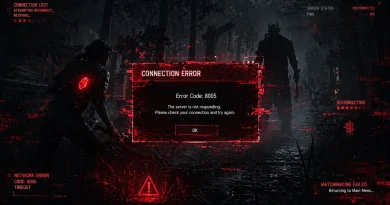
You just queued up. Your operator is ready. Your crosshair placement is dialed in. And then — boom. Error code 4-0xfff0be25 slaps you across the screen like a last-second defuse.
Brutal.
This is one of the most frustrating connection-related errors in Rainbow Six Siege. It hits you mid-game, on startup, or right before a ranked match — and it never comes with a clear explanation. Just a cold, ugly error string and a dead connection.
But here’s the good news: this error is fixable. Almost every case Siege Error 4-0xfff0be25 comes down to a network issue, a corrupted game file, or a backend hiccup with Ubisoft’s servers. Once you understand what’s triggering it, the fix becomes obvious.
This guide gives you every working solution, ranked from easiest to most advanced. No fluff. No filler. Just real fixes that get you back into the ranked grind.
What Is Siege Error Code 4-0xfff0be25?
Before you start throwing fixes at the wall, you need to know what you’re dealing with.
Error code 4-0xfff0be25 is a network-layer error in Rainbow Six Siege. It falls under the broader category of Ubisoft connection errors and typically means one of the following things:
- Your game client lost connection to Ubisoft’s backend servers
- A session handshake failed between your system and Siege’s matchmaking servers
- There’s a data integrity conflict somewhere in your local game installation
- A firewall or router is actively blocking the game’s outgoing connections
The “4” at the start of the error code indicates it’s a client-side communication failure, not a pure server-down situation. That’s actually good news — it means the problem is usually on your end or between you and Ubisoft, which means it’s something you can fix.
It’s different from error codes like 3-0x0001000B (server connectivity) or 2-0x00000096 (matchmaking). This one is specifically about the session-level connection dropping or failing to establish properly.
Why Does Error 4-0xfff0be25 Happen in the First Place?
Understanding the root cause saves you time. Here are the main culprits behind this error:
Network Instability: The biggest trigger. Packet loss, unstable Wi-Fi, a congested ISP line, or even a bad DNS server can cause this error to appear. Siege is extremely sensitive to network fluctuations because of how its networking stack is designed around a dedicated server model. Connection-related failures like this aren’t unique to Siege. For example, Steam Error Code 53 fixes explain how blocked or unstable network paths can break game connectivity at a system level.
Ubisoft Server Outages or Maintenance Sometimes it’s not you — it’s them. Ubisoft’s servers occasionally go down for maintenance or get hit with unexpected load spikes, especially during new season launches.
Corrupted Game Files. If a game update is partially installed, or a file got corrupted during a patch download, Siege might fail to authenticate your session properly. This can trigger error 4-0xfff0be25 every time you try to connect.
Firewall or Antivirus Blocking Siege Windows Defender, third-party antivirus software, and even aggressive firewall rules can flag Siege’s connection attempts as suspicious and block them silently. The game doesn’t crash — it just can’t reach the server.
NAT Type Issues: If your NAT type is Strict or even Moderate, Siege can struggle to maintain a stable connection to its servers. This is especially common for players behind double NAT setups (a modem and a router, for example).
Ubisoft Connect Client Bugs. The Ubisoft Connect launcher itself can cause connection errors if its cache is outdated, corrupted, or conflicting with your current Siege version.
Outdated Network Drivers: Old or buggy network adapter drivers can cause intermittent drops that look exactly like this error. This one gets overlooked constantly, but it’s a real cause.

Quick Checklist Before You Start
Before diving into the full fix list, run through this fast checklist. Sometimes the solution is right here:
- Is Ubisoft Connect down? Check their official server status page
- Is your internet actually working? Test another game or streaming service
- Have you restarted your router in the last hour?
- Is Siege fully updated through Ubisoft Connect?
- Are you running any VPN software? Disable it
- Is your NAT type Open?
If you hit “yes” on any of those issues, start there. But if everything checks out and you’re still getting 4-0xfff0be25, move through the fixes below.
Fix 1: Check Ubisoft Server Status First
This might sound obvious, but it’s the first move every time. Don’t waste 45 minutes tweaking your router settings if Ubisoft’s servers are just having a bad day.
Go to Ubisoft’s official server status page and check Rainbow Six Siege’s status. Also, check community hubs like DownDetector for real-time player reports. Twitter and the official Siege subreddit are also solid places to check within minutes of an error appearing.
If the servers are down — wait. There’s literally nothing else you can do. Usually, these outages resolve within 30–60 minutes unless it’s a major incident.
If the servers are fine, the problem is on your end. Keep reading.
Fix 2: Restart Everything — The Right Way
Not just the game. Not just your PC. Everything in the right order.
Here’s the correct restart sequence that actually works:
- Close Rainbow Six Siege completely
- Close Ubisoft Connect from the system tray
- Shut down your PC (not restart — full shutdown)
- Turn off your router and modem
- Wait a full 60 seconds (this clears the hardware buffer)
- Power on your modem first, wait 30 seconds
- Power on your router, wait another 30 seconds
- Boot your PC
- Launch Ubisoft Connect first, then Siege
This full restart cycle resolves around 30–40% of temporary connection errors, including 4-0xfff0be25. It’s boring advice, but it works.
Fix 3: Verify Siege Game Files Through Ubisoft Connect
Corrupted or missing game files are a silent killer. A partial patch or interrupted download can leave your installation in a broken state where certain session authentication files fail to load correctly.
Here’s how to verify your files:
- Open Ubisoft Connect
- Navigate to your Games library
- Right-click on Rainbow Six Siege
- Select “Verify files.”
- Let the process run — this can take 5–20 minutes, depending on your drive speed
- Restart the game once verification is complete
If Ubisoft Connect finds corrupted or missing files, it will automatically redownload them. This fix resolves the error in a surprising number of cases, especially after major updates.
Fix 4: Flush DNS Cache and Reset Network Stack
Your DNS cache can hold outdated or corrupted records that interfere with how your PC connects to Ubisoft’s servers. Flushing it forces a fresh lookup.
Open Command Prompt as Administrator and run these commands one by one:
ipconfig /flushdns
ipconfig /release
ipconfig /renew
netsh int ip reset
netsh winsock reset
After running all five commands, restart your PC. This resets your entire TCP/IP stack and DNS resolver — it’s one of the most effective network-level fixes for Siege connection errors.
Fix 5: Change Your DNS Server
Your ISP’s default DNS servers are often slow, unstable, or heavily filtered. Switching to a faster and more reliable DNS can fix connection issues that look like game errors but are actually DNS resolution failures.
The best options for gaming:
Google DNS:
- Primary: 8.8.8.8
- Secondary: 8.8.4.4
Cloudflare DNS (generally fastest):
- Primary: 1.1.1.1
- Secondary: 1.0.0.1
To change your DNS on Windows:
- Go to Control Panel → Network and Internet → Network Connections
- Right-click your active connection → Properties
- Click Internet Protocol Version 4 (TCP/IPv4) → Properties
- Select “Use the following DNS server addresses.”
- Enter your preferred DNS and save
Restart your router after making this change for the best results.
Fix 6: Allow Siege Through Windows Firewall and Antivirus
Windows Firewall and third-party antivirus programs can silently block Siege’s connection without triggering any obvious warning. The game just fails to connect and throws an error code.
Security software conflicts are a common cause across multiple platforms. A similar case is Steam Error Code 2 fix latest, where permission or security restrictions prevent proper client-server communication.
For Windows Defender Firewall:
- Search for “Windows Defender Firewall” in the Start menu
- Click “Allow an app or feature through Windows Defender Firewall.”
- Click “Change settings” → “Allow another app.”
- Browse to your Siege installation folder and add RainbowSix.exe
- Make sure both Private and Public are checked
- Do the same for Ubisoft Connect Launcher
For third-party antivirus: Temporarily disable it and test if Siege connects. If it does, add Siege and Ubisoft Connect as exceptions permanently. Consult your antivirus software’s documentation for how to whitelist applications — every tool is different.

Fix 7: Fix Your NAT Type
NAT type is one of the most underrated causes of this specific error. Siege needs Open NAT to function reliably. Strict or Moderate NAT creates connection problems that manifest exactly as error 4-0xfff0be25.
How to check your NAT type: Open Siege → Settings → Network → Check NAT Status
If it says anything other than Open, here’s how to fix it:
Enable UPnP on your router:
- Access your router’s admin panel (usually 192.168.1.1 or 192.168.0.1)
- Find UPnP settings (usually under Advanced or NAT)
- Enable it
- Restart your router
Or manually port forward for Siege:
Ubisoft’s required ports for Rainbow Six Siege:
- TCP: 80, 443, 14000, 14001, 14008, 14020-14024
- UDP: 3074, 6015
Set up port forwarding rules in your router admin panel, pointing those ports to your PC’s local IP address.
If you’re behind a double NAT setup (modem + router), enable DMZ on your modem pointed at your router, or switch your modem to bridge mode.
Fix 8: Update or Reinstall Network Adapter Drivers
Outdated network drivers cause intermittent packet loss and connection drops that look exactly like gaming errors. This one is especially common after Windows major updates, which sometimes roll back driver versions.
How to update:
- Right-click the Start menu → Device Manager
- Expand Network Adapters
- Right-click your network adapter (Ethernet or Wi-Fi)
- Select “Update driver” → “Search automatically.”
For best results, go directly to your motherboard manufacturer’s website or your network card manufacturer’s site and download the latest driver manually. Windows Update doesn’t always get you the most current version.
After installing, restart your PC and test Siege again.
Fix 9: Clear Ubisoft Connect Cache
Ubisoft Connect stores cached data that can become outdated or corrupted over time. Clearing it forces the launcher to rebuild a clean connection to Ubisoft’s backend.
Here’s how to do it:
- Close Ubisoft Connect completely (check the system tray)
- Navigate to: C:\Program Files (x86)\Ubisoft\Ubisoft Game Launcher
- Find the “cache” folder
- Delete everything inside it (don’t delete the folder itself)
- Reopen Ubisoft Connect and log back in
Some players also delete the contents of: %LocalAppData%\Ubisoft Game Launcher
This is safe to do — Ubisoft Connect will regenerate all the necessary cache files on the next launch.
Fix 10: Disable VPN and Proxy Services
If you’re running a VPN, disable it before launching Siege. VPNs reroute your traffic in ways that often cause authentication failures with Ubisoft’s servers. Even if your VPN usually works fine with games, it can be the trigger for this specific error.
Authentication routing issues caused by VPNs can also appear in other platforms. For instance, Best Fix of Failed to Connect to Steam Error Code 211 covers how VPN or network misrouting can break secure session connections.
The same applies to proxy servers. If your Windows network settings have a proxy configured:
- Go to Settings → Network & Internet → Proxy
- Make sure “Use a proxy server” is turned off
Also check Internet Explorer’s LAN settings (yes, even in 2026, some apps still use it):
- Search for “Internet Options” in Start
- Go to the Connections tab → LAN Settings
- Uncheck “Use a proxy server for your LAN.”
Fix 11: Reinstall Rainbow Six Siege (Last Resort)
If none of the above worked, a full clean reinstall is your final option. This eliminates any deep installation corruption that file verification might have missed.
Before reinstalling:
- Make sure your Ubisoft Connect cloud saves are synced
- Note any custom settings you want to restore
Steps:
- Uninstall Siege through Ubisoft Connect or via Add/Remove Programs
- Navigate to the old installation folder and delete any remaining files
- Also clear: %ProgramData%\Ubisoft and %LocalAppData%\Ubisoft
- Restart your PC
- Reinstall through Ubisoft Connect
A clean reinstall takes time, especially with Siege’s large file size, but it’s one of the most reliable fixes for persistent error codes.
Siege Error Code 4-0xfff0be25 on Console (PS4/PS5/Xbox)
Console players get this error, too. The fixes are slightly different since you can’t dig into drivers and command prompts.
For PlayStation:
- Go to Settings → Network → Set Up Internet Connection
- Switch from Wi-Fi to wired if possible
- Use a custom DNS (1.1.1.1 / 8.8.8.8)
- Check NAT Type in network settings — you want NAT Type 2 or lower
- Rebuild the PS4/PS5 database in Safe Mode to fix potential corruption
For Xbox:
- Go to Settings → General → Network Settings → Advanced Settings
- Switch to manual DNS (1.1.1.1 / 8.8.8.8)
- Check NAT Type — you want Open
- Run the “Test network connection” and “Test multiplayer connection” tools
- Clear the Xbox cache by holding the power button until the console fully powers off, then unplug for 30 seconds
For both consoles, also check whether your PlayStation Network or Xbox Live services are up, as Siege on console requires both PSN/Xbox Live AND Ubisoft’s servers to be functional.
Preventing Error 4-0xfff0be25 From Coming Back
Fixing it once is great. Not having to fix it again is better. Here’s how to reduce the chance of this error returning:
Use a wired Ethernet connection instead of Wi-Fi. This single change eliminates a massive percentage of gaming connection errors. Wi-Fi introduces latency spikes, packet loss, and interference that wired connections simply don’t have.
Keep your network drivers updated. Set a monthly reminder to check for driver updates on your network adapter. It takes two minutes and prevents a lot of headaches.
Don’t run downloads in the background while playing Siege. Heavy background downloads compete for bandwidth and can cause the exact kind of packet loss that triggers session errors.
Keep Ubisoft Connect updated. An outdated launcher can develop compatibility issues with newer game versions. Always run the latest version.
Monitor your connection quality. Tools like PingPlotter or WinMTR let you see exactly where packet loss is happening on your connection path to Ubisoft’s servers. If the problem is at your ISP level, you can contact them with actual evidence.
How Long Does This Error Usually Last?
If it’s a Ubisoft server issue — usually takes 30 minutes to a few hours.
If it’s a local issue (your network, files, firewall), anywhere from 5 minutes (simple restart) to an hour if you’re working through multiple fixes.
If it’s a corrupted installation that needs a full reinstall, plan for 2–4 hours, depending on your internet speed and drive.
The key is to start with the fastest, easiest fixes first and only escalate if needed. Most players resolve this error within the first three or four fixes on this list.
Final Word
Error code 4-0xfff0be25 is annoying as hell, but it’s not a death sentence for your Siege session. In most cases, you’re looking at a fixable network issue, a firewall block, or a quick file verification job.
Work through this list from top to bottom. Start with the server status check, run through the network resets, verify your files, and clean up your firewall rules. The vast majority of players who hit this error are back online within 20–30 minutes.
And if you’re getting this error constantly — not just once in a while — that’s a sign of something deeper, like chronic packet loss or a dying router. Invest in a wired connection and actually monitor your network health. Siege is demanding. Your internet setup needs to match.
Now go get those kills.