Error 3002 Discord? Fix Mic Not Picking Up Sound
You hop into a Discord voice channel, ready to talk with your team or squad — and suddenly a red banner appears at the top of your screen. The message is blunt and baffling: “It looks like Discord is not detecting any input from your mic.” That is error 3002 Discord, and it has stopped countless users mid-conversation without warning.
Here is what makes this error particularly frustrating: your microphone is physically connected. Your internet is fine. Discord itself is open and running perfectly. Yet your voice is completely invisible to the app. You are present in the channel, but nobody can hear you.
This guide exists to fix that — completely and permanently.
The Discord error 3002 is specifically a microphone detection failure. It is not a connection error, not a login issue, and not a server outage problem. It is Discord telling you, in its own clumsy way: “I can see your microphone exists, but I am receiving absolutely no audio signal from it.” That single clarification changes everything about how you troubleshoot it. If your issue isn’t limited to microphone detection, you might also be dealing with broader voice connection problems like Discord Error 2012, which affects how Discord connects to voice servers.
By the time you finish reading this guide, you will understand exactly why Discord throws this error, which fix applies to your specific situation, and how to stop it from ever interrupting a voice call again. Let us get into it.
What Is Discord Error 3002? The Real Answer
Let us set the record straight immediately, because a lot of outdated information online misidentifies this error entirely.
Discord error 3002 is a microphone input detection error — not a network or authentication error.
When error 3002 appears, Discord is not struggling to connect to its servers. Your session is authenticated. Your internet is working. The problem is purely audio-related: Discord has identified that a microphone is present on your system, but it is receiving zero input signal from it.
Think of it this way. Imagine plugging a lamp into a wall socket, seeing the power indicator light up, but the bulb produces no light. The connection exists — the communication does not. That is precisely what Discord error 3002 represents in audio terms.
This distinction matters enormously for troubleshooting. Fixes designed for connection errors — flushing DNS, disabling VPNs, reinstalling Discord entirely — will not solve error 3002 in most cases because they address the wrong layer of the problem entirely. The fixes that actually work target your microphone permissions, your audio device settings, and your system’s audio driver stack.
Understanding this is the single most important thing you can take away from this guide before touching a single setting.
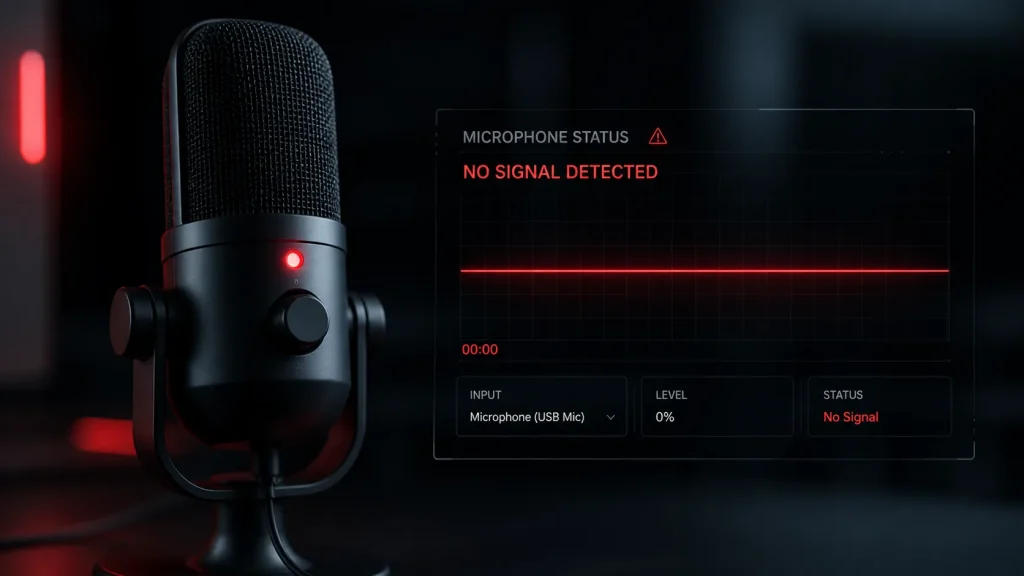
What Does the Error 3002 Message Actually Say?
When a Discord error 3002 triggers, you will typically see a distinctive red banner appearing at the very top of the Discord application window. The message reads:
“It looks like Discord is not detecting any input from your mic.”
Accompanying this banner, Discord may also display a prompt to check your input device settings or navigate to Voice and Video settings directly. The banner is persistent — it does not disappear until the microphone detection issue is resolved or you manually dismiss it.
Key observations about this error state:
- Discord remains fully open and functional in every other way
- You can read messages, browse servers, and send text normally
- Your internet connection is completely unaffected
- Other users in the voice channel cannot hear you, but you can often still hear them
- The error is isolated entirely to audio input — your microphone specifically
This symptom profile is what distinguishes the Discord 3002 error from other Discord errors and makes it diagnosable with precision once you know what you are looking at.
What Causes Discord Error 3002?
With the correct understanding of the error established, here are the real causes behind error 3002 Discord — all of them rooted in audio input, not network connectivity. If none of these fixes work, the issue might not be on your side. Discord occasionally experiences outages, which can trigger errors like a Discord 500 internal server error.
1. Operating System Microphone Permissions Blocked
This is the single most common cause in 2025 and 2026. Both Windows and macOS have introduced progressively stricter privacy controls over microphone access. If Discord does not have explicit permission to access your microphone at the OS level, it literally cannot receive any audio input — no matter what settings you configure inside Discord itself.
A Windows update, a macOS upgrade, or a fresh Discord installation can all silently reset these permissions without notifying you.
2. Wrong Input Device Selected in Discord
Discord’s Voice and Video settings include an “Input Device” dropdown. When this is set to “Default,” Discord defers to whatever your operating system considers the primary audio input device. This works fine until you connect a new headset, switch audio interfaces, or update audio drivers — at which point “Default” may silently point to a different device than your actual microphone, producing no detectable input.
3. Corrupted or Misconfigured Voice Settings
Discord stores voice configuration data locally. Over time — particularly after updates — this data can become corrupted or fall out of sync with your current hardware setup. When this happens, Discord’s audio engine cannot properly initialize your microphone even if everything else is correctly configured.
4. Exclusive Mode Enabled in Windows
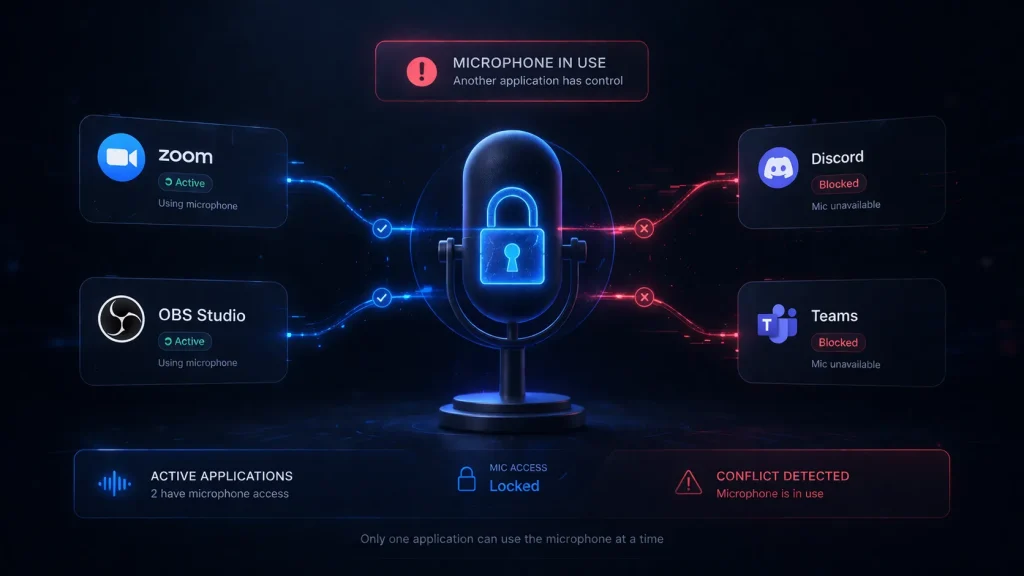
Windows has a feature called Exclusive Mode that allows a single application to take complete control of an audio device and lock all other applications out. If another program — a game, a recording application, a communication tool, or even Windows itself — has claimed exclusive control of your microphone, Discord cannot access it at all and reports error 3002 as a result.
5. Outdated or Corrupted Audio Drivers
Your microphone communicates with your computer through audio drivers. If these drivers — particularly Realtek audio drivers or USB headset drivers — are outdated, corrupted, or incompatible with a recent Windows update, they may fail to properly pass audio data to applications like Discord. This is one of the most persistent causes of recurring 3002 error across desktop systems.
6. Microphone Hardware or Connection Issues
In some cases, the microphone itself is the problem. A loose USB connection, a partially inserted 3.5mm jack, a failing cable, or a defective microphone element can all result in zero audio input reaching Discord. The error code is the same regardless of whether the cause is software or hardware.
7. Discord Voice Processing Conflicts
Discord applies real-time audio processing to your microphone input — echo cancellation, noise suppression, automatic gain control, and more. Occasionally, conflicts between these processing features and your specific audio hardware configuration cause Discord’s audio engine to fail silently, detecting the device but receiving no usable signal.
8. Third-Party Audio Software Interference
Virtual audio drivers, streaming software like OBS, recording applications, or communication tools like Zoom can all claim control of your microphone at the driver level. When these applications are running simultaneously with Discord, they can create conflicts that prevent Discord from accessing the audio stream.
Quick Microphone Check Before You Begin
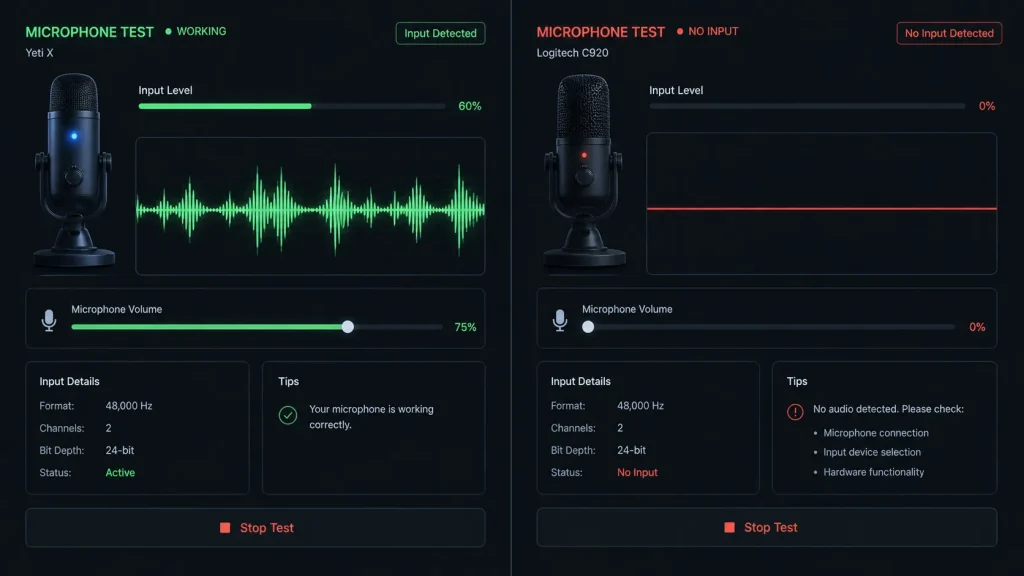
Before diving into Discord-specific fixes, perform this quick diagnostic step first. It will immediately tell you whether the problem lies inside Discord or outside it.
Open a completely separate application that uses your microphone. Good options include:
- Windows Voice Recorder (search for it in the Start menu)
- macOS Voice Memos application
- Zoom or Microsoft Teams (start a test call)
- Any online microphone test tool in your browser
Speak into your microphone and observe the result.
If your microphone works in this other application, the problem is isolated to Discord’s settings or permissions — and you will resolve it quickly using the fixes in this guide.
If your microphone does not work in the other application either, the problem is at the OS or hardware level. You will need to resolve the microphone issue system-wide before Discord can use it.
This single test saves enormous amounts of troubleshooting time and points you directly toward the right category of fixes.
Top 5 Proven Fixes for Error 3002 Discord
These five fixes resolve the overwhelming majority of Discord error 3002 cases. Work through them for the best results.
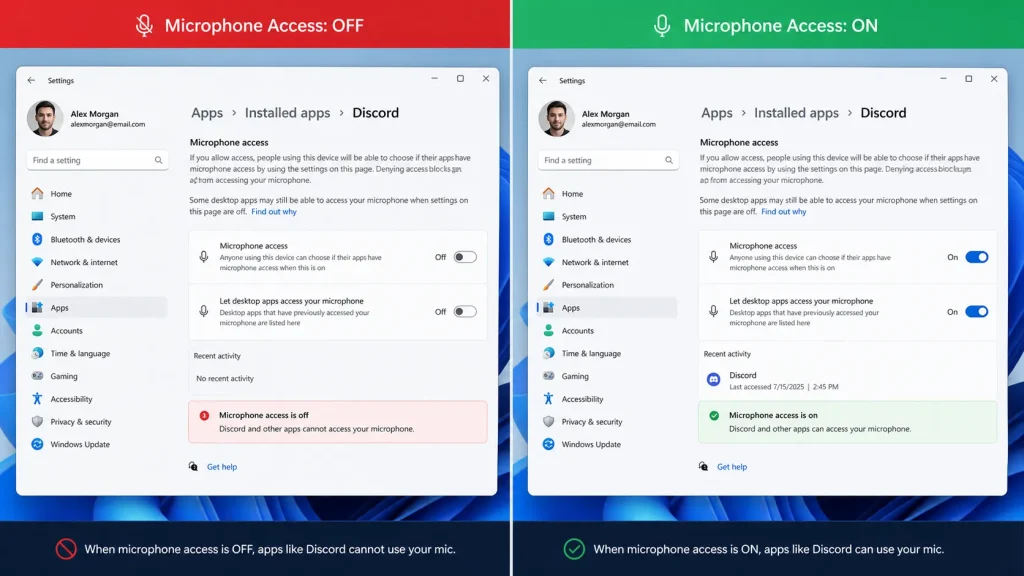
Fix 1: Grant Microphone Permissions at the OS Level
This fix resolves error 3002 more often than any other single step. Always start here.
On Windows 10 and Windows 11:
- Click the Start menu and open Settings
- Navigate to Privacy and Security, then select Microphone
- Under “Microphone access,” ensure the toggle is switched ON
- Scroll down to “Let desktop apps access your microphone” and ensure that the toggle is also switched ON
- Find Discord in the list of apps shown below and confirm its individual toggle is enabled
- Close Settings and restart Discord completely
On macOS:
- Open System Settings (or System Preferences on older macOS versions)
- Click Privacy and Security, then select Microphone from the left sidebar
- Find Discord in the list and ensure the checkbox next to it is ticked
- If Discord is not in the list, it has not requested permission yet — launch Discord and attempt to use voice chat, which will trigger the permission request
- After granting permission, restart Discord
Why this works: Modern operating systems treat microphone access as a sensitive permission that must be explicitly granted per application. Discord cannot bypass this restriction — if the OS blocks it, Discord sees a microphone that produces no signal, which is precisely the condition that triggers error 3002.
Streaming problems can sometimes overlap with mic issues — especially when Discord fails to transmit audio properly. In such cases, check this guide on Discord Error 2007 stream fixes.
Fix 2: Set the Correct Input Device in Discord Voice Settings
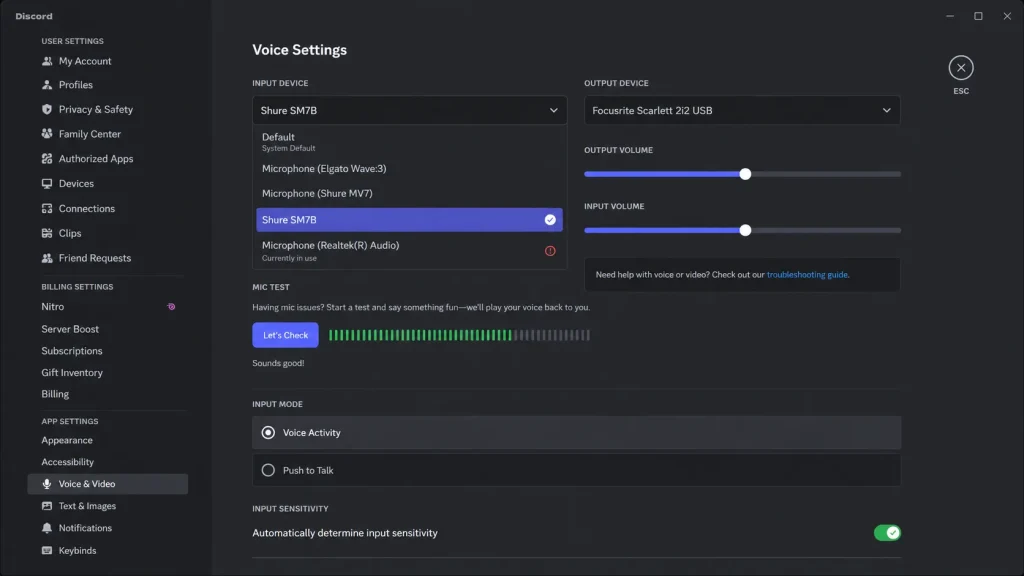
The “Default” setting in Discord’s input device selector is a common silent failure point.
Steps:
- Open Discord and click the gear icon at the bottom left to open User Settings
- In the left sidebar, click Voice and Video under App Settings
- Locate the Input Device dropdown at the top of the page
- Click the dropdown and look at all available options
- Select your actual microphone by name rather than leaving it on “Default.”
- Speak into your microphone and watch the Input Volume bar — it should respond with green activity
- If the bar shows no movement, try each device in the dropdown until you find the one that responds
Pro tip: If you are using a USB headset, it will appear in this list by its brand and model name. If you are using a 3.5mm headset, it will typically appear as your motherboard’s audio device name (often Realtek High Definition Audio or similar). Bluetooth headsets appear by their Bluetooth device name.
After selecting the correct device, the Input Volume bar should immediately begin responding to your voice. If it does, error 3002 is resolved.
Fix 3: Reset Voice Settings in Discord
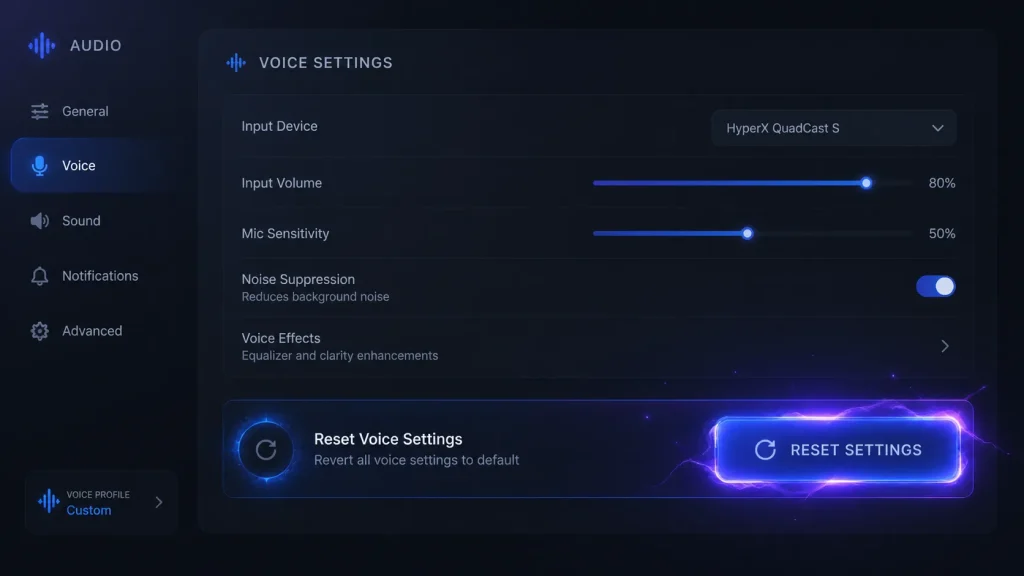
This is arguably the most underutilized yet most effective fix for persistent Discord error 3002 cases. Discord’s own developers included this feature specifically to recover from corrupted or misconfigured audio states.
Steps:
- Open Discord and navigate to User Settings
- Click Voice and Video in the left sidebar
- Scroll all the way to the bottom of the Voice and Video page
- Locate the button labeled Reset Voice Settings
- Click it and confirm the reset when prompted
- Discord will restore all voice settings to factory defaults
- Restart Discord after the reset completes
- Go back to Voice and Video settings and re-select your microphone from the Input Device dropdown
- Test your microphone using the Input Volume bar
What this does: The reset clears all locally stored voice configuration data, including any corrupted settings that may have accumulated over time or through multiple Discord updates. It is a clean slate for Discord’s entire audio engine — equivalent to a fresh installation of voice settings without reinstalling the whole application.
Many users who have struggled with error 3002 for days report that this single button resolves it immediately. Try it before attempting any of the more involved fixes.
Fix 4: Disable Exclusive Mode in Windows Sound Settings
This fix specifically addresses cases where another application or Windows itself has locked exclusive control of your microphone, preventing Discord from accessing it.
Steps:
- Right-click the speaker icon in your Windows taskbar
- Select Sounds (or Open Sound Settings, then Sound Control Panel)
- In the Sound control panel window, click the Recording tab
- Find your microphone in the list, right-click it, and select Properties
- Click the Advanced tab in the Properties window
- Under Exclusive Mode, uncheck both:
- Allow applications to take exclusive control of this device
- Give exclusive mode applications priority
- Click Apply, then OK
- Restart Discord and test your microphone
Why does exclusive mode cause error 3002? When exclusive mode is active, and another application has claimed your microphone, Discord finds itself locked out at the driver level. It can detect the device but cannot open an audio stream from it — resulting in the exact symptom that defines error 3002: a microphone that is seen but not heard.
This fix is particularly effective for users who run Discord alongside games, OBS, Zoom, or other communication applications.
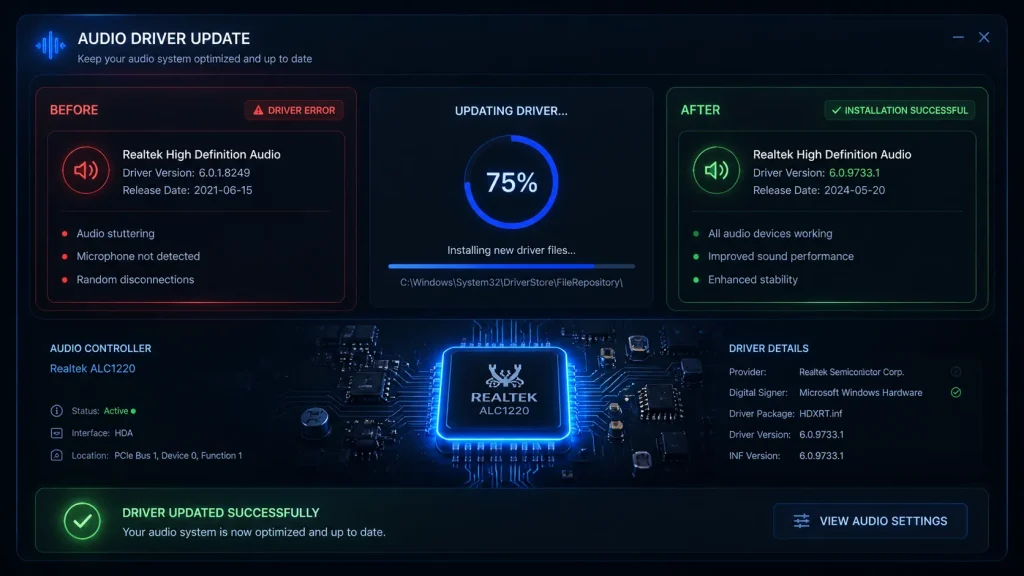
Fix 5: Update Your Audio Drivers
Outdated Realtek drivers, USB audio drivers, or headset firmware are a leading cause of persistent Discord 3002 error — especially after Windows updates, which frequently introduce audio driver incompatibilities.
Method 1 — Through Device Manager (Windows):
- Right-click the Start button and select Device Manager
- Expand the Sound, Video, and Game Controllers section
- Right-click your audio device (commonly Realtek High Definition Audio or your headset name)
- Select Update Driver
- Choose Search automatically for updated driver software
- Windows will search and install any available updates
- Restart your computer after the update completes
Method 2 — From the Manufacturer’s Website (Recommended for Best Results):
- Identify your audio hardware: for motherboard audio, this is typically Realtek; for USB headsets, it is your headset brand (Logitech, HyperX, SteelSeries, Razer, etc.)
- Visit the manufacturer’s official website and navigate to their Support or Downloads section
- Search for your specific model and download the latest audio driver
- Run the installer and follow the prompts
- Restart your computer and test Discord
Method 3 — For USB Headsets:
Many modern gaming headsets have dedicated software (Logitech G Hub, HyperX NGenuity, Razer Synapse, SteelSeries Engine) that manages firmware and driver updates. Open the relevant software for your headset and check for available updates.
After updating drivers and restarting, return to Discord’s Voice and Video settings, re-select your microphone from the Input Device dropdown, and test for the error.
Additional Fixes for Stubborn Discord Error 3002
If the top five fixes have not resolved your Discord error 3002, these additional steps address less common but equally real causes.
Disable Discord’s Voice Processing Features
Discord’s automatic audio processing can sometimes conflict with specific microphone hardware. Temporarily disabling these features helps isolate whether they are contributing to the error.
- Navigate to Discord Settings → Voice and Video
- Scroll down to the Voice Processing section
- Toggle OFF Echo Cancellation
- Toggle OFF Noise Suppression
- Toggle OFF Automatic Gain Control
- Test your microphone immediately after each toggle
If disabling one of these features stops the error, you have identified the specific processing feature causing the conflict. You can leave it disabled or experiment with compatible alternatives.
Close Competing Audio Applications
Applications that actively use your microphone can block Discord’s access to it.
Before launching Discord:
- Fully close Zoom, Microsoft Teams, Skype, Google Meet, or any other communication app
- Close OBS or any streaming/recording software
- Close any virtual audio cable software (VoiceMeeter, VB-Audio Cable, etc.)
- Check your system tray for any running audio applications and close them
Then relaunch Discord and test your microphone. If this resolves the error, the conflict between Discord and another application was the root cause.
Check Physical Microphone Connections
Before concluding that the problem is entirely software-based:
- Unplug your USB microphone or headset and plug it back in firmly
- If using a 3.5mm connection, unplug and re-insert it completely
- Try a different USB port — USB 3.0 ports (blue) sometimes cause issues with audio devices; try a USB 2.0 port instead
- If possible, test your microphone on a different computer to rule out hardware failure
Run Discord as Administrator
In some cases, Discord needs elevated system permissions to access audio hardware properly.
- Right-click the Discord shortcut or executable
- Select Run as Administrator
- Test whether the microphone is now detected
If this resolves the issue, you can configure Discord to always run as administrator: right-click the Discord shortcut → Properties → Compatibility → Check “Run this program as an administrator” → Apply.
Check Windows Audio Service
If the Windows Audio service has stopped or crashed, no application — including Discord — will be able to access audio devices properly.
- Press Windows + R, type services.msc, and press Enter
- Scroll down to find Windows Audio in the list
- Right-click it and select Restart
- Also, restart the Windows Audio Endpoint Builder service
- After both services restart, test Discord
Reinstall Discord’s Audio Subsystem (Clean Reinstall)
If nothing else has worked, a clean Discord reinstall specifically targeting leftover audio configuration data is the final software-level solution.
On Windows:
- Uninstall Discord through Settings → Apps
- Press Windows + R, type %appdata%, and delete the Discord folder
- Press Windows + R, type %localappdata%, and delete the Discord folder
- Download the latest Discord installer from Discord’s official website
- Install Discord fresh and log in
- Go immediately to Voice and Video settings and configure your microphone before testing
Discord Error 3002 on Mobile vs Desktop
The error 3002 Discord experience differs between mobile and desktop platforms in important ways.
On Android
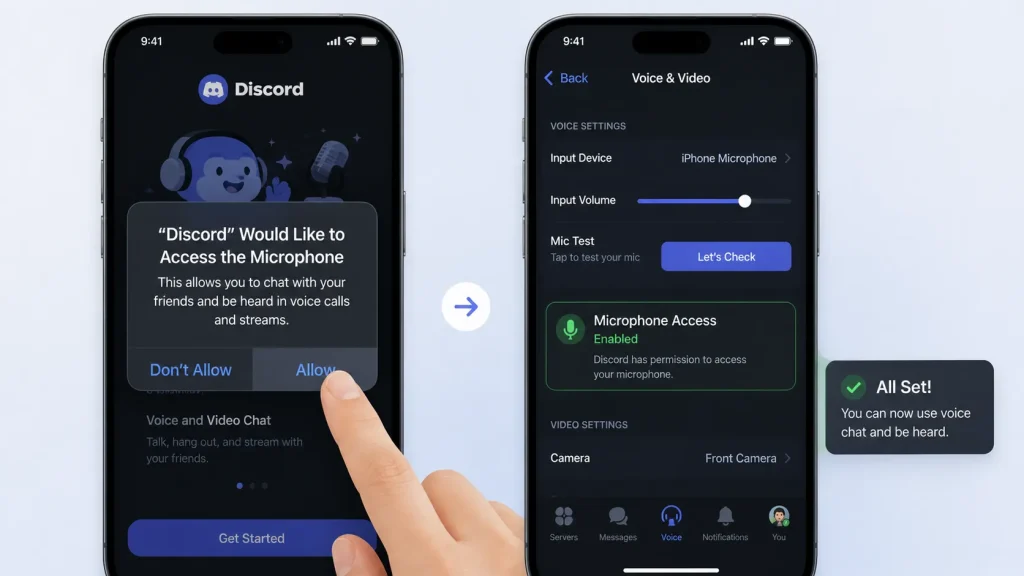
The most common mobile cause is microphone permissions being denied at the Android OS level. To check:
- Go to Android Settings → Apps → Discord → Permissions
- Ensure the microphone permission is set to Allow
- Also, check that Discord is not being restricted by battery optimization, which can interfere with audio processing in active calls
Additionally, Discord for Android may conflict with the microphone in other open applications. Close all other apps using the microphone before joining a voice channel.
On iOS
iPhone and iPad users should check:
- Settings → Privacy and Security → Microphone → Discord should be toggled ON
- If Discord has recently been updated, iOS sometimes resets app permissions — re-grant microphone access
- Restart the Discord app completely by swiping it away from the app switcher
Key Difference From Desktop
On mobile, hardware driver issues are far less common since Apple and Android device manufacturers tightly control audio hardware integration. The vast majority of mobile error 3002 cases are solved by correcting OS-level microphone permissions alone.
Discord Error 3002 on Windows vs Mac
Windows-Specific Considerations
Windows users face the most diverse range of causes for Discord error 3002 due to the platform’s hardware variety and audio driver ecosystem. The exclusive mode issue, Realtek driver conflicts, and competing audio applications are almost exclusively Windows problems. The Windows Privacy settings microphone toggle is also a relatively recent addition that many users are not aware of.
Mac-Specific Considerations
On macOS, the primary cause is nearly always the microphone permission setting in System Settings. Apple’s privacy framework is exceptionally strict — if Discord does not have explicit microphone access, the OS returns silence to the application rather than an error, which Discord interprets and reports as error 3002.
Additionally, macOS users should check whether any security software (like Little Snitch or a third-party antivirus) is blocking Discord’s access to system audio resources.
After granting permissions on Mac, always fully quit and relaunch Discord. Permissions changes on macOS do not take effect until the application is completely restarted.
Secondary Causes That Can Contribute to Error 3002
While the audio-focused fixes above resolve the vast majority of Discord 3002 error cases, a small number of users encounter the error compounded by secondary factors worth knowing about.
VPN Usage
VPNs do not directly cause error 3002 — since the error is microphone-based rather than connection-based — but high-latency VPN connections can sometimes cause Discord’s voice server to time out while trying to establish your audio stream, resulting in an error state that resembles 3002. If you use a VPN and experience intermittent audio issues in Discord voice channels, try switching to a lower-latency server location closer to your physical location.
Outdated Discord Version
Running an outdated Discord client can cause the app’s audio engine to behave unexpectedly, particularly after Discord’s servers are updated to expect specific audio protocol versions. Always ensure you are running the current Discord version by pressing Ctrl + R (Windows) or Cmd + R (Mac) inside Discord to force a check for updates.
System Resource Constraints
In rare cases, a severely resource-constrained system — one running at very high CPU or RAM usage — may not allocate sufficient resources to Discord’s audio processing pipeline, causing intermittent input detection failures. Closing background applications to free up system resources can help in these edge cases.
Preventing Discord Error 3002 From Returning
Resolving the error once is satisfying. Making sure it does not come back is better. Here are the proactive habits that prevent error 3002 Discord from reappearing.
Lock in Your Input Device Selection
Change Discord’s Input Device setting from “Default” to your specific microphone by name. This prevents the error from reappearing if your system’s default audio device ever changes — which happens routinely when you connect new audio hardware, install new drivers, or connect a monitor with built-in audio.
Keep Audio Drivers Updated
Set a reminder to check for audio driver updates every one to two months, especially after major Windows updates. Realtek regularly releases driver updates that address compatibility issues with new Windows builds.
Maintain Microphone Permissions After System Updates
Major OS updates — particularly Windows feature updates and macOS version upgrades — occasionally reset application permissions. After any significant system update, verify that Discord’s microphone permission is still enabled before your next voice call.
Avoid Exclusive Mode
Keep Exclusive Mode disabled permanently in your Windows audio device settings. There is rarely a meaningful benefit for Discord users, and the risk of audio conflicts it creates is not worth it.
Test Your Mic Before Important Calls
Discord includes a microphone test feature directly in Voice and Video settings. Use it before any important meeting, gaming session, or stream. A quick 10-second check prevents the embarrassment of speaking into silence for an entire call.
When to Contact Discord Support
If you have worked through every fix in this guide and the Discord error 3002 persists, it is time to escalate to Discord’s support team.
Escalate when:
- The error appears on multiple devices using the same Discord account
- Your microphone works perfectly in every other application, but consistently fails only in Discord after all settings have been verified
- The error appeared immediately after a specific Discord update and has not been resolved since
- You have completed a clean reinstall, and the error returns within minutes of setup
How to reach Discord Support:
- Navigate to dis.gd/support
- Submit a detailed support ticket including: your exact Discord version, your operating system version, your microphone model, every troubleshooting step you have already taken, and screenshots of the error if possible
- Be specific — the more detail you provide, the faster Discord’s support team can identify whether there is an account-specific or platform-specific issue at play
Conclusion
The error 3002 Discord is one of the most misunderstood errors on the platform — and that misunderstanding is exactly why so many users struggle to fix it. When you know that it is a microphone detection failure rather than a connection problem, the path to solving it becomes clear and direct.
To consolidate everything covered in this guide:
Discord error 3002 appears as a red banner reporting no microphone input. The error is caused by OS permission blocks, wrong input device selection, corrupted voice settings, exclusive mode conflicts, or outdated audio drivers. The fastest fixes are granting OS microphone permissions, selecting the correct input device by name, and using the Reset Voice Settings button. Before troubleshooting Discord, test your microphone in another app to determine whether the problem is system-wide or Discord-specific. Prevention comes down to locking in your input device selection, keeping drivers updated, and verifying permissions after OS updates.
Voice chat is one of Discord’s most essential features — it is the reason millions of people choose the platform over every alternative. The Discord 3002 error tries to take that away from you, but with the correct understanding of what it actually is and a systematic approach to fixing it, it never has to win.
Your microphone will be working again in minutes.