How to Pause Location on Find My iPhone
There are moments when you simply don’t want your whereabouts broadcast in real time. Maybe you’re planning a surprise. Maybe you need a few hours of uninterrupted privacy. Or maybe you’ve just become more conscious of your digital footprint. Whatever the reason, knowing how to pause location on Find My iPhone is one of the most practical privacy skills an iPhone user can have.
Apple’s Find My app is deeply woven into the iOS ecosystem. It’s powerful, seamless, and — for most users, running quietly in the background at all times. But that same seamlessness can feel intrusive when you want a moment to yourself. The good news: you have more control than you might think.
This guide walks you through every legitimate method to pause or stop location sharing, explains what each option does under the hood, and tells you exactly what the other person will (or won’t) see. If you’re managing your iPhone settings, you may also need to compress videos on iPhone to save storage and share files easily.
Why You Might Want to Pause Your Location on Find My iPhone
Location sharing is a convenience that comes with a privacy cost. People pause their Find My location for a wide range of reasons, and none of them require justification. Common motivations include:
- Surprise planning — Picking up a birthday gift or organizing an event without tipping off the recipient.
- Personal space — Sometimes you simply want to exist somewhere without being trackable.
- Work-life separation — Not wanting family members to monitor your commute or lunch breaks.
- Testing privacy settings — Understanding how your data appears to others.
- Reducing digital anxiety — Constant location awareness, for both parties, can create unnecessary stress.
Understanding your reason helps you choose the right method, since some approaches are temporary and reversible, while others make a more permanent change to your device settings.
Understanding How Find My iPhone Location Sharing Works
Before diving into the methods, it’s worth understanding the mechanics. Find My iPhone uses a combination of GPS, Wi-Fi triangulation, Bluetooth signals, and cellular data to pinpoint your device’s location. When you share your location through the Find My app, Apple’s servers relay that data to approved contacts in near real time.
The Difference Between Find My iPhone and Find My Friends
Apple merged these two formerly separate apps into one unified Find My app in iOS 13. “Find My iPhone” technically refers to the device-tracking feature (useful when your phone is lost), while the people-sharing aspect was originally “Find My Friends.” Today, both functions live inside the same app, under the Devices and People tabs, respectively.
When most users say they want to pause location on Find My iPhone, they mean they want to stop sharing their live position with contacts listed under the People tab.
What “Pausing” Location Actually Means
There is no single dedicated “pause” button inside the Find My app. Apple does not offer a native snooze or temporary-hold feature for location sharing. Instead, pausing your location means using one of several available methods to interrupt the flow of location data — either selectively (for one person) or globally (for all apps and services on your device).
Each method has different trade-offs in terms of visibility, convenience, and side effects.
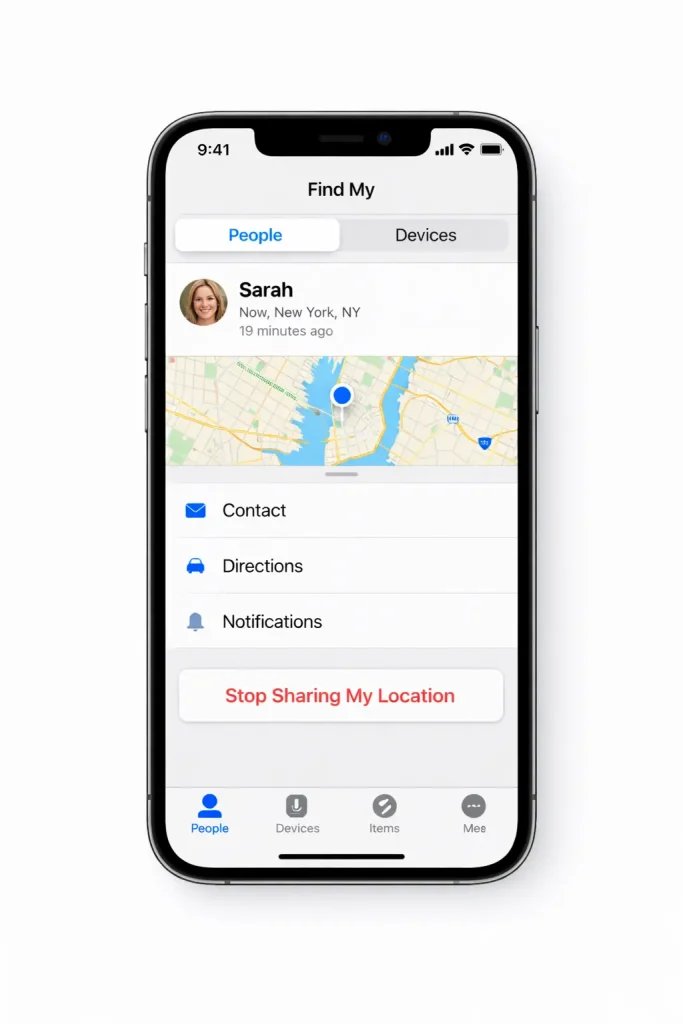
Method 1 – Turn Off Location Sharing for a Specific Person
This is the cleanest, most surgical approach. It lets you stop sharing your location with one specific contact while leaving everything else untouched.
Step-by-Step Instructions
- Open the Find My app on your iPhone.
- Tap the People tab at the bottom of the screen.
- Select the contact whose access you want to revoke.
- Scroll down and tap Stop Sharing My Location.
- Confirm when prompted.
That’s it. The change takes effect immediately. You can reverse it at any time by sending that person a new location-sharing invitation.
What the Other Person Sees
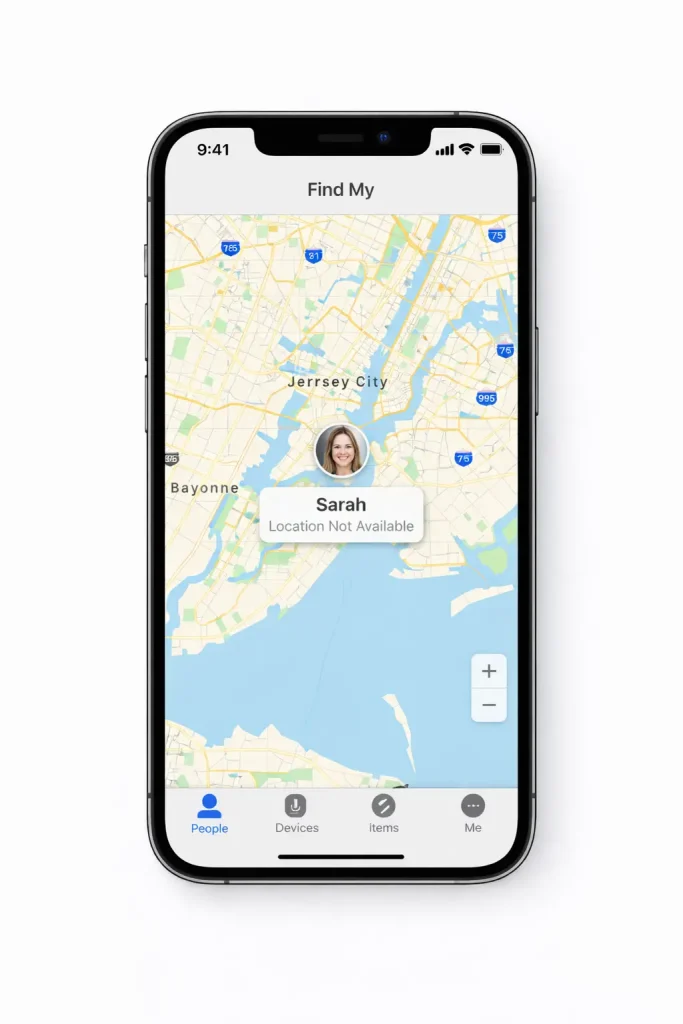
This is the question everyone wants answered. When you stop sharing your location with someone via Find My, they will see a message that says “Location Not Available” where your position used to appear on their map. They won’t receive a push notification informing them you’ve stopped sharing. However, the change in status is visible if they open the app and look at your entry — so it isn’t entirely invisible to an attentive person.
Method 2 – Enable Airplane Mode to Temporarily Hide Location
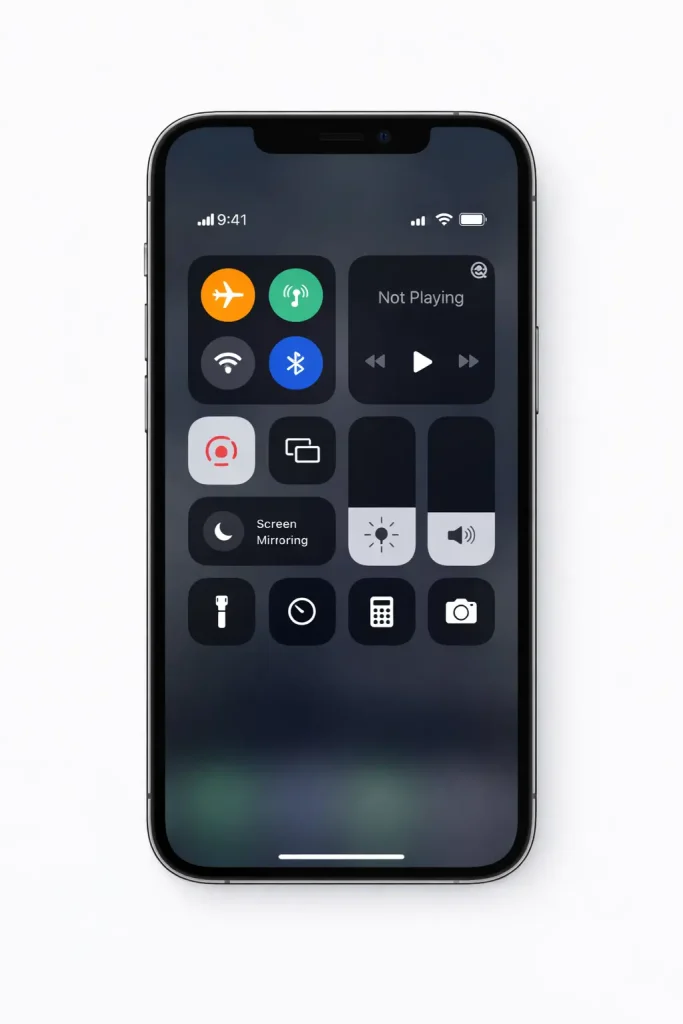
Airplane Mode cuts off all wireless communication — cellular, Wi-Fi, and Bluetooth (unless manually re-enabled). With no network connection, your iPhone cannot transmit location data to Apple’s servers. For advanced control and automation of device settings, many users explore automation tools for developers.
How Airplane Mode Affects Location Data
When Airplane Mode is active, Find My cannot update your position for any contact. Your last known location may remain visible to them briefly (since Apple caches the most recent ping), but it will not refresh. Over time, it will show as unavailable.
To enable Airplane Mode:
- Swipe down from the top-right corner to open Control Center and tap the airplane icon, or
- Go to Settings → Airplane Mode and toggle it on.
Limitations of This Method
Airplane Mode is a blunt instrument. It disables all connectivity, meaning you cannot make calls, send messages, or use the internet while it’s active. It’s suitable for short windows of privacy but impractical as a long-term solution. Additionally, savvy contacts may notice your iMessage delivery receipts stop updating, which can be its own kind of signal.
Method 3 – Turn Off Location Services Entirely
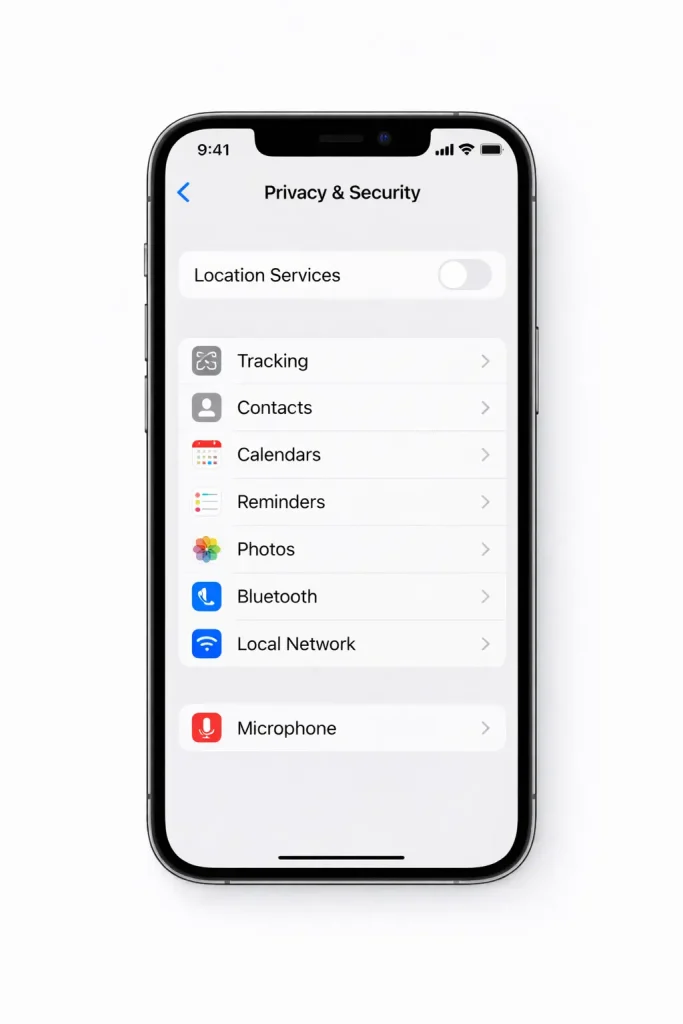
For a more comprehensive approach, disabling Location Services at the system level stops every app — including Find My — from accessing your GPS data.
How to Disable Location Services on iPhone
- Open Settings.
- Tap Privacy & Security.
- Tap Location Services.
- Toggle Location Services off at the top of the screen.
You’ll see a prompt warning you that this will affect all apps currently using your location. Confirm the change.
Apps That Will Be Affected
Turning off Location Services globally impacts far more than just Find My. Maps, weather apps, ride-sharing services, food delivery apps, and any other location-dependent tool will lose access to your position. Plan accordingly — you’ll need to re-enable Location Services before using navigation or any geo-aware application.
Method 4 – Use a Specific App’s Location Permission
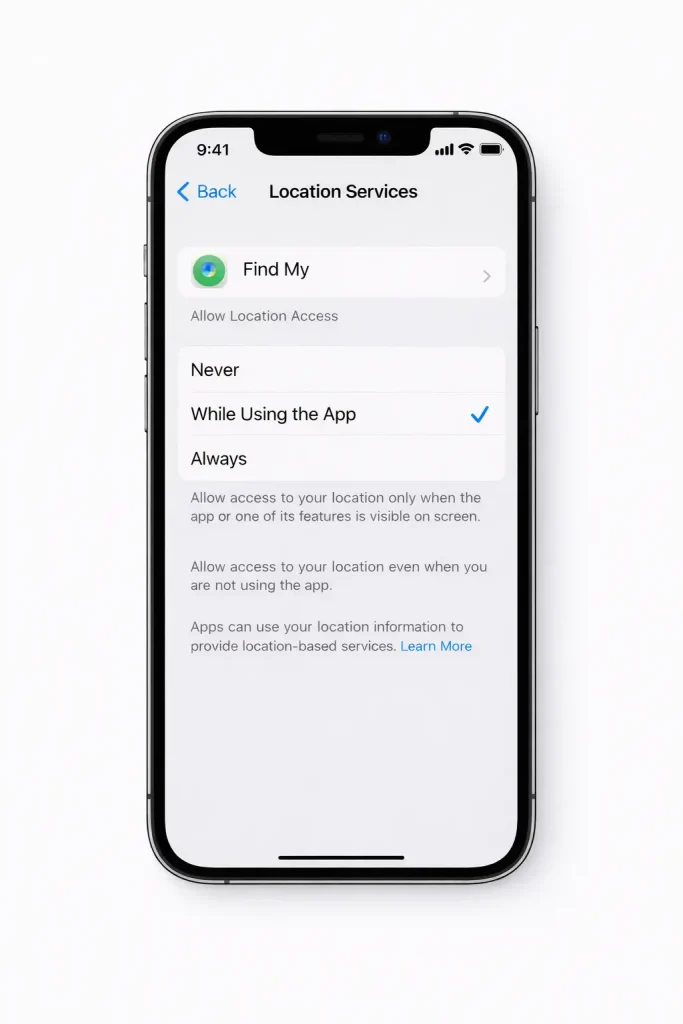
A more targeted version of Method 3, this approach revokes Find My’s specific access to Location Services without affecting any other app.
Revoking Find My Access via Privacy Settings
- Open Settings.
- Go to Privacy & Security → Location Services.
- Scroll down and tap Find My in the app list.
- Change the setting from While Using or Always to Never.
With this change, Find My loses its ability to access your device’s GPS entirely. Your location will become unavailable to anyone tracking you through the app. This is a more focused solution than disabling Location Services system-wide, and it leaves all your other apps functioning normally.
Method 5 – Power Off Your iPhone
The most definitive hardware-level solution: turning your phone completely off stops all data transmission, including location updates.
Does Powering Off Truly Hide Your Location?
Yes — with one important caveat. iPhones running iOS 15 and later include a feature called Find My network support, which allows certain devices to remain findable even when powered off (using Bluetooth low-energy signals picked up by nearby Apple devices). This is primarily designed for theft recovery scenarios.
For the average location-sharing use case — a friend or family member tracking you through the People tab — powering off your phone will effectively make your location unavailable. The Find My network passively findable feature is distinct from live location sharing with contacts.
How to Pause Location Without the Other Person Knowing
This is a nuanced topic. Complete invisibility is difficult to guarantee, but here’s what each method reveals:
| Method | What the Other Person Sees |
| Stop Sharing (Method 1) | “Location Not Available” — visible if they check |
| Airplane Mode (Method 2) | Location stops updating; may appear stale then unavailable |
| Disable Location Services (Method 3) | “Location Not Available” |
| Revoke Find My Permission (Method 4) | “Location Not Available” |
| Power Off (Method 5) | Location stops updating immediately |
No method makes your location disappear without a trace. The least conspicuous option for a short period is Airplane Mode, since the transition looks more like a connectivity issue than a deliberate action. For longer durations, revoking Find My’s location permission (Method 4) achieves the same result with fewer device-wide side effects.
What Happens to Your Location Data When You Pause Sharing
When you pause or stop location sharing, Apple does not delete your historical location data from its servers immediately. Your last known position may remain cached for a short period. However, no new location pings are transmitted to your contacts.
From a privacy standpoint, Apple’s Find My system is designed to share location only between consenting parties. The company does not retain a live feed of your location independently of the sharing features you’ve enabled. Reviewing your Privacy Report in Safari Settings and your Significant Locations history (under Settings → Privacy & Security → Location Services → System Services) can give you a fuller picture of how location data is stored on your device.
How to Re-Enable Location Sharing After Pausing
Restoring your location sharing is straightforward regardless of which method you used:
- After Method 1: Open Find My → People tab → tap Add (+) to invite the contact again, or ask them to share their location with you to reinitiate a mutual share.
- After Method 2: Disable Airplane Mode. Location sharing resumes automatically.
- After Method 3: Go to Settings → Privacy & Security → Location Services and toggle it back on.
- After Method 4: Return to Settings → Privacy & Security → Location Services → Find My and restore access to While Using or Always.
- After Method 5: Power your phone back on.
In all cases, changes take effect within seconds of restoring connectivity.
Conclusion
Privacy is not a luxury — it’s a fundamental aspect of how you engage with your technology on your own terms. Knowing how to pause location on Find My iPhone puts that control squarely back in your hands. Whether you need a few hours off the grid, want to manage who sees your movements, or simply want to understand your options, each method covered here offers a legitimate, effective path forward. As privacy tools evolve, it’s worth staying updated with the latest features in ChatGPT April 2026 updates and AI-driven tools.
The most important takeaway is this: there is no single “pause” button, but there are multiple precise tools at your disposal. Choose the one that matches your situation — surgical (stop sharing with one person), temporary (Airplane Mode), or comprehensive (disable Location Services). Each serves a purpose, and understanding the difference makes you a more informed, empowered user of your own device.
Your location is your data. Treat it that way.