15 Best Clipping Software for Fast & Precise Editing (2026)
Missed the perfect highlight again? That split-second headshot. The viral reaction. The game-winning move. In a world where attention spans evaporate in seconds, capturing the right moment isn’t optional; it’s everything. The Best Clipping Software transforms fleeting brilliance into shareable impact, preserving precision, emotion, and cinematic timing with surgical accuracy. Also, explore the best Android backup software.
Modern creators demand more than basic screen recording. They need intelligent replay buffers, AI-assisted highlight detection, seamless vertical reframing, and frictionless exports. The Best Clipping Software For Gaming doesn’t just record, it anticipates, isolates, and amplifies your most electrifying moments. Whether for gaming, streaming, or social media domination, the right tool becomes your silent co-producer, ensuring no pivotal frame ever vanishes into digital oblivion.
What Is Clipping Software?
Clipping software allows users to:
- Capture gameplay or screen recordings
- Automatically save highlight moments
- Trim long videos into short clips
- Add captions and overlays
- Export optimized videos for social media
Some tools are built specifically for gaming, while others are ideal for YouTube creators, podcasters, or social media marketers.
Best Clipping Software in 2026 (Top Picks)
1. Medal.tv
Best For: Gamers & Streamers
Platform: Windows
Pricing: Free + Premium plan
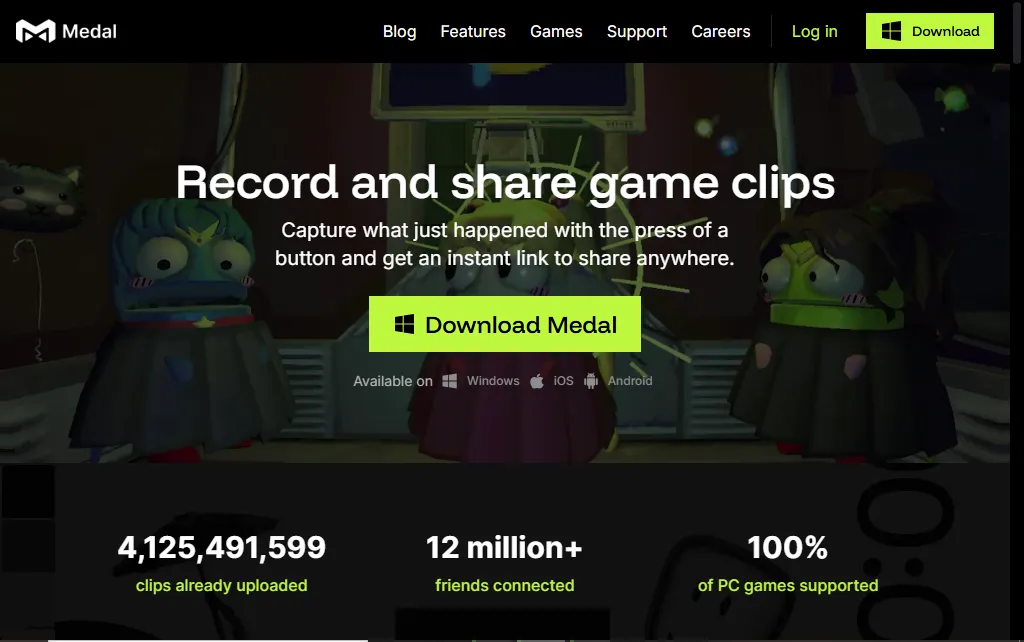
Medal.tv is one of the most widely used gaming clipping tools in 2026. Designed specifically for gamers, it automatically records gameplay in the background and lets users save highlights instantly using a hotkey. Unlike traditional screen recorders, Medal focuses purely on capturing key gaming moments without slowing down your PC.
It’s especially popular among competitive players, esports enthusiasts, and Twitch streamers who need instant replay functionality.
Why It’s Great
Medal.tv eliminates the need to record full gameplay sessions. Instead, it constantly buffers gameplay and allows you to clip the last 15–120 seconds when something exciting happens.
Key Features
- Instant replay recording
- Automatic background capture
- AI highlight detection
- Cloud storage for saved clips
- Built-in trimming tool
- Direct sharing to Discord, TikTok, YouTube, Twitter
Performance & System Impact
Medal is optimized for low system usage. It performs well even on mid-range gaming PCs, making it ideal for competitive FPS and battle royale players.
Pros
Cons
Best Use Case
Perfect for gamers who want quick highlight clips without learning complex editing software.
2. Outplayed
Best For: Automatic game highlights
Platform: Windows
Pricing: Free
Overview
Outplayed is an Overwolf-powered clipping tool that automatically records important in-game events such as kills, wins, assists, and objectives. It supports over 300 popular games.

Why Choose Outplayed?
Unlike manual recording tools, Outplayed detects game events automatically. This makes it ideal for players who want hands-free highlight creation.
Key Features
- Automatic event-based recording
- Game-specific detection algorithms
- Built-in editor
- Timeline tagging
- Supports esports titles like Valorant, Fortnite, and League of Legends
Performance
Because it runs via Overwolf, it may consume slightly more RAM compared to Medal, but the performance impact remains manageable for most gaming PCs.
Pros
Cons
Best Use Case
Competitive gamers who want fully automated highlight detection.
3. NVIDIA ShadowPlay
Best For: NVIDIA GPU users
Platform: Windows
Pricing: Free (with NVIDIA GPU)
Overview
NVIDIA ShadowPlay is built into GeForce Experience and uses GPU acceleration to capture gameplay with minimal performance impact.
Key Features
- Instant replay buffer
- Up to 4K 60FPS recording
- Hardware-accelerated encoding
- Manual recording mode
- Microphone & system audio capture
Performance Advantage
Since it uses NVIDIA’s NVENC encoder, ShadowPlay delivers excellent quality with almost zero FPS drop.
Pros
Cons
Best Use Case
Gamers with NVIDIA graphics cards who want simple, high-performance clipping.
4. OBS Studio
Best For: Professional control
Platform: Windows, macOS, Linux
Price: Free
Overview
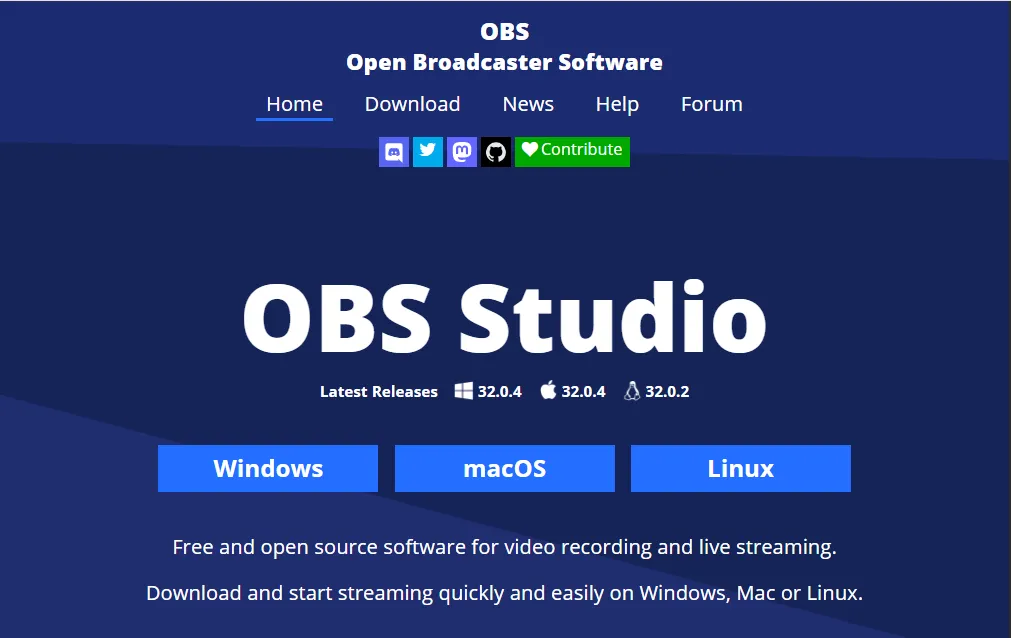
OBS Studio is a professional open-source recording and streaming tool. While not strictly a “clipping” tool, it allows advanced scene recording and instant replay buffer setup.
Why It’s Powerful
OBS gives complete customization control over resolution, bitrate, encoding, and scenes.
Key Features
- Replay buffer mode
- Scene transitions
- Multi-source capture
- Advanced audio mixing
- Plugin ecosystem
Pros
Cons
Best Use Case
Professional streamers and YouTubers who want full control over recording quality.
5. Streamlabs
Best For: Streamers
Platform: Windows, macOS
Overview
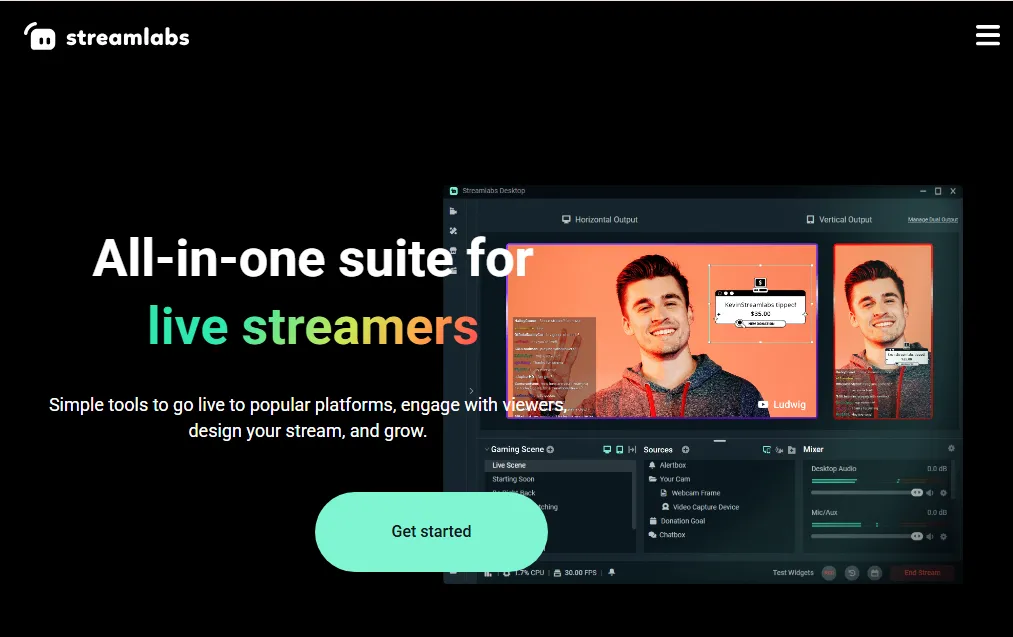
Streamlabs is built on OBS but provides a user-friendly interface. It includes built-in clip features and direct streaming integrations.
Key Features
- Built-in themes
- Stream alerts
- Integrated clipping
- Monetization tools
Pros
Cons
Best Use Case
Beginner streamers who want a simplified OBS alternative.
6. CapCut
Best For: Social media clipping
Platform: Web, Windows, macOS, Mobile
Overview
CapCut dominates short-form video editing. It’s ideal for converting long videos into TikTok, Reels, and Shorts.

Key Features
- AI auto captions
- Auto reframing (horizontal to vertical)
- Templates
- Trend-based effects
- Background removal
Pros
Cons
Best Use Case
Content creators repurposing long videos into short viral clips.
7. DaVinci Resolve
Best For: Advanced editing
Platform: Windows, macOS, Linux
Overview
DaVinci Resolve offers Hollywood-level editing tools, even in its free version.
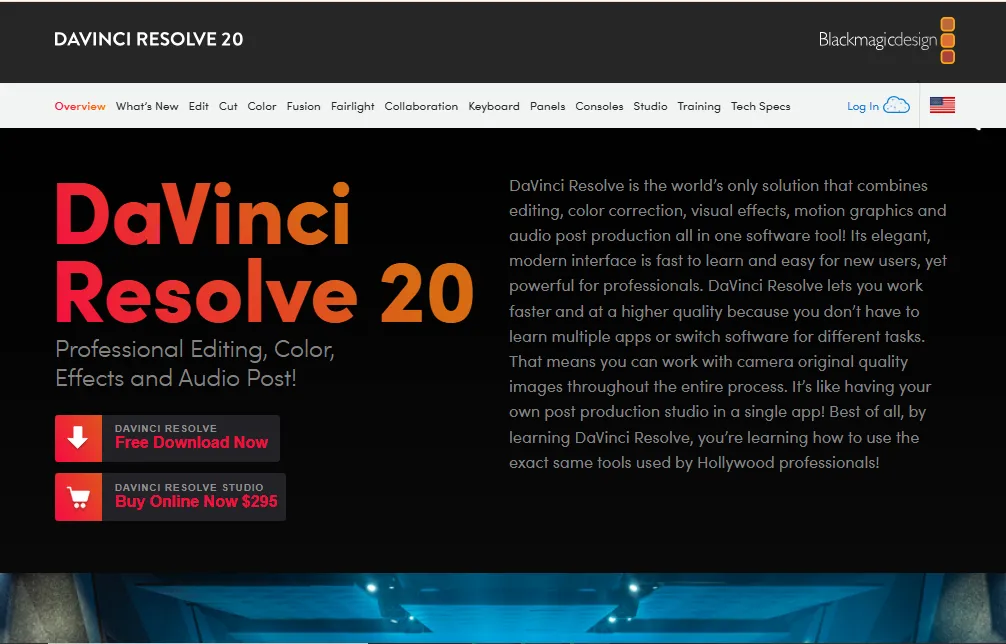
Highlights
- Professional color grading
- Multi-cam editing
- Advanced timeline control
- Fairlight audio tools
Pros
Cons
Best Use Case
Professional YouTube creators and filmmakers.
8. Adobe Premiere Pro
Best For: Professional YouTubers
Platform: Windows, macOS
Overview
Premiere Pro remains the industry-standard editing software.
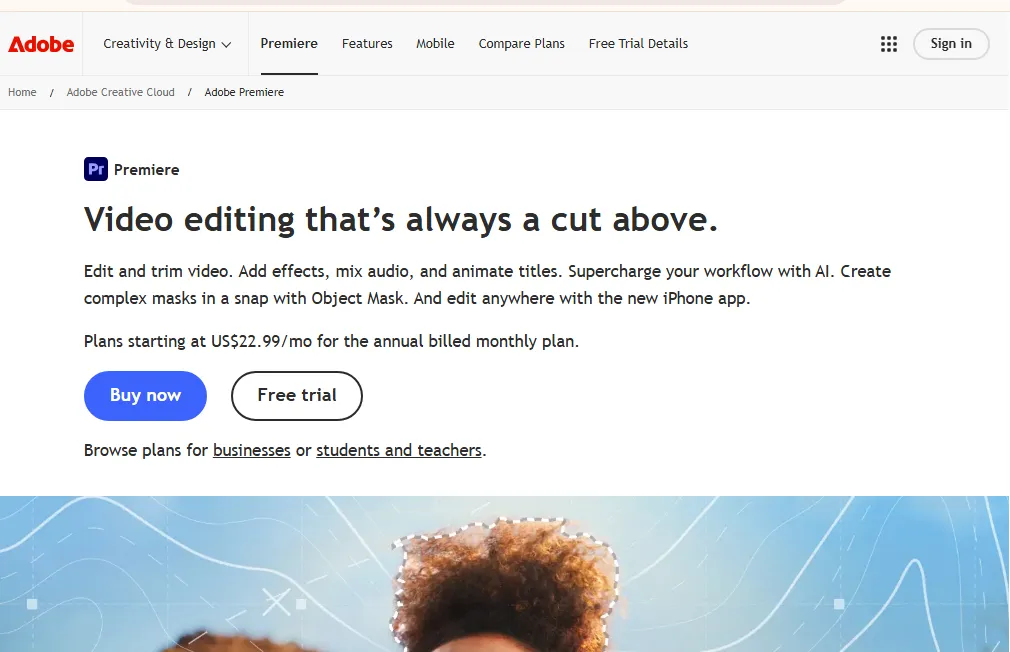
Features
- AI auto-reframe
- Speech-to-text captions
- Advanced timeline tools
- Integration with After Effects & Photoshop
Pros
Cons
9. Final Cut Pro
Best For: Mac users
Platform: macOS
Pricing: One-time purchase
Overview
Final Cut Pro is Apple’s professional video editing software, specifically optimized for macOS and Apple Silicon (M1, M2, M3 chips). Known for its blazing-fast rendering speeds and smooth timeline performance, it’s one of the best clipping software options for Mac-based content creators.
Unlike subscription-based tools, Final Cut Pro requires a one-time purchase, making it cost-effective for long-term creators.
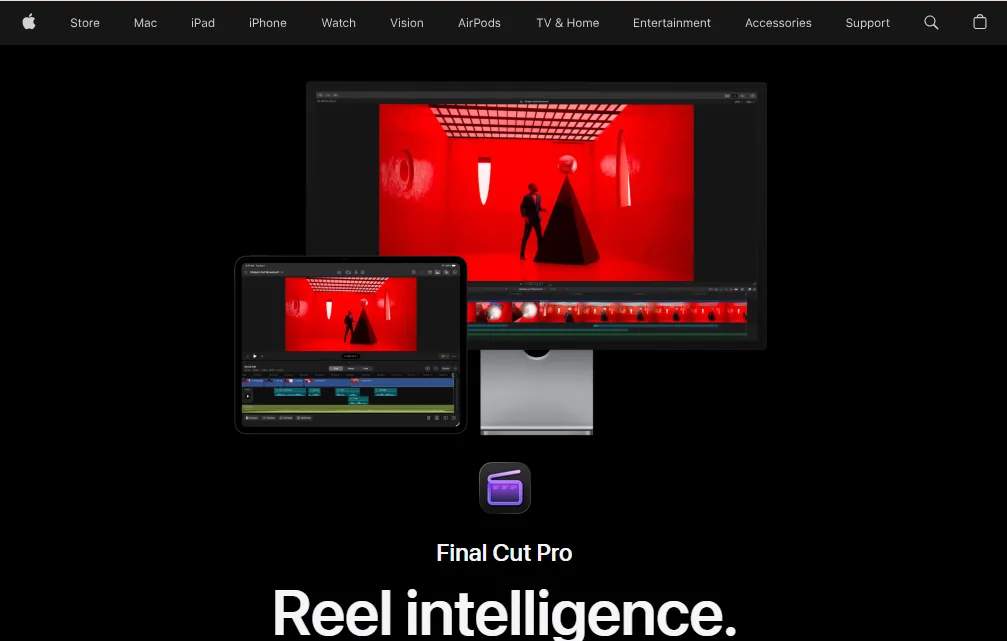
Why It’s Ideal for Clipping
Final Cut Pro is excellent for:
- Cutting gaming highlights
- Trimming YouTube content
- Creating TikTok and Shorts
- Professional social media edits
Its optimized performance allows you to scrub through large 4K footage smoothly, even on MacBooks.
Key Features
- Magnetic timeline (no accidental clip gaps)
- Background rendering
- 360° video support
- Multi-cam editing
- Advanced color grading tools
- Built-in motion graphics templates
- Optimized for Apple Silicon
Performance
Because it is deeply integrated with macOS, Final Cut Pro offers:
- Faster exports than most competitors
- Better memory optimization
- Smooth playback of high-resolution clips
Pros
Cons
Best Use Case
Professional Mac users who want high-performance clipping and advanced editing without monthly fees.
10. VEED.io
Best For: Browser-based clipping
Platform: Web
Pricing: Free + Paid plans
Overview
VEED.io is a cloud-based video editing and clipping platform. Since it runs entirely in your browser, there’s no need to install heavy software.
It’s ideal for marketers, educators, and content creators who need fast edits without complex tools.

Why Choose VEED.io?
If you want:
- Quick social media clips
- AI subtitles
- Simple trimming tools
- Team collaboration
VEED.io offers one of the easiest workflows available online.
Key Features
- AI auto subtitles
- Auto clip generator
- Social media aspect ratio presets
- Brand kits (logos, fonts, colors)
- Text animations
- Stock media library
Performance
Because it’s cloud-based:
- No high-end PC required
- Works on Windows, Mac, Chromebook
- Requires a stable internet connection
Pros
Cons
Best Use Case
Creators who want fast online clipping without downloading software.
11. Descript
Best For: Podcasters & educators
Platform: Windows, macOS
Overview
Descript revolutionizes video editing by allowing users to edit videos like a text document. Instead of cutting clips manually on a timeline, you simply edit the transcript.
Delete a word from the text, and it removes it from the video automatically.
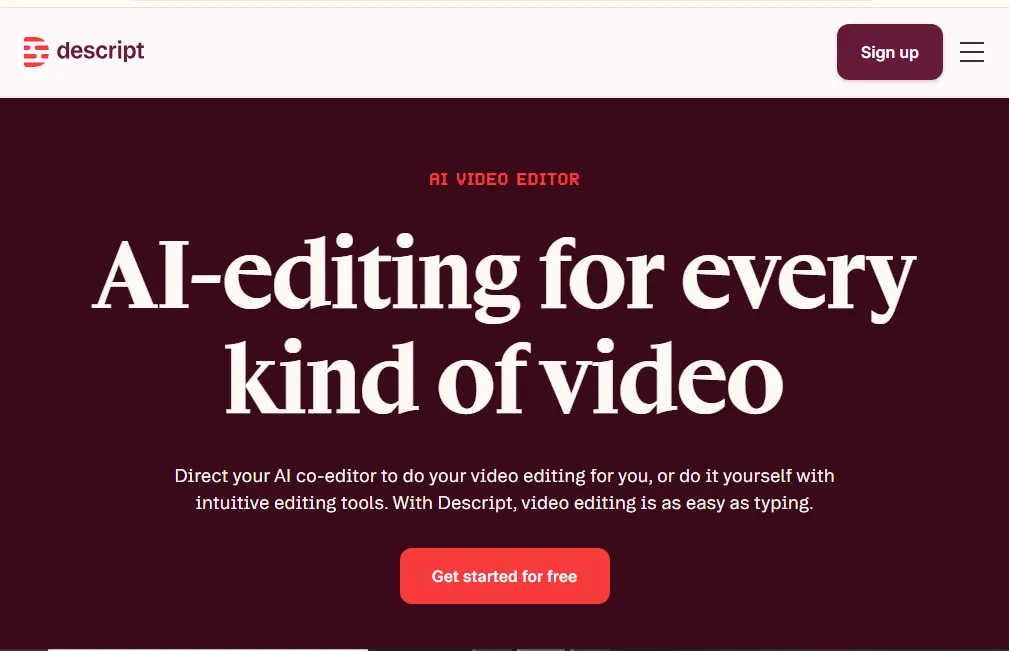
Why It’s Unique
Descript is perfect for:
- Podcast clipping
- Interview highlights
- Webinar repurposing
- Educational content editing
Its AI-powered workflow saves hours of editing time.
Key Features
- Text-based video editing
- AI transcription
- Screen recording
- Overdub voice cloning
- Automatic filler word removal
- Multi-track editing
Performance
Descript runs smoothly on mid-range PCs but works best with a strong internet connection due to AI processing.
Pros
Cons
Best Use Case
Podcasters, coaches, and YouTubers are creating educational or talking-head content.
12. Riverside
Best For: Remote interviews
Platform: Web
Overview
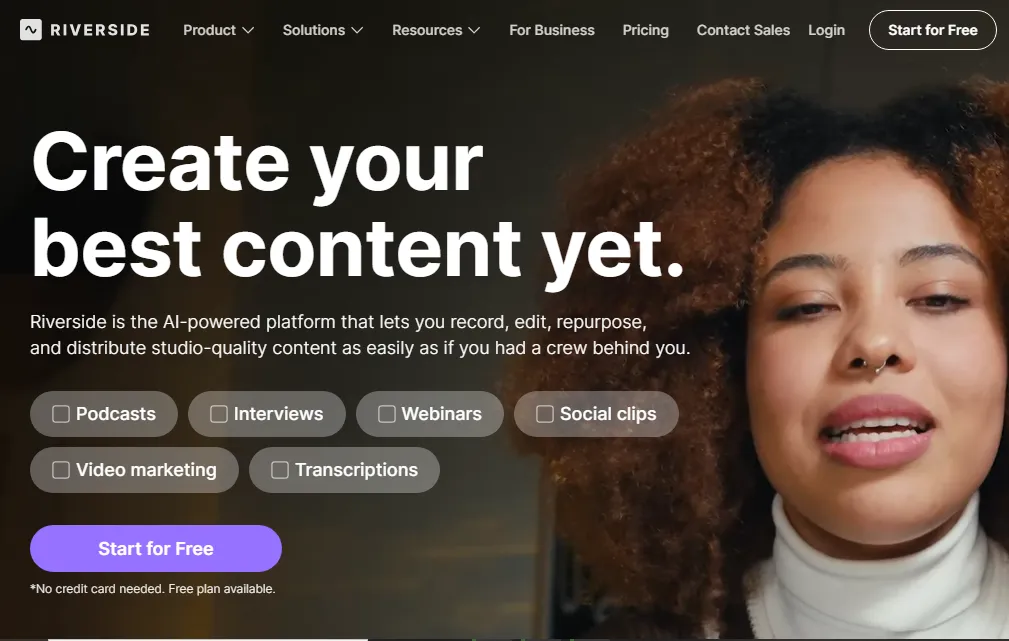
Riverside is a remote recording and clipping platform designed for podcasters, interviewers, and webinar hosts. Unlike traditional meeting apps, it records high-quality local audio and video tracks separately for each participant.
Why It’s Powerful
Even if someone has poor internet, Riverside records locally and uploads afterward — ensuring studio-quality results.
Key Features
- 4K video recording
- Separate audio tracks
- AI clip extraction
- Live streaming integration
- Magic audio enhancement
Clipping Capabilities
Riverside allows:
- Quick highlight extraction
- Social media vertical export
- Automatic captions
Pros
Cons
Best Use Case
Podcast hosts, YouTube interviewers, and remote content creators.
13. Eklipse
Best For: AI gaming clips
Platform: Web
Overview
Eklipse is an AI-powered gaming clipping tool that automatically detects exciting moments in your gameplay and converts them into shareable clips.
It integrates with Twitch and other streaming platforms to pull recorded streams and auto-generate highlights.

Why It Stands Out
Instead of manually reviewing hours of gameplay, Eklipse uses AI to detect:
- Kills
- Headshots
- Multi-kills
- Victory moments
Key Features
- AI highlight detection
- Automatic Twitch clip conversion
- Vertical video export
- Direct TikTok-ready formatting
Pros
Cons
Best Use Case
Streamers who want automatic highlight creation without editing.
14. Clipchamp
Best For: Beginners
Platform: Windows, Web
Overview
Clipchamp is Microsoft’s built-in video editor for Windows. It’s simple, intuitive, and designed for casual users and beginners.

Why It’s Beginner-Friendly
- Drag-and-drop interface
- Simple trimming tools
- Pre-made templates
- One-click export presets
Key Features
- Stock video & audio
- Text overlays
- Basic transitions
- Social media aspect ratios
Pros
Cons
Best Use Case
New creators who need simple trimming and social video exports.
15. Crossclip
Best For: Converting Twitch clips
Platform: Web
Overview
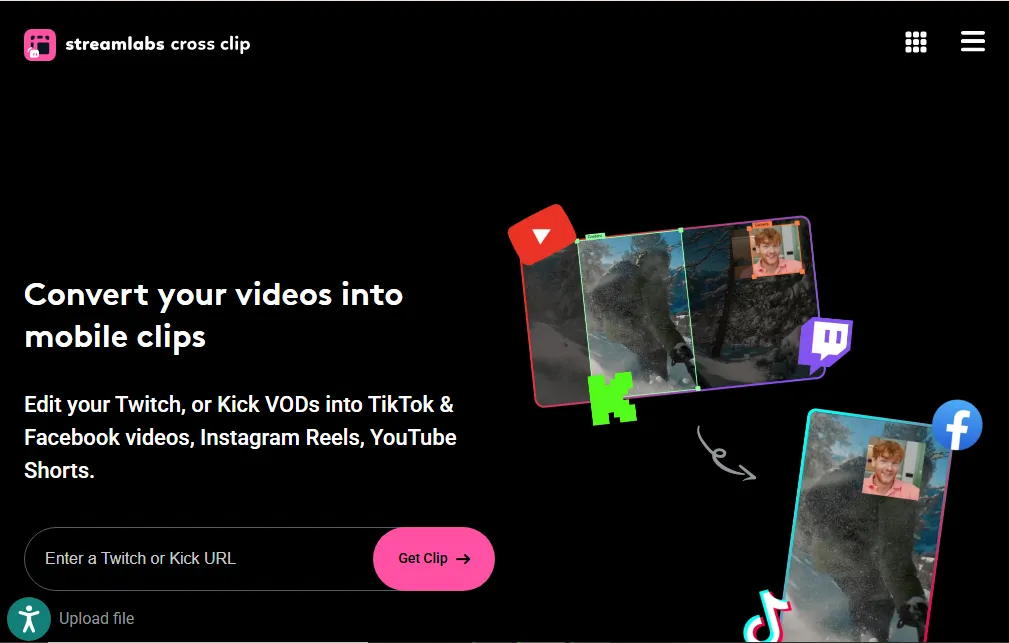
Crossclip is designed specifically for converting horizontal Twitch clips into vertical videos for TikTok, Instagram Reels, and YouTube Shorts. For writers, check Grammarly alternatives.
Why It’s Useful
Streamers often struggle with converting landscape gameplay into vertical formats. Crossclip solves this instantly.
Key Features
- Landscape to vertical conversion
- Auto face-cam detection
- Split-screen layouts
- TikTok export presets
Performance
Since it’s web-based:
- No installation required
- Fast clip processing
- Works on any device
Pros
Cons
Best Use Case
Streamers repurposing Twitch content for short-form platforms.
How to Choose the Best Clipping Software
1. Define Your Purpose
- Gaming highlights
- YouTube editing
- Social media shorts
- Podcast clips
2. Check System Requirements
- Windows or Mac?
- GPU compatibility?
3. Look for AI Features
- Auto-caption
- Auto highlight detection
- Auto reframe
4. Export Options
Ensure it supports:
- 9:16 (TikTok/Reels)
- 16:9 (YouTube)
- 1:1 (Instagram)
Free vs Paid Clipping Software
Free Tools
- OBS Studio
- DaVinci Resolve
- NVIDIA ShadowPlay
- Medal (basic version)
Paid Tools
- Adobe Premiere Pro
- Final Cut Pro
- Descript
- VEED Pro
Free tools are powerful, but paid tools save time with automation.
Best Clipping Software by Category
Best for Gaming:
Medal.tv, Outplayed, ShadowPlay
Best for YouTube:
Premiere Pro, DaVinci Resolve
Best for Shorts:
CapCut, Crossclip
Best Free Option:
OBS Studio
Clipping Software Trends in 2026
- AI auto highlight detection
- Auto captions with high accuracy
- One-click vertical conversion
- Cloud-based editing
- Collaboration tools
AI-powered clipping tools are dominating the market.
Final Verdict: Which Clipping Software Should You Choose?
If you’re a gamer looking for automatic highlights, Medal.tv or Outplayed are excellent.
If you’re a YouTube creator focused on professional editing, DaVinci Resolve or Adobe Premiere Pro provide unmatched control. For short-form social media content, CapCut and Crossclip offer the fastest workflow.
The best clipping software ultimately depends on your goals, system specs, and content strategy. Start with a free tool, test your workflow, and upgrade when you need advanced features. Website owners may prefer the Best WordPress alternatives.